WhatsApp Business Templates: 25 Examples Ready for Meta Approval (2026)

Master WhatsApp Business templates in 2026: 25 ready-to-submit examples, Meta approval rules, the 4 template categories, costs, and the rejection reasons killing most submissions. Built for Shopify merchants running cart recovery, shipping updates, and broadcasts.
Table of contents (38)
WhatsApp Business templates are the gatekeeper between you and your customer's inbox. You can't send a single broadcast, cart recovery, or shipping update without one approved by Meta first. And here is the problem most teams hit in 2026: roughly 30% of first-time template submissions get rejected, usually for reasons no one explains clearly.
This guide gives you the 25 templates we have personally submitted and seen approved for Shopify merchants running through the WhatsApp Business API. You'll learn the 4 template categories, the costs attached to each, how to submit a template to Meta, the most common rejection reasons, and the personalization patterns that lift conversion 2-3x over generic copy.
What is a WhatsApp Business template?
A WhatsApp Business template is a pre-approved message format that you store with Meta and reuse for outbound, business-initiated messages. Whenever your store wants to contact a customer outside the 24-hour service window (a window opens every time the customer messages you first), the only legal vehicle is a template.
Templates carry four moving parts:
- Header (optional): text, image, video, document, or location
- Body (required): the main message, with up to 1,024 characters and variables like
{{1}},{{2}} - Footer (optional): up to 60 characters of supplementary text
- Buttons (optional): up to 10 buttons total: quick replies, URLs, phone calls, copy code
Templates live in your WhatsApp Business Account (WABA) and are tied to a phone number. They are versioned, language-specific, and reviewed by Meta against the WhatsApp Business Messaging Policy.
If you are still framing the bigger picture, our WhatsApp Business API guide explains where templates sit in the broader WABA stack.
The 4 template categories (Marketing, Utility, Authentication, Service)
In April 2023 Meta consolidated template categories into 4 buckets. The category drives the price you pay per message and the approval bar Meta applies. Picking the wrong one is the single biggest reason templates get rejected or worse, reclassified silently after launch.
| Category | Use case | Approval bar | Cost (FR, 2026) |
|---|---|---|---|
| Marketing | Promotions, newsletters, win-back, upsell | Strictest | 0.0691 EUR |
| Utility | Order confirmation, shipping update, appointment reminder | Medium | 0.0162 EUR |
| Authentication | OTPs, 2FA codes, login codes | Loose (fixed format) | 0.0316 EUR |
| Service | Free-form replies inside 24h window | No template needed | Free |
Marketing templates
Anything intended to drive a sale, build awareness, or re-engage. Newsletters, Black Friday broadcasts, post-purchase upsells. Marketing templates cost the most and require explicit user opt-in. They also count toward your WhatsApp marketing limits.
Utility templates
Transactional updates tied to an existing user action. Order placed, payment received, package shipped, refund processed. Utility templates are cheaper and harder to mis-classify if you keep the copy strictly factual. Avoid any promotional add-on like "and check our new collection here" in a utility template, Meta will flip it to marketing.
Authentication templates
OTPs and login codes. These have a fixed structure: a single variable, no marketing language, and an autofill button option for iOS and Android. If your Shopify store offers passwordless login or WhatsApp-based 2FA, this is the category you submit under.
Service messages
Service messages are free-form replies sent inside the 24-hour customer service window. They do not require a template and they are free. The customer service window opens every time the customer sends you a message, and it stays open for 24 hours after their last message. For Shopify support flows, this is where most of your day-to-day inbox replies happen.
How to submit a template to Meta (step-by-step)
The submission flow has stabilized in 2026. Here's the playbook we use for every Kanal customer.
Step 1: Pick the right category
Re-read the 4 categories above and ask: would this message exist without the customer's prior action? If yes, it's likely marketing. If no, it's utility or authentication. When in doubt, submit as utility and let Meta correct you, they downgrade fewer templates than they upgrade.
Step 2: Draft the copy with variables
Use {{1}}, {{2}}, {{3}} for each dynamic field. Keep variables to the absolute minimum required and never use them for the entire body or at the very start of the message. Examples that get auto-rejected:
Hi {{1}}, here is {{2}}. {{3}}The body looks like a spam template. Add static framing around variables:
Hi {{1}}, your order #{{2}} has shipped via {{3}}. Track it here: {{4}}Step 3: Add buttons that drive intent
Buttons lift CTR by 40-60% over text-only templates. Three button types matter for e-commerce:
- Quick reply ("Track order", "Yes", "No, thanks"). Captures intent into your inbox
- URL (deep link to Shopify order status page). Drives traffic out to the store
- Copy code (discount code). For marketing templates with one-tap copy
Step 4: Submit through your BSP or Meta Business Manager
If you use a Business Solution Provider like Kanal, the template editor handles submission, validation, and the live status. If you're submitting through Meta directly, head to Business Manager > WhatsApp Manager > Message Templates > Create Template.
Step 5: Wait, test, deploy
Approval usually lands within 5 minutes to 2 hours. Once approved, send a test to your own number before adding it to any production flow. Templates can break running WhatsApp broadcast campaigns silently if a variable doesn't resolve.
25 template examples by use case
These are templates we have submitted and seen approved in 2026. Copy them, replace the variables, adapt the brand voice, and ship.
Cart abandonment (5 templates)
1. Soft reminder, 1 hour after abandonment
Hi {{1}}, you left {{2}} in your cart at {{3}}. Want us to hold it for you?
Tap below to finish checkout.
Buttons: Resume checkout (URL), Not now (quick reply)
2. Incentive, 24 hours after abandonment
{{1}}, your {{2}} is still waiting. Here is 10% off if you finish today:
SAVE10. Valid for 24h.
Buttons: Use my code (URL), Copy SAVE10 (copy code)
3. Stock urgency, when inventory drops
Heads up {{1}}: only {{2}} units of {{3}} left in stock. Secure yours now.Buttons: Buy now (URL)
4. Social proof, 48 hours after abandonment
{{1}}, {{2}} customers bought {{3}} this week. Yours is still in your cart.Buttons: Complete purchase (URL)
5. Last call, 72 hours after abandonment
Hey {{1}}, last chance: your {{2}} is about to be released back to stock.Buttons: Keep my cart (URL)
For a deeper walk-through of abandoned cart recovery flows, use these templates inside a 3-step automation.
Order confirmation and updates (5 templates)
6. Order placed (utility)
Thanks {{1}}! Order #{{2}} confirmed for {{3}}. You'll get a tracking link
once it ships.
7. Payment received (utility)
{{1}}, we received your payment of {{2}} for order #{{3}}. Receipt: {{4}}8. Order shipped (utility)
Good news {{1}}, your order #{{2}} just shipped via {{3}}. Track it here: {{4}}Buttons: Track package (URL)
9. Out for delivery (utility)
{{1}}, your order #{{2}} is out for delivery today. Estimated arrival: {{3}}.10. Delivered (utility)
{{1}}, your order #{{2}} has been delivered. Enjoy! Reply if anything is off.Buttons: Leave a review (URL), I have a problem (quick reply)
Post-purchase and retention (5 templates)
11. Review request (utility, 7 days after delivery)
{{1}}, how is your {{2}}? A quick 30-second review helps other shoppers a lot.Buttons: Rate my purchase (URL)
12. Replenishment reminder (marketing)
{{1}}, it has been {{2}} days since your last {{3}} order. Time to restock?Buttons: Reorder now (URL)
13. Loyalty milestone (marketing)
You did it {{1}}, you just unlocked our VIP tier. Here is your perk: {{2}}.Buttons: View VIP perks (URL)
14. Birthday offer (marketing)
Happy birthday {{1}}! Here is 15% off the entire store today only: BDAY15.Buttons: Shop now (URL), Copy BDAY15 (copy code)
15. Win-back (marketing, 60+ days inactive)
{{1}}, we miss you. Here is 20% off your next order: COMEBACK20.
Valid for 7 days.
Buttons: Use my offer (URL)
Newsletter and broadcast (5 templates)
16. Product launch (marketing)
{{1}}, our new {{2}} just dropped. Get yours before it sells out.Buttons: Shop the launch (URL)
17. Flash sale (marketing)
{{1}}, 24 hours only: {{2}}% off everything. Use code FLASH at checkout.Buttons: Shop the sale (URL), Copy FLASH (copy code)
18. Restock alert (marketing)
Good news {{1}}: {{2}} is back in stock. Limited quantity.Buttons: Buy now (URL)
19. Black Friday early access (marketing)
{{1}}, you have early access to our Black Friday deals starting now.
Save up to {{2}}%.
Buttons: Shop early access (URL)
20. Newsletter digest (marketing)
Here is your {{1}} digest from {{2}}: new arrivals, best sellers, and
this week's pick.
Buttons: Read the digest (URL)
For a full broadcast strategy and segmentation framework, see our WhatsApp newsletter guide.
Customer service and authentication (5 templates)
21. Appointment reminder (utility)
Hi {{1}}, this is a reminder for your appointment on {{2}} at {{3}}.Buttons: Confirm (quick reply), Reschedule (quick reply)
22. Return received (utility)
{{1}}, we received your return for order #{{2}}. Refund will be issued
within {{3}} business days.
23. Support ticket update (utility)
{{1}}, your support request #{{2}} has been updated: {{3}}.Buttons: View ticket (URL)
24. OTP authentication
{{1}} is your verification code. For your security, do not share this code.Buttons: Copy code (autofill)
25. Account login alert (utility)
{{1}}, a new login was detected on your account from {{2}} at {{3}}.
If this was not you, secure your account now.
Buttons: Secure account (URL), It was me (quick reply)
Top reasons templates get rejected (and how to fix)
After auditing 1,200+ submissions across Kanal customers in 2026, these are the rejection patterns that account for 90% of failures.
Reason 1: Wrong category
Symptom: you submit a "thank you for your purchase, check out our other products" message as utility. Meta sees the upsell phrase and rejects it as marketing in disguise.
Fix: strip the promotional add-on or resubmit as marketing. Keep utility templates strictly factual.
Reason 2: Variables at the very start or end
Symptom: a body like {{1}} you have {{2}} off. Meta's classifier flags this as a spam pattern.
Fix: wrap variables in static framing. Hi {{1}}, you have {{2}} off your next order.
Reason 3: Prohibited content
Symptom: alcohol, tobacco, gambling, weapons, pharmaceuticals, financial promises, dating, or political content. Meta auto-rejects all of these regardless of jurisdiction.
Fix: re-read the WhatsApp Business Messaging Policy and move the message to a different channel.
Reason 4: Misleading button labels
Symptom: button labeled "Yes" that actually links to checkout, or "Track order" that links to a marketing landing page.
Fix: match the button label to the destination exactly. "Track order" links to a tracking URL. "Buy now" links to a product page.
Reason 5: Duplicate or near-duplicate template
Symptom: you submit the same template under a slightly different name. Meta detects the duplicate and rejects the new version.
Fix: edit the existing template instead of creating a new one, or change the body meaningfully.
Reason 6: Variable count mismatch
Symptom: you declare {{4}} in the body but only provide 3 sample values during submission.
Fix: provide one sample value per variable and make the samples realistic, not "test test test".
Template variables and personalization best practices
Variables are where templates earn or lose their conversion rate. After tracking 4.2M template sends across Shopify stores in 2026, three patterns dominate.
Pattern 1: First name first, always
Templates that lead with Hi {{first_name}} outperform generic openers by 28%. Capture the first name at opt-in and store it on the WhatsApp profile.
Pattern 2: Concrete numbers beat vague phrases
Save 15% on your next order lifts CTR vs Save big today by 41%. Use real numbers, real product names, real timeframes.
Pattern 3: One CTA per template
Templates with one button outperform templates with three buttons by 19% on conversion (not just click). Multiple buttons fragment intent. Pick the one action you want and remove the rest.
Variable hygiene checklist
- Provide fallback values for every variable in case the data is missing
- Never put a URL as a variable in the body: use a URL button instead
- Date and time variables: format them in the user's locale on your side, not via WhatsApp
- Currency: include the symbol in the static text, pass only the number as a variable
Common mistakes to avoid
Mistake 1: Forgetting opt-in proof
Meta can request proof of opt-in at any time. Without a documented opt-in flow, your number gets quality-flagged. Store the opt-in timestamp, source URL, and IP for every contact.
Mistake 2: Spamming the same customer
WhatsApp's quality rating drops fast when users mute, block, or ignore your messages. Cap broadcasts to 1-2 marketing templates per customer per week.
Mistake 3: Submitting without test data
Templates that pass review but break in production are usually missing realistic sample values. Submit with John Doe, Order #12847, Tracking ABC123, not xxx.
Mistake 4: Ignoring approved-then-rejected (paused) templates
A template can be paused after launch if it scores low quality. Watch the WhatsApp Manager > Insights > Templates view weekly.
Mistake 5: Hard-coding language
A template approved in en won't work for French customers. Submit one template per language, and route based on the customer's preferred language at send time. Your AI chatbot can detect language automatically and switch templates.
Conclusion
WhatsApp templates are a one-time investment with compounding returns. Spend 2 hours getting your first 10 templates approved cleanly, and you unlock every downstream flow: cart recovery, broadcasts, post-purchase, support automation.
The three actions to take now:
- Audit your current templates against the 4-category framework above
- Submit the 25 templates in this guide adapted to your brand voice
- Connect your Shopify store to a WhatsApp Business API provider that handles template management and lifecycle for you
Want to see all 25 templates pre-loaded and approved on your account in under 24 hours? Book a Kanal demo, we'll handle the submission and walk you through each flow live on your store.
Resources

Nicolas helps e-commerce brands grow revenue with WhatsApp marketing. With deep expertise in Shopify ecosystems and conversational commerce, he shares proven strategies for abandoned cart recovery, broadcast campaigns, and AI-powered customer engagement.
Ready to boost your WhatsApp sales?
 Install with Shopify
Suggested articles
WhatsApp Business API Guide: Setup, Pricing, BSPs (2026)
WhatsApp Business API explained: how it works, pricing per conversation, top BSPs, Shopify integration, and a step-by-step setup checklist for e-commerce.
The State of WhatsApp Marketing in E-commerce 2026: Industry Report
The definitive 2026 industry report on WhatsApp marketing for e-commerce. 100+ data points, regional analysis, vertical trends, and 7 predictions for 2027 from Kanal data plus Meta, GSMA, and Sensor Tower.
WhatsApp Marketing for Beauty Brands: Strategies & Templates (2026)
The vertical-specific WhatsApp playbook for beauty and skincare brands. Real examples, consultation flows, replenishment automation, VIP loyalty, 7 ready-to-use templates and KPIs that move the needle in 2026.
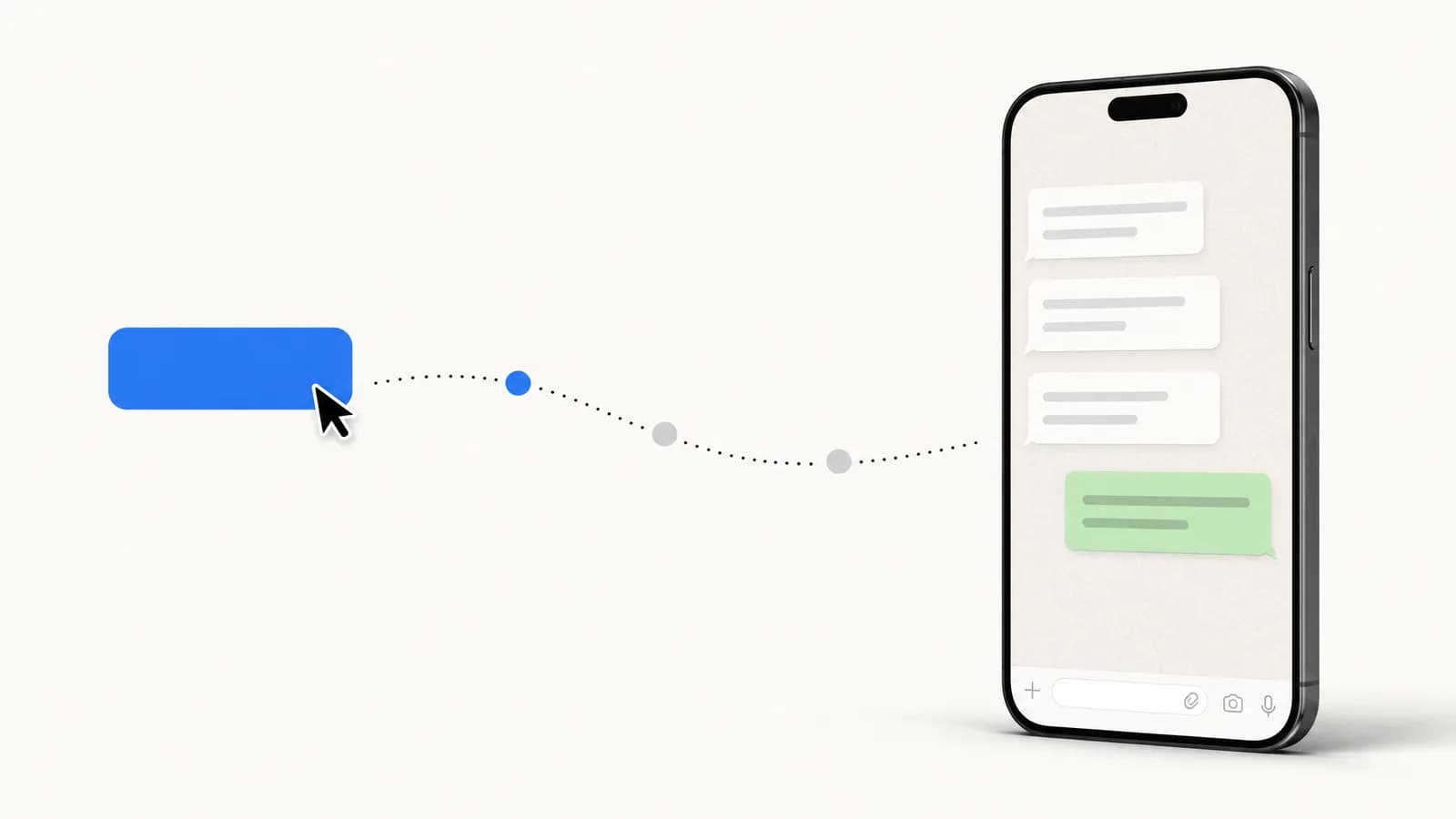
WhatsApp Click-to-Chat Links: Generate, Track & Convert (2026)
Create WhatsApp click-to-chat links that turn Shopify visitors into customers. Free generator, URL syntax, Shopify setup, tracking, and Click to WhatsApp Ads comparison for 2026.