Shopify Shipping Rates: Types, Setup and Plan Requirements
Shopify shipping rates explained: flat, order amount, weight, free and carrier-calculated rates, local delivery, pickup, setup steps and plan rules.
 Nicolas ProvostOct 7, 2026 · 12 min read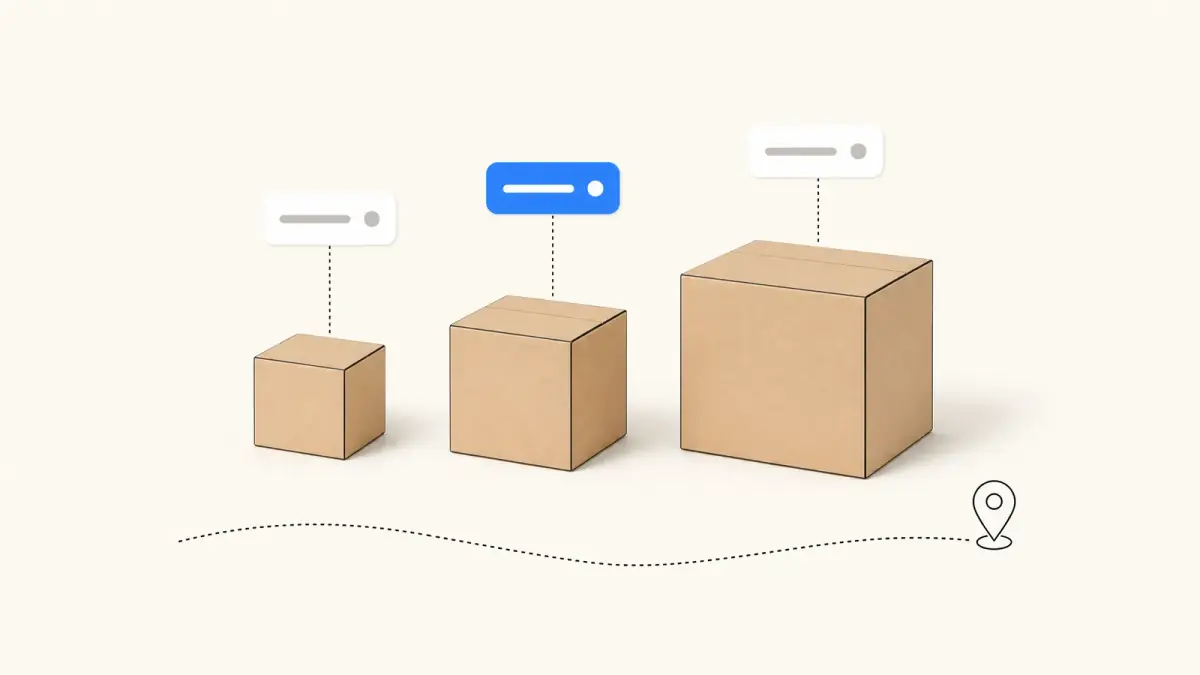
Summarize this article with an AI
 ChatGPT
 Claude
Table of contents (15)
Key takeaways
- Shopify shipping rates are set in Settings > Shipping and delivery as flat, order amount, weight, free or carrier-calculated rates.
- Built-in carrier rates are on all plans, while your own carrier account requires Advanced or Plus, or Grow with a fee or annual billing.
- Leave the Maximum field empty on your highest tier and put a weight on every product to avoid shipping errors at checkout.
Shopify shipping rates are the amounts your customers pay for shipping at checkout, and you set them in Settings > Shipping and delivery. Shopify documents three main kinds: flat rates that you set (fixed, by order amount or by weight), free shipping, and carrier-calculated rates, where a carrier such as UPS, FedEx or USPS determines the cost from the order details (Shopify Help Center, as of October 7, 2026).
This guide goes through each kind of rate, the plan each one requires, the setup steps with the labels of the Shopify admin, and the limits Shopify documents. It covers what your customers pay at checkout, and separately what you pay for shipping labels. All facts were read on Shopify's own pages on October 7, 2026.
What kinds of shipping rates does Shopify offer?
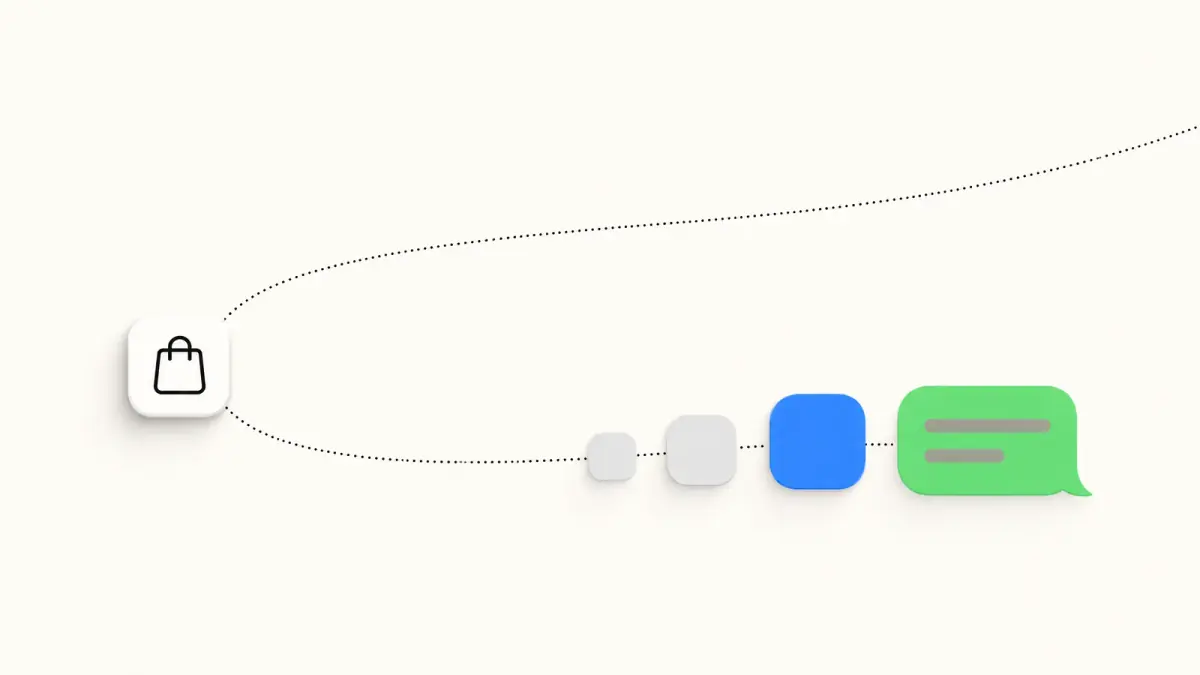
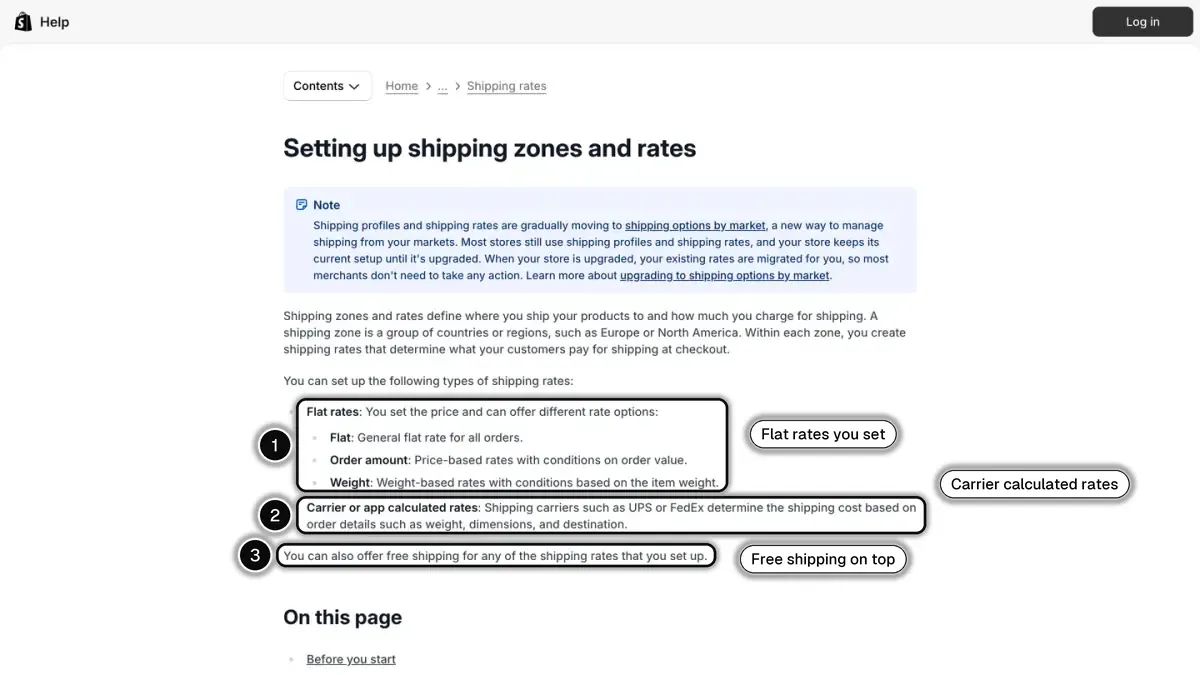 In 1, the flat rates you set; in 2, carrier or app calculated rates; in 3, free shipping, which you can offer on top.
| Rate | Who sets the price | How it is calculated |
|---|---|---|
| Flat | You | One price for all orders covered by the rate |
| Order amount | You | Price ranges based on the total value of the order |
| Weight | You | Price ranges based on the combined weight of the items |
| Free shipping | You | A price of 0, or an "Offer free shipping" threshold on any rate |
| Carrier or app calculated | A carrier or an app | Weight, dimensions, origin, destination, speed |
| Local delivery | You | A delivery price per zone around a location |
| Pickup in store | Not applicable | The customer collects the order at a location |
Sources: Setting up shipping zones and rates and Creating a shipping strategy, Shopify Help Center, as of October 7, 2026.
Three notions organize all of this:
- A shipping profile lets you create different shipping rules for specific products and locations.
- A shipping zone is a group of countries or regions that share the same rates. Within a group of locations in a profile, a country or region can exist in only one zone.
- A market: to sell to a country, it must be in an active market. Customers in inactive markets can't place orders even when their country is in a zone with rates.
One note from Shopify before you start: shipping profiles and rates are "gradually moving to shipping options by market". Most stores still use shipping profiles, a store keeps its setup until it is upgraded, and existing rates are migrated automatically. The steps below describe shipping profiles.
Also, a new store is not empty. Shopify creates default shipping rates for you, domestic and international, and notes that they frequently include a free shipping rate. Review them before you accept orders.
How do flat shipping rates work on Shopify?
A flat rate is a price you decide. Shopify's example: $10 for all orders, $5 for orders over $50, or free shipping for orders over $100. By default, a flat rate applies one time per order, whatever the number of products.
Set up a flat rate
- From your Shopify admin, go to Settings > Shipping and delivery.
- In the Shipping profiles section, click the profile you want to edit.
- Optional: in the Shipping zones section, click Add zone, enter a Zone name, select the countries and regions, and click Done.
- For the zone, click Add shipping option.
- In the Name field, enter the name customers will see at checkout.
- From the Rate type drop-down menu, select Flat.
- In the Price field, enter the amount. To make the rate free, leave the field empty or enter 0.
- Optional: choose a Transit time to display at checkout.
- Click Done, then Save.
Order amount and weight rates
For the other two flat types, select Order amount or Weight as the rate type, then enter a Minimum, a Maximum and a Price for each range.
Shopify's order amount example: $24.99 shipping from $0 to $100, $9.99 from $100.01 to $200, and free above $200.01. Its weight example: $4.99 from 0 lb to 0.99 lb, $9.99 from 1 lb to 4.99 lb, and $19.99 from 5 lb to 9.99 lb.
Two warnings come with ranges:
- Coverage gaps. If an order falls outside your tiers, no rate applies and the customer gets a shipping error at checkout. Shopify's fix is to leave the Maximum field empty on your highest tier.
- Missing weights. Weight-based rates need a weight on every product. Without it, rates don't calculate correctly.
When an order mixes products from several shipping profiles, Shopify combines the rates. Its example: a $5 rate active in two profiles gives a combined rate of $10 at checkout for an order with products from both.
How do you offer free shipping on Shopify?
Shopify documents four ways:
| Goal | Method |
|---|---|
| Free shipping on every order of a zone | A flat rate with an empty price or 0 |
| Free shipping above an order value | Offer free shipping on a shipping option, with a minimum amount |
| Free shipping on certain products | A custom shipping profile with those products and a free flat rate |
| Free shipping for certain customers | A free shipping discount code |
Source: Shopify Help Center, as of October 7, 2026.
Shopify's strategy page describes the trade-off plainly: free shipping usually has a positive impact on cart conversion and a threshold can increase order value, but "shipping is never actually free", so part of the cost has to be included in product prices. Our guides to average order value and ecommerce conversion rate cover the two metrics a threshold moves.
What are carrier-calculated shipping rates, and which plans get them?
With carrier-calculated rates, the carrier determines the price at checkout from the shipping origin and destination, the weight, value and dimensions of the shipment, and the requested speed of delivery. You don't estimate anything yourself, but Shopify notes two drawbacks: you can't display these rates before checkout, and they require exact product weights and package dimensions.
There are two different cases, with different plan rules.
Built-in carrier integrations: all plans
Shopify has built-in integrations that are "available on all plans". The availability table on October 7, 2026:
| Fulfillment location | Carrier-calculated rates available |
|---|---|
| United States | USPS, DHL and UPS |
| Canada | Canada Post and Purolator |
| United Kingdom | DPD UK, InPost UK and Royal Mail |
| Italy | BRT |
| Germany | DHL Paket |
| Spain | Seur |
Source: Shopify Help Center, as of October 7, 2026.
Your own carrier account: Advanced, Plus, or Grow with a condition
To display the rates of your own UPS, FedEx, USPS, Canada Post or Australia Post account, you need what Shopify calls third-party carrier-calculated shipping (CCS).
| Plan | Third-party carrier-calculated shipping |
|---|---|
| Grow | Available for an additional monthly fee, or included with annual billing |
| Advanced | Included in plan |
| Plus | Included in plan |
| All other plans | Not available |
Source: Third-party shipping carrier accounts and availability, Shopify Help Center, as of October 7, 2026.
The Help Center does not publish the amount of the monthly fee on Grow: it says to contact Shopify Support to add it. Our Shopify pricing guide compares the plans.
Set up a carrier-calculated rate
Follow the same path as a flat rate (Settings > Shipping and delivery, a profile, Add shipping option), then:
- From the Rate type drop-down menu, select Carrier or app calculated.
- Click Choose carrier and apps and select a carrier or app.
- Select the shipping services to display at checkout.
- Optional: in the Handling fee section, enter a percentage or a fixed amount to add to the carrier rate.
- Click Done, then Save.
The handling fee can mark a rate up or down. Shopify specifies the order of operations: the percentage is calculated before the flat fee is added, so a $5.00 rate with a 50% markup and a $1.00 flat fee costs the customer $8.50. To discount, enter a negative value such as -5%.
Backup rates
If a carrier or app fails to return rates, Shopify displays backup shipping rates so the customer can still check out. They apply by default wherever you have calculated rates, and are used when all calculated rates for a shipment fail and no other eligible rate is available. For the US, the backup carrier listed is USPS. To rely on them less, Shopify suggests adding flat rates for the same destinations.
How do local delivery and pickup in store work?
Both are set under Settings > Shipping and delivery, per location.
Local delivery. You offer delivery within a radius of a location or to a list of postal codes. The Help Center documents these limits:
- The maximum delivery radius is 100 miles (160 kilometers).
- Up to 10 delivery zones per location, and up to 3 additional price-based rules per zone.
- Local delivery works with Shop Pay but not with other accelerated checkouts such as Apple Pay, Google Pay, Amazon Pay or PayPal.
- Customers can't have some items shipped and others delivered locally on the same order.
Pickup in store. In the Additional delivery methods section, click Pickup in store, choose a location and activate Let customers pick up orders directly at this location. You need at least one location that fulfills online orders (Help Center). A customer can have some items shipped and some picked up in the same order.
How are Shopify shipping labels priced?
The rates above are what customers pay you. Shipping labels are what you pay a carrier, and Shopify sells them at a discount from your admin.
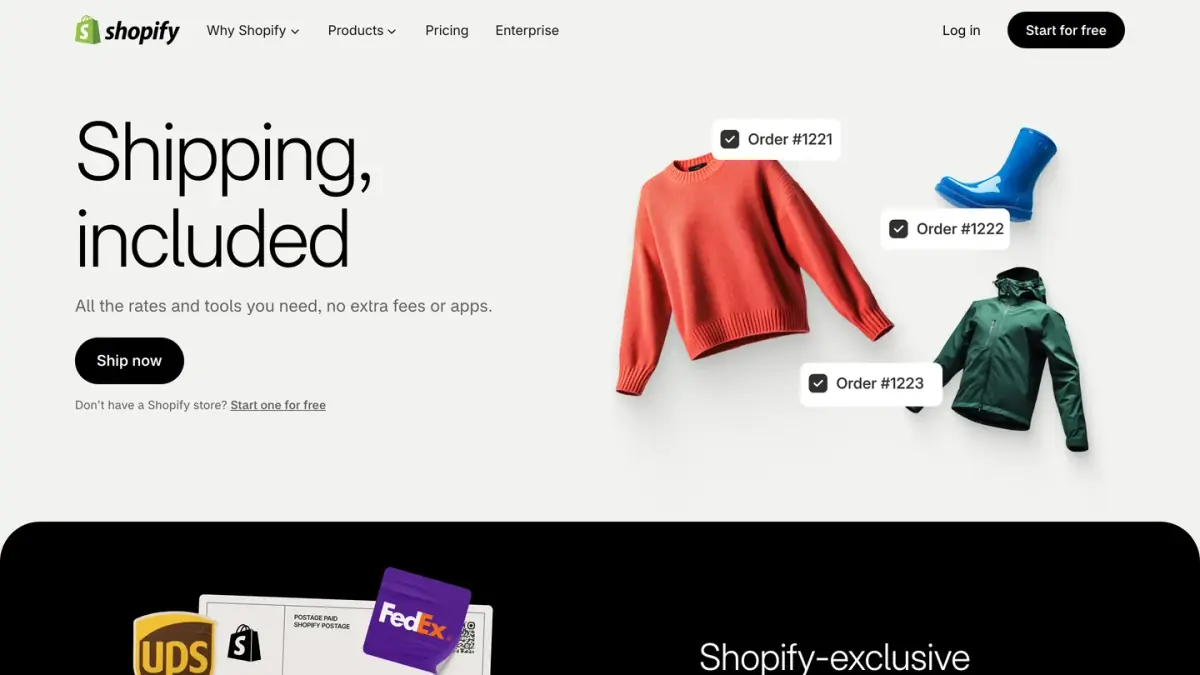
Shopify does not publish a single price list for labels. Its label rates page states that discounts vary by package type, weight, destination and origin, and that the amount depends on your location, your plan and the carrier. It adds that discounts "don't always change with your subscription plan". To see your own prices:
- Go to Settings > Shipping and delivery.
- In the Shipping section, click Shipping labels, then Calculate rates.
- Select the origin, the destination and the package, then click Calculate discounted rates.
Labels are billed to your Shopify account through threshold billing: once your label spending reaches your threshold within a billing cycle, you are invoiced immediately. Shopify's example uses a $400 threshold.
The checkout rate and the label price are calculated separately, so they don't always match. Shopify lists the usual reasons: a different package at label purchase, a checkout rate that came from a third-party app, a manual rate chosen by the customer, or a label bought from another carrier than the one the customer selected. For the closest match, it recommends using Shopify rates at checkout and buying labels in Shopify, or a third-party app for both.
Which shipping strategy should you choose?
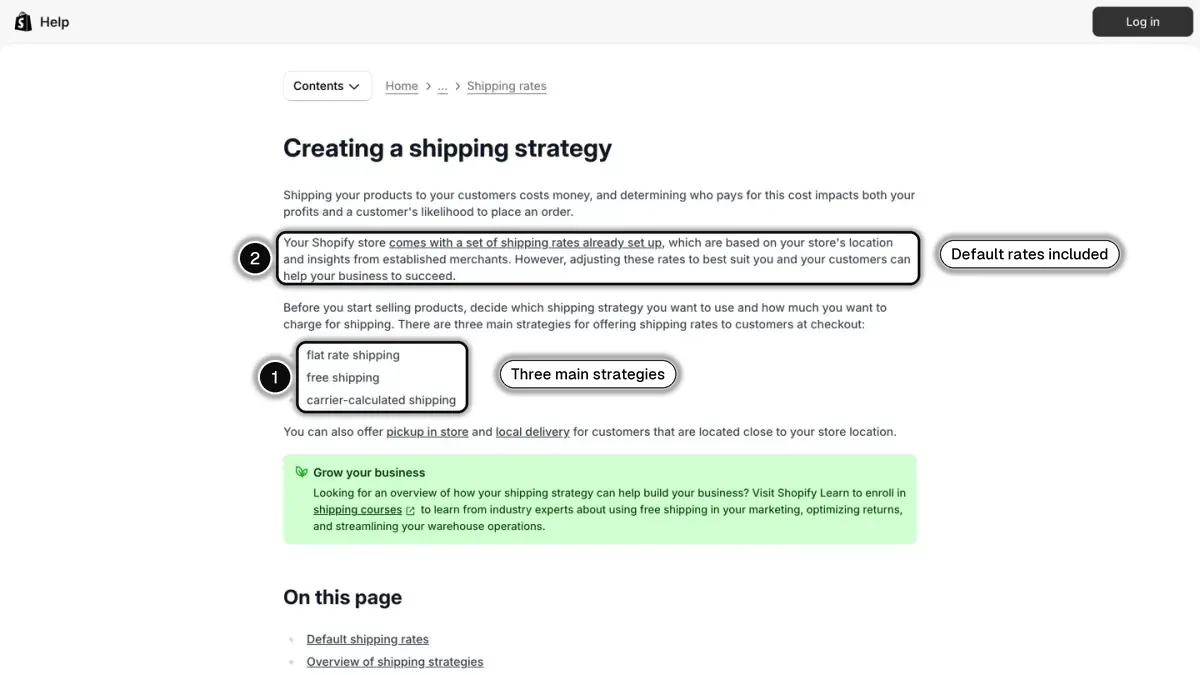 In 1, the three main strategies; in 2, the rates every store starts with.
Shopify's own comparison, summarized:
| Strategy | Benefits | Drawbacks |
|---|---|---|
| Flat rate | Clear expectations before checkout, works with transit times | You estimate costs yourself and adjust when they change |
| Free shipping | Can be used in marketing, can raise order value with a threshold | The cost has to be absorbed in prices or margin |
| Carrier-calculated | Exact cost charged, no estimate needed | No rate shown before checkout, needs exact weights and dimensions |
Source: Creating a shipping strategy, Shopify Help Center, as of October 7, 2026.
Before you settle on a flat rate or a threshold, estimate what an average parcel costs you with our shipping calculator, and check the effect on margin with the profit margin calculator.
What happens after the rate is paid?
Once the order is placed, shipping becomes a communication topic: confirmation, tracking, delivery. Shopify has its own store notifications, and apps add other channels. Kanal, a WhatsApp marketing and sales app for Shopify stores, sends order notifications on WhatsApp, such as the order confirmation and shipping updates. Our comparison of Shopify order tracking apps covers the wider category, and our guide to "where is my order" requests explains how to keep them down once parcels are on their way.
Shopify shipping rates in short
- Rates are set in Settings > Shipping and delivery, inside shipping profiles and zones.
- You set flat, order amount and weight rates yourself. Free shipping is a price of 0 or a threshold.
- Built-in carrier rates are available on all plans. Your own carrier account requires Advanced or Plus, or Grow with a fee or annual billing.
- Local delivery and pickup are configured per location.
- Label prices are separate from checkout rates: check yours with Calculate rates.
- Close the gaps: an empty Maximum on the top tier, a weight on every product.
See Kanal on your own store
- Your campaigns and cart reminders on WhatsApp, starting from your own store
- Post-purchase offers, back-in-stock alerts, then the AI agent that advises your customers
- You leave with the plan that fits and its price
From €89/month
- brands
- 500+
- to set up
- 5 min
- open rate on WhatsApp
- +90%
Nicolas helps e-commerce brands grow revenue with WhatsApp marketing. With deep expertise in Shopify ecosystems and conversational commerce, he shares proven strategies for abandoned cart recovery, broadcast campaigns, and AI-powered customer engagement.