WhatsApp Web Not Working: 12 Solutions to Fix It (2026)
WhatsApp Web not working? Open web.whatsapp.com, then try 12 fixes for loading, QR code and sync problems, supported browsers, and networks that block it.
 Nicolas ProvostMay 19, 2026 · 13 min read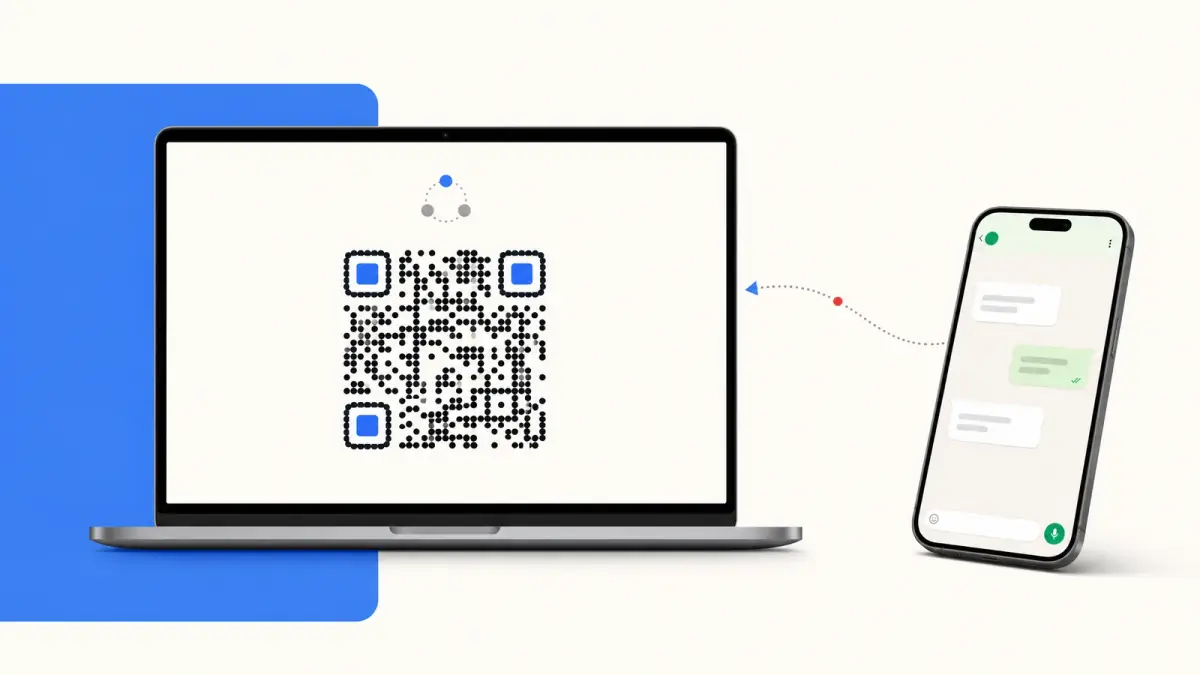
Summarize this article with an AI
 ChatGPT
 Claude
Table of contents (27)
Key takeaways
- WhatsApp Web lives at web.whatsapp.com and is linked from your phone, under Linked devices, by scanning the QR code.
- When it stops working, refresh the page, clear the browser's cache and cookies, log out and link the device again, then try another network.
- Linked devices are logged out if your phone goes unused for over 14 days, or after 30 days of inactivity on the linked device.
WhatsApp Web lives at web.whatsapp.com: you open it in a desktop browser and link it from your phone, under Linked devices. If it is not working, start with the fixes WhatsApp itself lists: refresh the page, clear the browser's cache and cookies, log out and link the device again, then try another network.
You opened web.whatsapp.com, scanned the QR code, and nothing happened. Or the QR refreshes forever. Or you were logged in this morning and now messages are stuck on "Loading...". WhatsApp Web is a convenient way to chat from a computer, but it breaks more often than people realize. The good news: failures come down to 4 root causes, each with a known fix. This guide walks through every fix in order, from the fastest reset to the workaround Shopify merchants use when the consumer Web tool simply cannot scale to a real business.

1. Why WhatsApp Web Fails (the 4 Root Causes)
Before clicking through 12 fixes blindly, understand what actually breaks. WhatsApp Web is a thin client. It runs in your browser, syncs through Meta's servers, and used to depend on your phone being online. Today, WhatsApp says linked devices work without the phone connected. Failures cluster into four buckets:
- Session expiry. Linked devices are logged out if your phone goes unused for over 14 days, and WhatsApp disconnects a linked device after 30 days of inactivity. A browser that clears its cookies ends the session too.
- Browser environment. Ad blockers, privacy extensions, outdated Chromium, or aggressive content scripts can break WebSocket connections to
web.whatsapp.com. - Network and DNS. Corporate Wi-Fi, ISP throttling, VPN routing, or a dropped IPv6 path frequently break the long-lived connection that powers real-time sync.
- Phone-side problems. WhatsApp Web no longer needs the phone online to work, but you still need the phone to link a device, and an outdated or battery-restricted WhatsApp on the phone can get in the way.
Start with fix 1 (re-pair) and fix 2 (clear cache): they are the quickest to try. The rest are for stubborn cases.
The session rules above come from WhatsApp's Help Center (About linked devices, read on October 7, 2026). If the session ended because you changed handsets, our guide on moving WhatsApp to a new phone covers the steps to take before you link the browser again.
If you eventually realize WhatsApp Web is not the right tool for handling customer messages at scale, jump to section 13 or read our WhatsApp Business API guide for the proper alternative.
2. Fix 1: Re-Pair Your Phone (the Universal Reset)
This is the first fix to try. Steps:
- On your phone, open WhatsApp and go to Settings - Linked devices.
- Tap your current Web session and choose Log out.
- Back on your computer, open
https://web.whatsapp.comin a fresh tab. - Scan the new QR code.
If the QR never appears or never refreshes, the problem is browser-side, move to fix 2.
3. Fix 2: Clear Browser Cookies and Cache
WhatsApp Web stores its session in IndexedDB, localStorage, and cookies for the web.whatsapp.com domain. When those caches go corrupt (mid-update, mid-extension-conflict), nothing else will work until you wipe them.
In Chrome:
- Click the padlock icon in the address bar
- Choose Site settings
- Click Clear data
- Reload the page and scan the QR again
In Firefox: about:preferences#privacy then Manage Data and search for whatsapp.com.
For a nuclear option, clear all cookies and cache for the last hour. You will lose some other site sessions but WhatsApp Web will boot fresh.
4. Fix 3: Disable Browser Extensions and Ad Blockers
Extensions to check first:
- uBlock Origin with strict third-party blocking
- Ghostery
- Privacy Badger
- AdGuard
- Honey and other coupon extensions injecting scripts
- LastPass / 1Password autofill on heavy-DOM pages
Open WhatsApp Web in an Incognito / Private window with extensions disabled. If it works, you have your culprit. Allowlist web.whatsapp.com in the offending extension and reload.
5. Fix 4: Check Your Phone's Battery Saver and VPN
Linked devices work without your phone online, but the phone still matters at two moments: when you scan the QR code to link, and right after, when it sends the linked device a copy of your recent message history. Battery saver modes on Android, particularly Xiaomi MIUI, OPPO ColorOS, Huawei EMUI, and Samsung's "Adaptive battery", aggressively kill background apps.
Fix on Android:
- Open Settings - Apps - WhatsApp - Battery
- Set to Unrestricted (Samsung) or No restrictions (Xiaomi)
- Disable Wi-Fi assistant or VPN if active
- On iOS, go to Settings - WhatsApp - Background App Refresh and turn it on
Aggressive VPNs (NordVPN's kill switch, country-blocked tunnels) can also break the persistent connection. Pause the VPN and retest.
6. Fix 5: Use a Different Browser
Some Web breakages are scoped to one Chromium build. Quick triage:
- Try Edge if you are on Chrome (or vice versa)
- Try Safari on Mac (Safari support is solid since 2023)
- Avoid Brave, Tor Browser, or hardened forks for WhatsApp Web, they routinely block the WebSocket connections
Which browsers support WhatsApp Web?
WhatsApp's Help Center lists the latest versions of Chrome, Firefox, Microsoft Edge, Opera and Safari, and says WhatsApp Web will not work with some older browsers, including Internet Explorer (How to fix connection issues, Web tab, read on October 7, 2026). If your browser is on that list, update it before anything else.
If Web works in Edge but not Chrome, the problem is profile-specific in Chrome. Either create a fresh Chrome profile or use the WhatsApp Desktop app instead.
7. Fix 6: Check the connection on your computer and your phone
Start with the computer: if WhatsApp Web shows a yellow "Computer not connected" warning, the browser has no working internet connection, and refreshing the page once the connection is back is usually enough. The phone matters less than it used to, since linked devices work without it, but a phone that is offline cannot link a new device or send it your recent messages.
Easy to forget. If your phone dropped to 1 bar of 3G or switched to a hotel Wi-Fi that requires a captive portal you never validated, linking and the first sync will stall.
Test:
- Open WhatsApp on your phone
- Send yourself a message via the Message yourself chat
- If it sticks on the clock icon, your phone is offline
Quick fixes: toggle airplane mode, re-join Wi-Fi, validate captive portals, or switch to cellular data.
8. Fix 7: Update WhatsApp on Your Phone
WhatsApp regularly deprecates older client versions, and once your phone is two major versions behind, multi-device sync starts behaving unpredictably. Check the Play Store or App Store for an update.
If your phone is too old to run a supported system, WhatsApp itself stops working on it: as of October 7, 2026, WhatsApp supports Android 6.0 and newer and iOS 15.1 and newer, and only iOS 15.5 and newer from November 30, 2026 (About supported devices).
9. Fix 8: Reset Network Settings (DNS, Router Restart)
A flaky DNS resolver is a surprisingly common cause. Try:
- On Mac: System Settings - Network - Wi-Fi - Details - DNS, add
1.1.1.1and8.8.8.8 - On Windows: Settings - Network - Advanced settings, add the same DNS
- Power cycle your router (30 seconds unplugged)
- If on corporate Wi-Fi, ask IT whether
web.whatsapp.comor the underlying*.whatsapp.netdomains are allowlisted
Corporate firewalls and school networks frequently block WhatsApp's media servers, which makes Web load chats but not images.
WhatsApp Web blocked at work or on campus Wi-Fi
WhatsApp's Help Center names office and university campus Wi-Fi as a cause of connection problems. Its advice has two steps. First, confirm the cause: connect the computer to another Wi-Fi network or to your phone's hotspot. If WhatsApp Web loads there, your usual network is blocking it. Second, ask the network administrator to let traffic through to web.whatsapp.com and to addresses ending in .whatsapp.net.
If your employer blocks WhatsApp on purpose, that is a policy to discuss with IT, not a bug to work around.
10. Fix 9: Check If WhatsApp Is Down
Before assuming the problem is yours, confirm Meta is not having an outage. Useful tools:
- Downdetector WhatsApp page
- Meta status page
- Twitter / X search for
#whatsappdown
If everyone is reporting issues, the problem is on Meta's side: just wait it out.
11. Fix 10: Log Out From All Sessions Then Re-Login
Sometimes a stale session ghost is silently blocking new logins. On your phone:
- Settings - Linked devices
- Tap each entry and Log out
- Optionally Log out from all devices
- Re-scan QR fresh in your preferred browser
This also catches the security case where someone (or an old laptop you forgot about) still has an active Web session you do not want.
12. Fix 11: Try WhatsApp Desktop (the Native App)
If browser-based Web stays broken, the WhatsApp Desktop app for Windows and macOS runs outside your browser, which sidesteps many browser-side bugs. It uses the same multi-device sync, so messages mirror correctly. WhatsApp's Help Center sends Windows users to the Microsoft Store and Mac users to the WhatsApp download page or the Apple App Store, and lists the system versions each app requires: see How to download WhatsApp Desktop, read on October 7, 2026.
For a side-by-side comparison of Web, Desktop, and the Linked Devices flow, read our WhatsApp Business Web and Desktop guide.
13. Fix 12: Switch to WhatsApp Cloud API (the Ecommerce Workaround)
This is the fix nobody talks about, but it is the durable answer if you are running a business. WhatsApp Web was designed for one human, one phone, one conversation at a time. As soon as you have:
- A second team member who needs to reply
- More than 50 customer messages per day
- An automation requirement (abandoned cart, order updates, broadcasts)
- A Shopify storefront that needs deep integration
… WhatsApp Web breaks down. Sessions expire, browser tabs crash, messages get missed, and you cannot share access without sharing the phone. The real fix is to move to the WhatsApp Business Cloud API, which is server-side, multi-user, and never logs out. Read our deep-dive on the Cloud API vs On-Premise comparison for the architecture.
14. Conclusion
WhatsApp Web is fine for personal chats and the occasional business reply, but the 12 fixes above tell you everything you need to know about its fragility. Browser cache, battery saver, network DNS, session expiry, every one of these gotchas costs you minutes per week and, if you are running a Shopify business, potentially lost sales when a customer message slips through during an outage.
If you are at the stage where WhatsApp Web is your support tool, you have probably outgrown it. The next step is the WhatsApp Business API (fix 12), where a shared inbox replaces QR codes and linked browsers.
Frequently Asked Questions
Why is WhatsApp Web not loading?
The most common reason is a poor internet connection on the computer: WhatsApp Web then shows a "Computer not connected" warning. WhatsApp's Help Center suggests refreshing the page, clearing your browser cache and cookies, logging out and back in, restarting the computer and trying another network, since office or campus Wi-Fi can block WhatsApp. An outdated browser, an extension blocking web.whatsapp.com, or an outage on Meta's side are the other usual causes.
What is the WhatsApp Web link?
The official address is web.whatsapp.com. Open it in a desktop browser, then on your phone open WhatsApp, go to Linked devices, tap Link a device and scan the QR code shown on the computer. WhatsApp also lets you link with your phone number instead of the QR code. Bookmark the address rather than searching for it each time, and only link your account on the official site.
Does WhatsApp Web need my phone online?
No. According to WhatsApp's Help Center (read on October 7, 2026), linked devices such as WhatsApp Web work without your phone online, even when the phone is off. The session does not last forever: linked devices are logged out if your phone goes unused for over 14 days, and you still need the phone to link a new device.
Why does WhatsApp Web log me out?
WhatsApp Web logs you out when your phone has gone unused for over 14 days, when the linked device has been inactive for 30 days (WhatsApp then disconnects it automatically), when the device was logged out from the Linked devices list on the phone, or when your browser cleared its cookies through a privacy extension or a private window. Link the device again and check the list of linked devices on your phone.
Which browsers work with WhatsApp Web?
WhatsApp's Help Center lists the latest versions of Chrome, Firefox, Microsoft Edge, Opera and Safari. It adds that WhatsApp Web will not work with some older browsers, including Internet Explorer. If WhatsApp Web fails in one browser, updating it or trying another one from this list is a quick way to tell whether the browser is the problem.
What can I do if WhatsApp Web is blocked at work?
Office and campus networks can block WhatsApp. WhatsApp's Help Center suggests trying another Wi-Fi network or a mobile hotspot to confirm the cause, then asking the network administrator to let traffic through to web.whatsapp.com and to addresses ending in .whatsapp.net. If your employer blocks WhatsApp on purpose, that is a policy to discuss with IT, not a bug to work around.
Why is WhatsApp Web not showing all my messages?
When you link a device, your phone sends it a copy of your most recent message history, not necessarily everything. As of October 7, 2026, WhatsApp's Help Center also reports a known issue: some linked devices do not display up to one year of chat history, and a fix is in progress. Your full history remains on your phone in the meantime, and WhatsApp advises keeping the app updated.
Can I use WhatsApp Web on multiple computers?
Yes. You can link up to four devices at a time to your primary phone (any combination of WhatsApp Web, the Windows or Mac app, a tablet or a companion phone). All linked devices receive messages and can reply independently. You manage the list under Linked devices on your primary phone, where you can also log out a device you no longer use.
What is the difference between WhatsApp Web and WhatsApp Business API?
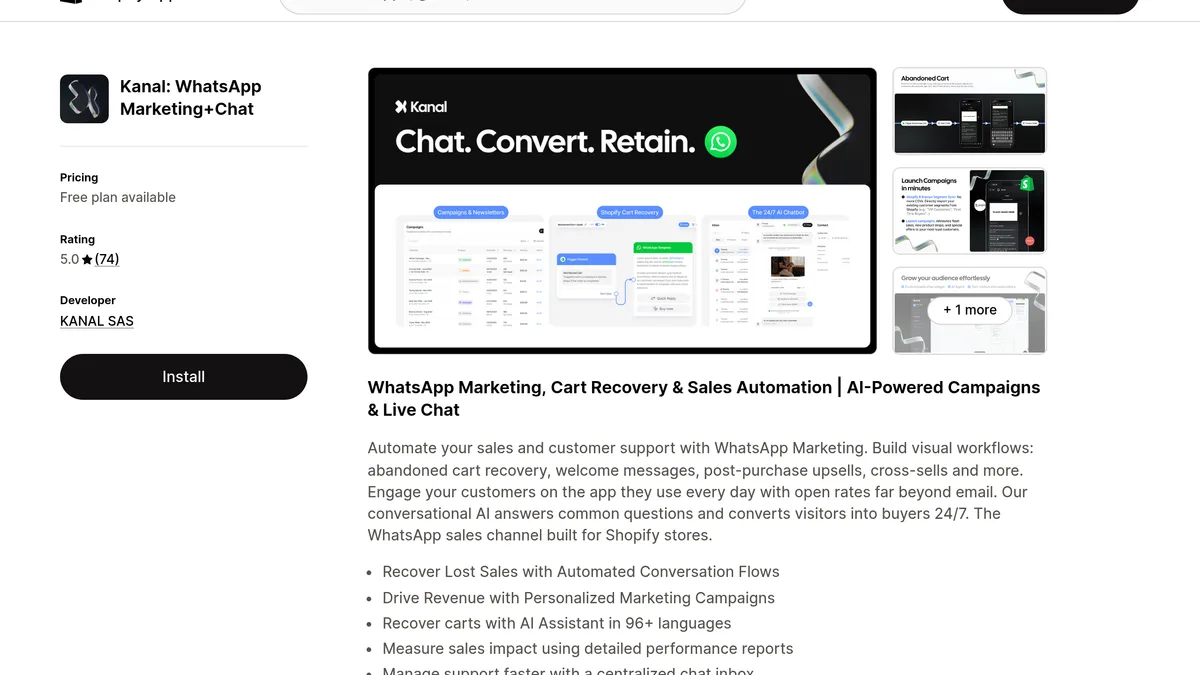
WhatsApp Web is a mirror of your personal or Business app account designed for one human typing on a keyboard. WhatsApp Business API is a server-to-server channel with no UI of its own, designed for automation, multi-agent teams, broadcasts to opted-in contacts, and Shopify-native integrations. Tools like Kanal provide a hosted inbox on top of the API, so your team works in a browser without linking a phone to each computer.
Resources
- WhatsApp Help Center: About WhatsApp Web
- WhatsApp Help Center: How to fix connection issues
- Meta WhatsApp Business Platform documentation
- Downdetector WhatsApp status
- WhatsApp Business API guide
- Best WhatsApp apps for Shopify
- WhatsApp QR code generator
- WhatsApp link generator
- Kanal Shopify integration
Nicolas helps e-commerce brands grow revenue with WhatsApp marketing. With deep expertise in Shopify ecosystems and conversational commerce, he shares proven strategies for abandoned cart recovery, broadcast campaigns, and AI-powered customer engagement.