How to Transfer WhatsApp to a New Phone (iPhone, Android)
Move WhatsApp to a new phone without losing your chats: QR code transfer, Android to iPhone with Move to iOS, iPhone to Android, and what stays behind.
 Nicolas ProvostOct 7, 2026 · 12 min read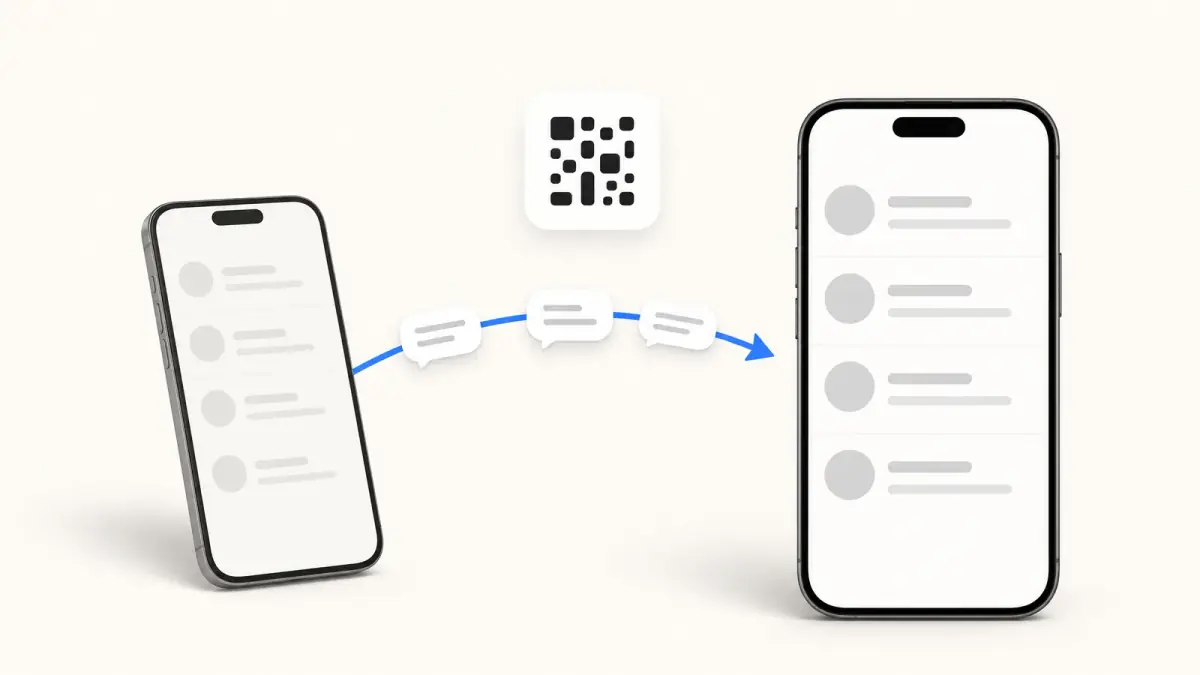
Summarize this article with an AI
 ChatGPT
 Claude
Table of contents (13)
Key takeaways
- Between two Android phones or two iPhones, register the same number on the new phone and scan its QR code with the old one.
- Moving from Android to iPhone requires Apple's Move to iOS app on an iPhone that is new or reset to factory settings.
- From iPhone to Android, use the Transfer to Android option in WhatsApp's chat settings, with the same phone number.
- Transfer before WhatsApp is activated on the new phone, because old and new chats cannot be merged afterwards.
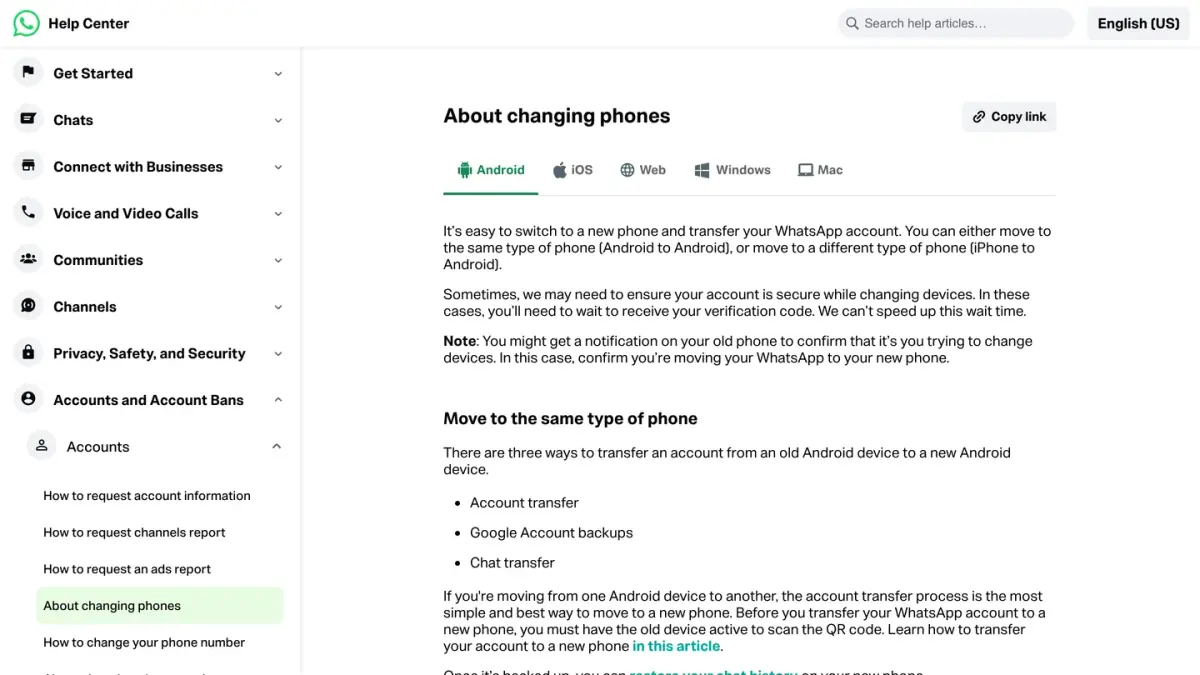
To transfer WhatsApp to a new phone, keep the old phone at hand, install WhatsApp on the new one, register the same number, then scan the QR code shown on the new phone with the old one: your account and chats move across. That works between two Android phones or two iPhones. From Android to iPhone, you need Apple's Move to iOS app during the iPhone's setup, and from iPhone to Android, the Transfer to Android option in WhatsApp.
The steps and requirements below come from WhatsApp's Help Center and from Apple's and Google's help pages, all read on October 7, 2026 and linked where they are used.
Which method fits your situation?
| You are moving from | To | Method | Main requirements |
|---|---|---|---|
| Android | Android | Account transfer by QR code, chat transfer from the settings, or Google Account backup | Same number, old phone in hand for the QR code, Android 6 or above on both phones for chat transfer |
| iPhone | iPhone | Account transfer by QR code, Transfer Chats to iPhone, or iCloud backup | Same number, latest iOS and WhatsApp on both phones |
| Android | iPhone | Apple's Move to iOS app | iPhone new or factory reset, iOS 15.5 or above, Android 5 or above, same number |
| iPhone | Android | Transfer to Android in WhatsApp | Same number, Android 6 or above, WhatsApp not yet activated on the Android phone |
Sources: WhatsApp Help Center, About changing phones, How to transfer your chat history, Android to iPhone and iPhone to Android, as of October 7, 2026.
What should you check before you start?
- Keep the same number. Every method requires the same phone number on both phones. If you are changing numbers too, WhatsApp tells you to change it on the old phone first (Settings > Account > Change number), then transfer. Registering a new number directly on the new phone loses your chat history.
- Do not set up WhatsApp on the new phone early. A chat transfer has to happen before WhatsApp is activated there. WhatsApp cannot merge new chats with old ones.
- Make a fresh backup. WhatsApp recommends a manual backup before changing devices. Our guide to backing up and restoring WhatsApp covers it.
- Keep the old phone intact. Do not uninstall WhatsApp, reset or wipe it until you have checked the new phone. If a transfer fails, your data is still on the old one.
- Plug both phones in and keep them next to each other, with Wi-Fi turned on.
- WhatsApp Business app. WhatsApp says chat transfer is not currently possible in the WhatsApp Business app.
How do you transfer WhatsApp between two phones of the same type?
WhatsApp describes three routes between two Android phones or two iPhones: account transfer, backup, and chat transfer.
Account transfer with the QR code
Between two Android phones, WhatsApp calls this the simplest way to move. You need the old phone, switched on, to scan the code. On the new phone, according to How to transfer your WhatsApp account to a new phone:
- Download WhatsApp and tap Agree & Continue.
- Enter your phone number and confirm it.
- If prompted, connect to your local Wi-Fi network.
- Scan the QR code displayed on the new phone with the old phone's camera. Do not close the app until the transfer is complete.
- Follow the Start Transfer prompts, then tap Done > OK. On Android, tap Accept to let the old phone connect to the new one.
- Complete two-step verification if you use it, and confirm your profile information.
- Tap Next on the Transfer complete screen.
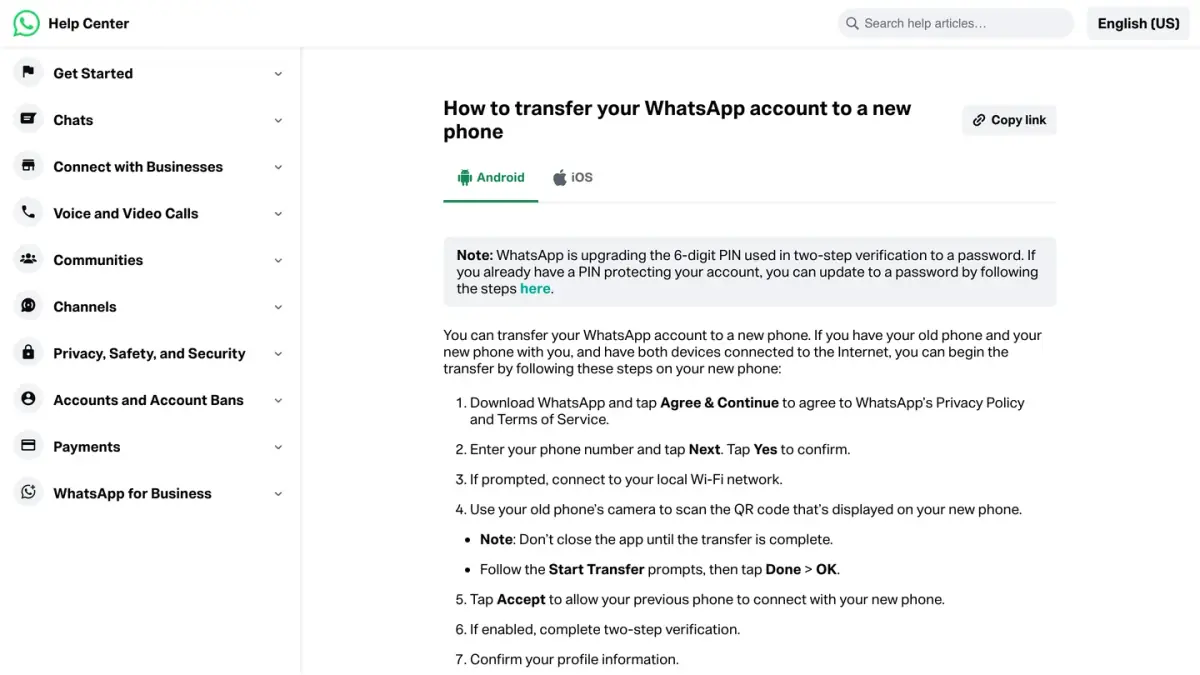
Your chats are then restored from the old phone, and you are logged out of the old phone once registration on the new one is complete.
Chat transfer from the settings
This option, offered in the settings, moves your chats and media directly between the two phones (How to transfer your chat history).
Android to Android:
- On the old phone, tap More options > Settings > Chats > Transfer chats > Start.
- On the new phone, install WhatsApp, tap Agree and continue and verify your number.
- Under Restore or transfer chats, select Transfer from old phone, then tap Continue > Start.
- Scan the QR code shown on the new phone with the old phone, then tap Accept on the new phone.
- Keep both phones unlocked and WhatsApp open until the import is done, then tap Next.
WhatsApp's Android instructions require Android 6 or above on both phones (as of October 7, 2026). Wi-Fi must be turned on, but the phones do not need to be connected to a network.
iPhone to iPhone:
- On the old iPhone, tap your profile picture, then Chats > Transfer Chats to iPhone > Start, and allow camera access.
- On the new iPhone, open WhatsApp, tap Agree & continue and verify your number.
- Tap Continue on the Transfer chat history to iPhone screen and accept the local network permissions.
- Scan the QR code shown on the new iPhone with the old one.
- When you see Transfer completed, tap Next.
Both iPhones need the latest iOS and WhatsApp versions, Wi-Fi and an internet connection.
Messaging is paused while the transfer runs. WhatsApp also notes that it cannot see the data you transfer, and that this data does not go to the cloud unless you create a backup afterwards.
Restore from a backup when the old phone is gone
If the old phone is lost or broken, the backup is the route WhatsApp points to: Google Account on Android, iCloud on iPhone. Install WhatsApp on the new phone, register the same number and accept the restore. Only the content of the last backup comes back. If something is missing afterwards, see how to recover deleted WhatsApp messages.
How do you transfer WhatsApp from Android to iPhone?
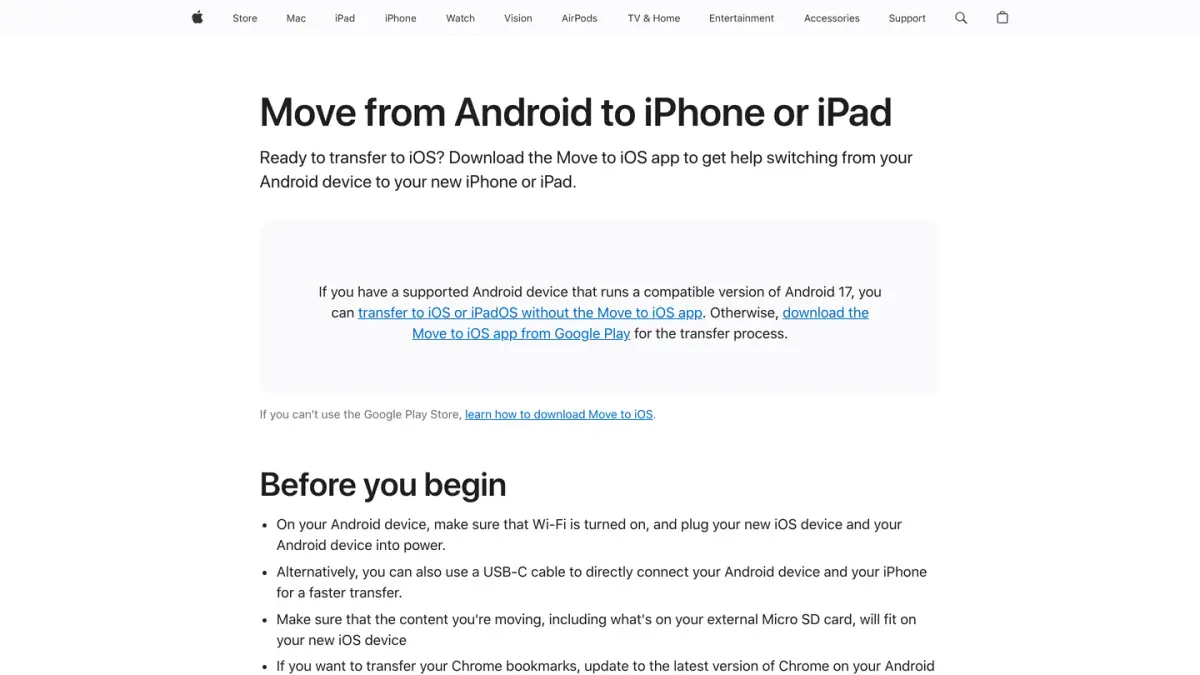
WhatsApp's answer is a single tool: Apple's Move to iOS app. Its page How to move chats from an Android device to an iPhone lists what you need (as of October 7, 2026):
- Android 5 or above on the Android phone, and iOS 15.5 or above on the iPhone.
- An iPhone that is new or reset to factory settings. If you have already set it up and used it, this transfer is not available.
- The Move to iOS app on the Android phone, and the latest version of WhatsApp on both phones.
- The same phone number on the new phone.
- Both devices plugged in, and on the same Wi-Fi network or with the Android phone connected to the iPhone's hotspot.
Then:
- Open Move to iOS on the Android phone and follow the prompts.
- Enter on the Android phone the code displayed on the iPhone.
- Tap Continue, then select WhatsApp on the Transfer Data screen.
- Tap Start on the Android phone and wait while WhatsApp prepares the data. You are signed out of WhatsApp on the Android phone once it is ready.
- Tap Next to return to Move to iOS, then Continue, and wait for the transfer to be confirmed.
- On the iPhone, install the latest version of WhatsApp from the App Store and log in with the same number.
- Tap Start when prompted and let the process finish.
On the iPhone side, Apple's page Move from Android to iPhone or iPad shows where this starts: on the Transfer Your Apps & Data screen, tap From Android. Apple includes WhatsApp messages and media in the list of what Move to iOS transfers. It adds that if you have already finished setting up the iPhone, you need to erase it and start over.
Two warnings from WhatsApp: other data transfer apps are not supported, and the call history does not come across.
How do you transfer WhatsApp from iPhone to Android?
WhatsApp now handles this move inside the app. From its page How to move chats from an iPhone to an Android device:
- On the iPhone, open WhatsApp, go to the settings, then to Chats > Transfer chat history > Transfer to Android.
- When the chats are prepared, tap Continue, and allow camera access if asked. Keep the iPhone unlocked.
- On the Android phone, open WhatsApp and verify your account with the same number.
- Tap Allow when prompted: a QR code appears on the Android phone.
- Scan it with the iPhone, then tap Join to connect to the Wi-Fi network and start the transfer.
- When it is done, tap Next on the Android phone.
On that page, the requirements are an Android phone with Android 6 or above, the same phone number, the latest WhatsApp versions and a stable Wi-Fi connection (as of October 7, 2026).
Be aware that WhatsApp's own pages do not fully agree on this move. The troubleshooting page Can't move chats from an iPhone to an Android device still lists stricter conditions as of October 7, 2026: an Android phone that is new or factory reset, with Android 10 or above, and iOS 15.5 or above on the iPhone. If the transfer does not start on your phones, check against that stricter list.
Google documents a second route, during the setup of the Android phone. Its page Transfer WhatsApp data to a new Android describes copying data from the iPhone with a cable, then scanning a QR code with the iPhone's camera to move the WhatsApp chats. Google adds that the procedure varies across devices, that it can require a factory reset on a phone already set up, and that after skipping the initial data transfer you have 3 to 7 days to restore chats from the iPhone (as of October 7, 2026).
What does not transfer?
| Move | What stays behind, according to WhatsApp |
|---|---|
| Android to Android | Peer-to-peer payment messages, media received over WhatsApp Channels |
| iPhone to iPhone | Peer-to-peer payment messages, call history, media received over WhatsApp Channels |
| Android to iPhone | Call history, display name, peer-to-peer payment messages, media received over WhatsApp Channels |
| iPhone to Android | Display name, status updates, peer-to-peer payment messages, media received over WhatsApp Channels |
For moves between Android and iPhone, WhatsApp lists individual chats, group chats and communities among what does transfer.
What if the transfer fails?
WhatsApp has one troubleshooting page per case: two phones of the same type, Android to iPhone and iPhone to Android. As of October 7, 2026, they come down to this:
- Restart both phones. For a stuck transfer, turn both phones off, wait 30 seconds, turn them back on and try again.
- The QR code does not appear. For a transfer between two phones of the same type, check that both are on the same Wi-Fi, that location is turned on and that all requested permissions are accepted.
- WhatsApp is already active on the new phone. Between two phones of the same type, uninstall WhatsApp on the new phone and start again. For Android to iPhone, the iPhone must be erased and set up again: WhatsApp reminds you that a factory reset deletes everything on the phone, not just WhatsApp.
- The verification code is slow to arrive. WhatsApp says there is no way to speed up this wait.
- Do not use third-party transfer tools. WhatsApp states that non-WhatsApp chat transfer apps are not supported and may cause loss of chats. Its page About unofficial apps adds that unofficial versions of WhatsApp can get an account banned.
- WhatsApp cannot do it for you. It says it cannot restore or transfer chats on your behalf, because your chat history is not stored on its servers.
What should you do after the move?
- Create a backup on the new phone. Transferred data is not in the cloud until you do.
- Clean the old phone. WhatsApp recommends deleting the chats on your old phone, and wiping all your data if you give the phone away or return it.
- Know what follows you. If you used the Change number feature, your blocked contacts stay blocked, according to WhatsApp. More on that in our guide on how blocking works on WhatsApp.
If the phone also runs your store's WhatsApp
Changing phones is a personal chore. When the same phone also answers a store's customers, it is worth asking whether one handset should carry that job. Kanal is a WhatsApp marketing and sales app for Shopify stores: campaigns, abandoned cart recovery, order notifications and a team inbox.
If you run a business account, the alternative to a single handset is the WhatsApp Business API: it is reached through a provider, and it allows several agents and automated answers. See how to compare WhatsApp Business API providers and WhatsApp chatbots compared.
Sources
Pages read on October 7, 2026:
- WhatsApp Help Center: About changing phones
- WhatsApp Help Center: How to transfer your WhatsApp account to a new phone
- WhatsApp Help Center: How to transfer your chat history
- WhatsApp Help Center: How to move chats from an Android device to an iPhone
- WhatsApp Help Center: How to move chats from an iPhone to an Android device
- WhatsApp Help Center: Can't transfer chat history
- WhatsApp Help Center: Can't move chats from an Android device to an iPhone
- WhatsApp Help Center: Can't move chats from an iPhone to an Android device
- WhatsApp Help Center: How to change your phone number
- WhatsApp Help Center: About unofficial apps
- Apple Support: Move from Android to iPhone or iPad
- Android Help: Transfer WhatsApp data to a new Android
Nicolas helps e-commerce brands grow revenue with WhatsApp marketing. With deep expertise in Shopify ecosystems and conversational commerce, he shares proven strategies for abandoned cart recovery, broadcast campaigns, and AI-powered customer engagement.