Instagram Automatic Messages: Native Setup Guide (2026)
How to set up automatic messages on Instagram: welcome message, away message, FAQ and saved replies, with the menu paths from Meta's help pages.
 Nicolas ProvostOct 11, 2026 · 12 min read
Summarize this article with an AI
 ChatGPT
 Claude
Table of contents (10)
Key takeaways
- Instagram automatic messages are set in two places: frequently asked questions in the Instagram app, and Inbox automations in Meta Business Suite.
- The welcome message is the instant reply template in Meta Business Suite, and the away message only runs during the hours you schedule.
- Keyword automations exist on desktop only, match the exact keyword, and wait 15 minutes before sending, which is where automation tools take over.
You set up automatic messages on Instagram in two places: the Instagram app, where a professional account can show frequently asked questions with automated answers, and Meta Business Suite, where Inbox automations send a greeting, an away message or a keyword reply for you. Both are included with a professional account, and neither needs a third-party tool.
This guide walks through each native option with the menu paths Meta publishes today, then lists the limits Meta itself documents and the point where a store usually moves to an automation tool such as Kanal's Instagram auto reply. Every step below comes from Instagram's or Meta's help pages, read on October 11, 2026.
What automatic messages does Instagram offer natively?
| Message | Where you set it | What triggers it | Sends by itself? |
|---|---|---|---|
| Frequently asked questions | Instagram app, or Meta Business Suite | Someone opens a chat and taps a question | Yes, if you wrote an automated response |
| Instant reply (the welcome message) | Meta Business Suite Inbox | A person messages you for the first time | Yes |
| Away message | Meta Business Suite Inbox | A message arrives during the hours you scheduled | Yes |
| Location, contact information, hours | Meta Business Suite Inbox | A message asks for that information | Yes |
| Custom keywords | Meta Business Suite on desktop | A message contains one of your keywords | Yes, after 15 minutes |
| Comment to message | Meta Business Suite on desktop | A comment contains your keyword or phrase | Yes |
| Saved replies | Instagram mobile app | You type a shortcut in a chat | No, a person inserts it |
Two requirements apply to all of it. Your account has to be a professional account (business or creator): Meta's page on the professional inbox states that these features are "only available for Instagram business and creator accounts on the Instagram mobile app". And the Inbox automations need the account connected to Meta Business Suite: Meta says they are "available for Facebook Pages, Instagram business accounts and WhatsApp Business accounts connected to Meta Business Suite".
If your account is still personal, the switch takes a few taps. Meta's setup page gives the path: go to your profile, open the menu, and under For professionals tap Account type and tools, then Switch to professional account. One side effect to know: a private personal account becomes public when it turns professional.
How do you set up frequently asked questions in the Instagram app?
Inside the Instagram app itself, the automatic answer you can configure is the frequently asked questions feature. Instagram's help page describes them as questions that "will be displayed when people try to message your account". The visitor taps a question instead of typing, and receives the answer you wrote.
The steps, from Instagram's help page:
- Tap Messages at the bottom.
- Tap the menu icon, then tap Tools.
- Under Tools, tap Frequently asked questions.
- Tap the toggle next to Show questions to enable automated responses.
- Under Questions, tap Add question.
- Enter the question and an optional automated response, then tap Save.
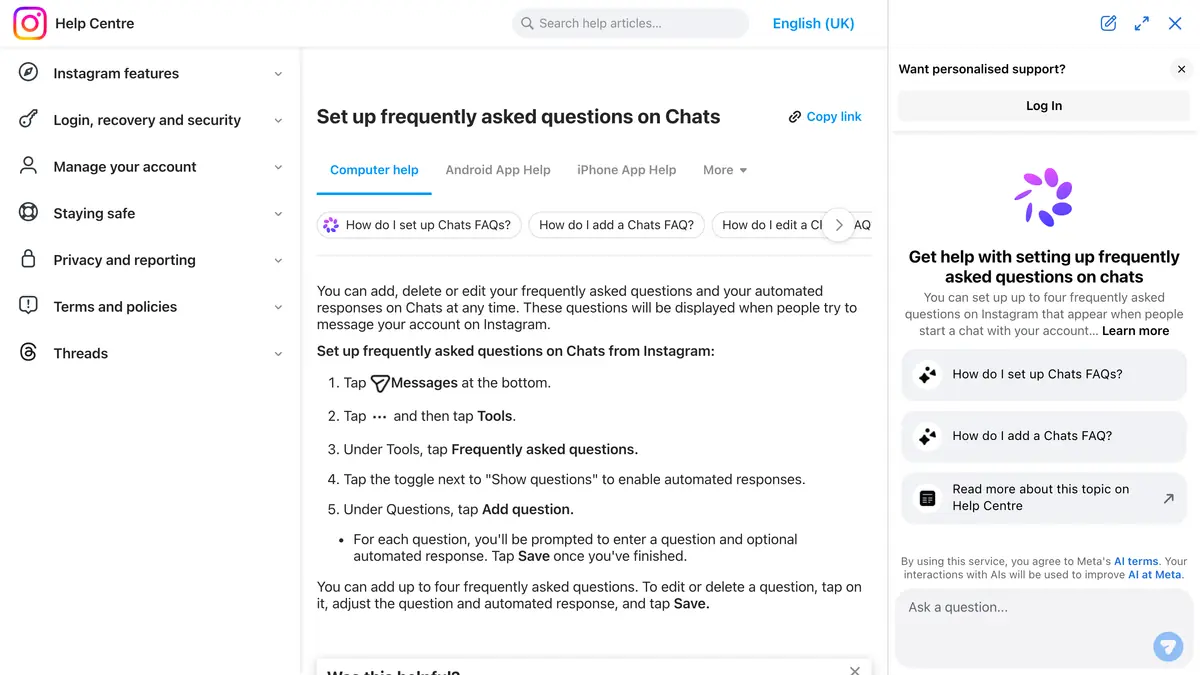 In 1, the toggle that turns on automated responses; in 2, the limit of four questions.
You can add up to four frequently asked questions this way. Pick the four that make up most of your inbox: delivery times, returns, sizing, and where an order is. An FAQ without an automated response still helps, because it tells you what the person wants before anyone on your team opens the chat.
How do you save replies (the old quick replies)?
What many merchants still call quick replies is documented by Meta as saved replies. They are not automatic: they are pre-written answers that a person inserts into a conversation with a shortcut.
Meta's page gives the method. In the Instagram mobile app, hold down a message that you have sent, tap More, then tap Save. You can then create a keyboard shortcut for that message. To use it, type the shortcut as your message and tap the chat icon that appears: the saved reply fills in.
Instagram also suggests saved replies as you type. According to the same page, "you may get message suggestions based on matches with your existing saved replies", and nothing is shared unless you tap the suggestion and send it.
Saved replies are worth ten minutes of setup for any store. They are also the clearest illustration of the limit of the native layer: somebody still has to open each chat.
How do you set up a welcome message in Meta Business Suite?
Meta's help pages do not use the words welcome message. The feature that does the job is the instant reply, defined on Meta's page about Inbox automations as: "Reply with a greeting when someone messages you for the first time." The desktop setup page lists the same template as Auto reply.
On desktop, the path from Meta's setup page is:
- Go to Inbox in Meta Business Suite, after checking that the right business portfolio is selected in the top left.
- Click Automations.
- Click Create automation in the top right.
- Click the automation you want: Auto reply for the greeting.
- Click Create automation, then complete the on-screen instructions.
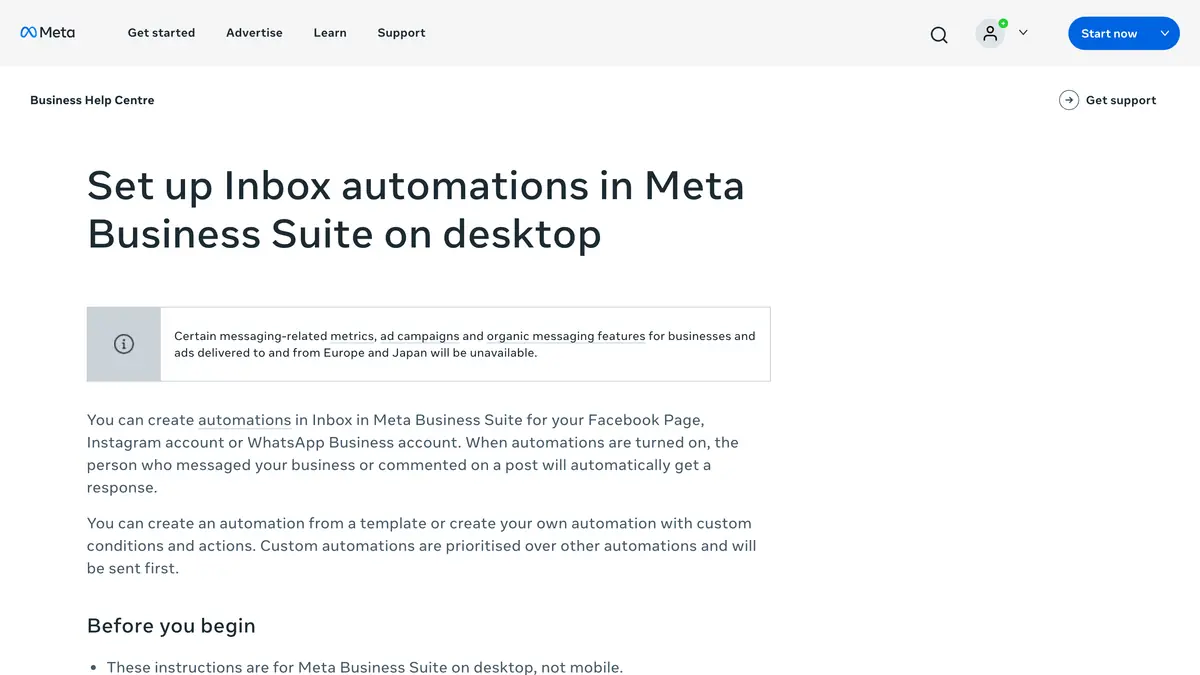 In 1, the accounts automations work for, Instagram included; in 2, the notice about Europe and Japan.
The automation then appears in the Automations list, where a toggle under Status turns it on or off. Meta notes that it "may take a few minutes to appear".
On the Meta Business Suite mobile app, the mobile page gives a slightly different route: open the app, tap Inbox, tap the icon in the top right corner, tap Automations, pick the template, switch on Instagram under Platforms, and write your message.
A welcome message that works is short. It says who is answering, when, and what the person should send to get help faster:
Hi and thanks for writing to [brand]! We answer every message between 9am and 6pm on weekdays. For an order question, send your order number and we will look it up first.
How do you set an away message on Instagram?
The away message is a second template in the same Automations screen. Meta defines it as a reply "to a message when you're not available".
The mobile page details the schedule. After choosing Away message and writing the text:
- Go to Schedule.
- Select Time zone, type a city in the search bar and select it.
- Tap Add to schedule.
- Select the days you want the automation to be active, with a start time and an end time.
- Tap Save.
One detail from Meta's page matters when you plan your hours: "The Away message automation is only active during the hours that you've scheduled. Outside of those hours, it will remain off automatically." In other words, you schedule the hours when you are away, not your opening hours.
Meta also suggests using the message to tell people how long you will be unavailable and when they can expect an answer. An example:
We are offline until tomorrow 9am. Your message is saved and a real person will answer first thing. If it is about an order, add the order number so we can move faster.
What can keyword and comment automations do natively?
Meta Business Suite goes one step further than greetings, with two templates that only exist on desktop.
Custom keywords reply to a message that contains specific keywords. Meta's page gives the rules:
- One automation can cover up to five keywords or phrases.
- "Keywords are case-sensitive, and an automated message will not be sent unless the keywords match exactly."
- The same keyword can only be used in one keyword automation.
- The reply can include photos, videos, buttons and links.
- The reply is not instant: "Inbox will automatically send a keyword automation to a message after 15 minutes unless you personally respond before then."
Comment to message sends a message reply to comments on your posts that contain specific keywords or phrases. It is the native version of the pattern covered in our Instagram auto reply guide.
You can also build an automation from scratch on desktop: click Start from scratch, name it, tick the channel, choose a condition (a new message received, a label added, a message assigned) and one or more actions (send a message, add labels, mark the thread).
What are the limits of Instagram's native automatic messages?
All of these limits are stated on Meta's own pages, read on October 11, 2026.
- Four or five questions. The Instagram app accepts up to four frequently asked questions. The Frequently asked questions automation in the Meta Business Suite mobile app accepts up to five.
- Desktop only for keywords and comments. Meta repeats that "Keyword automations are only available on the Meta Business Suite desktop experience at this time".
- Fifteen minutes and exact match. A keyword reply waits 15 minutes and needs the exact keyword, capital letters included.
- Templates win over keywords. "When both a custom keyword automation and a template automation are turned on and triggered, we'll send the template response but not the custom keyword automated response." If your away message is on, the person who typed your keyword receives the away message.
- Not every automation on every channel. "Depending on which channels you have connected, some automations may not be available to you."
- Meta Business Agent pauses them. "If you turn on Meta Business Agent, any existing automations (such as away messages or instant replies) will be paused."
- Regional availability. The setup page carries this notice: "Certain messaging-related metrics, ad campaigns and organic messaging features for businesses and ads delivered to and from Europe and Japan will be unavailable." If you sell from Europe, open Automations in your own Inbox to see which templates you actually have.
- Saved replies are manual, and only exist in the Instagram mobile app.
One more limit is not written anywhere because it is structural: none of these pages mentions your product catalog, your stock or your orders. A native automatic message sends the text you typed. It cannot tell a customer whether the blue one is back in size M.
When does a store move to an automation tool?
The native layer is the right place to start, and for a store with a few DMs a day it can be enough. Merchants usually move on when one of these becomes true:
- A Reel takes off and the comments ask for the link faster than anyone can answer, on a phone, where comment automation does not exist natively.
- Customers ask product questions (size, stock, delivery to their country) and a fixed text cannot answer them.
- The 15-minute wait on keyword replies loses buyers who wanted the link now.
- The team wants Instagram and WhatsApp conversations in one place, tied to the customer's orders.
Automation tools connect to your professional account through Meta's Instagram messaging API and remove those limits. ManyChat is the best-known name in the category, and we detail its plans in ManyChat pricing explained. The automation side itself (platform choice, message examples, how Instagram and WhatsApp share the work) is covered in our Instagram auto reply and DM automation guide, so this article does not repeat it.
What Kanal adds for Shopify stores
Kanal is our product, a paid Shopify app, and this is what its Instagram auto reply page states:
- Keyword auto replies: a word in a DM triggers the right template, for example a link, a price, a size guide or a promo code.
- Story reply automation: reactions and replies to your stories get an instant response.
- Comment triggers: a keyword in the comments of a post or Reel sends the DM automatically.
- AI on your catalog: product questions are answered from your Shopify catalog and policies, with a link to buy. The AI agent is part of the Scale plan, at $149 per month.
Kanal works through Meta's official Instagram messaging API on your professional account, and the conversations land in the same inbox as your WhatsApp conversations. Instagram automation is included in Kanal's plans, from $89 per month, as shown on the pricing page.
A sensible order of work: set up the native messages described above today, watch for a few weeks which questions come back and where the limits bite, then automate those cases with a tool.
Sources
All pages were read on October 11, 2026. None of them displays a last-updated date.
- Set up frequently asked questions on Chats, Instagram Help Center
- About professional features in Instagram Direct professional inbox, Meta Business Help Center
- About Inbox automations in Meta Business Suite Inbox, Meta Business Help Center
- Set up Inbox automations in Meta Business Suite on desktop, Meta Business Help Center
- Set up Inbox automations on Meta Business Suite mobile app, Meta Business Help Center
- Set up a professional Instagram account, Meta Business Help Center
Join the Instagram early access program
- Comment to DM, auto-replies and AI answers as they roll out
- Priority onboarding with the Kanal team
- The full WhatsApp suite, included from day one
Early access opens progressively
See Kanal for Instagram@claire.mrn commented on your Reel: "LINK"
Here is the link you asked for. The Riviera set is back in stock.
- brands
- 500+
- to set up
- 5 min
- open rate on WhatsApp
- +90%
Nicolas helps e-commerce brands grow revenue with WhatsApp marketing. With deep expertise in Shopify ecosystems and conversational commerce, he shares proven strategies for abandoned cart recovery, broadcast campaigns, and AI-powered customer engagement.