Shopify Instagram Integration: Connect Your Store (2026)
How to connect Shopify to Instagram with the Facebook & Instagram sales channel: requirements, steps, catalog sync, common errors and product tags.
 Nicolas ProvostOct 11, 2026 · 12 min read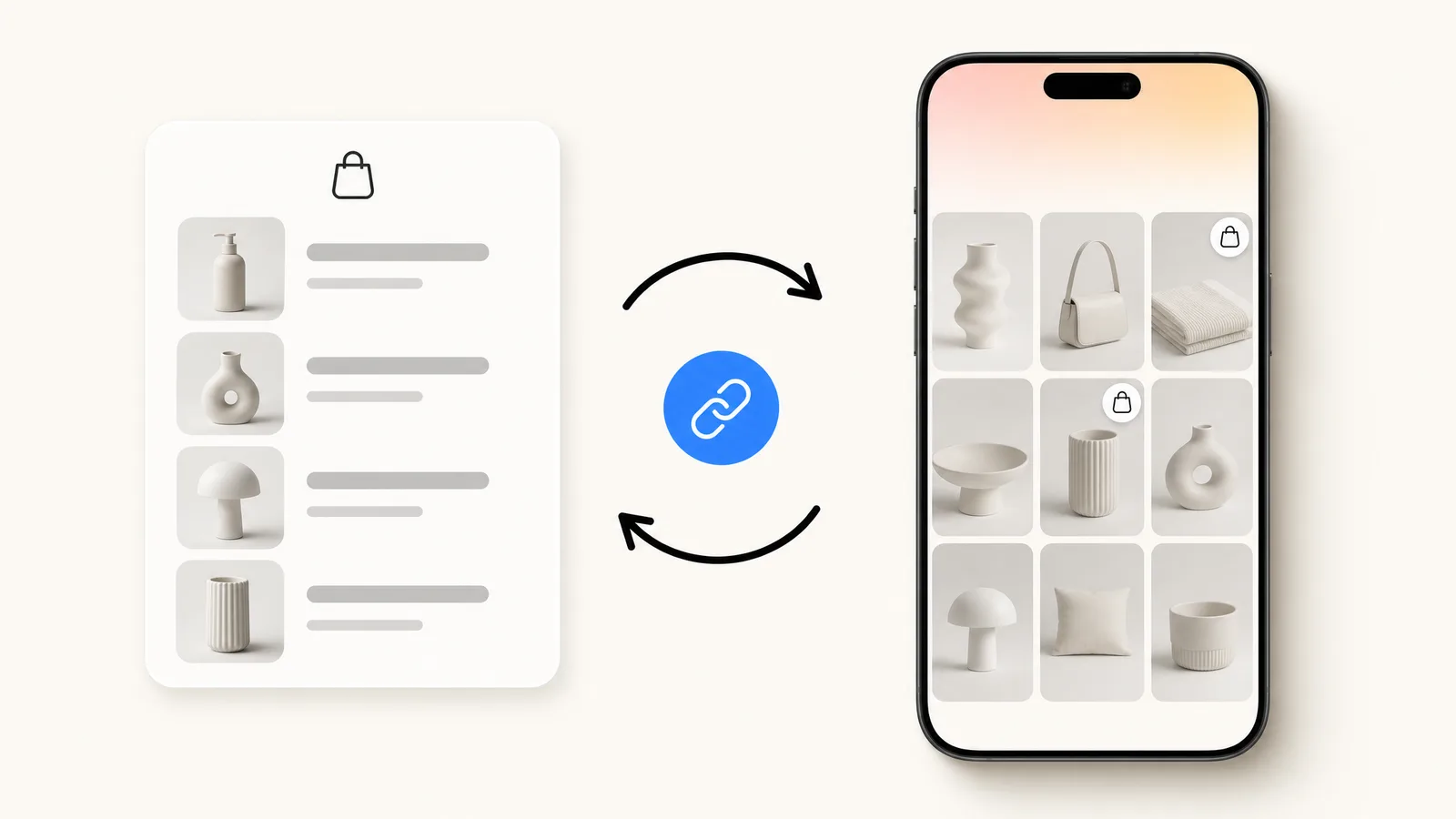
Summarize this article with an AI
 ChatGPT
 Claude
Table of contents (14)
Key takeaways
- You connect Shopify to Instagram by installing the Facebook & Instagram sales channel by Meta, which syncs your products to one Meta catalog.
- Since August 26, 2025, Instagram Shopping redirects customers to your Shopify checkout, and you are responsible for collecting taxes on those orders.
- Most connection errors come from Facebook permissions: your account needs full control of the business portfolio and of the Facebook Page.
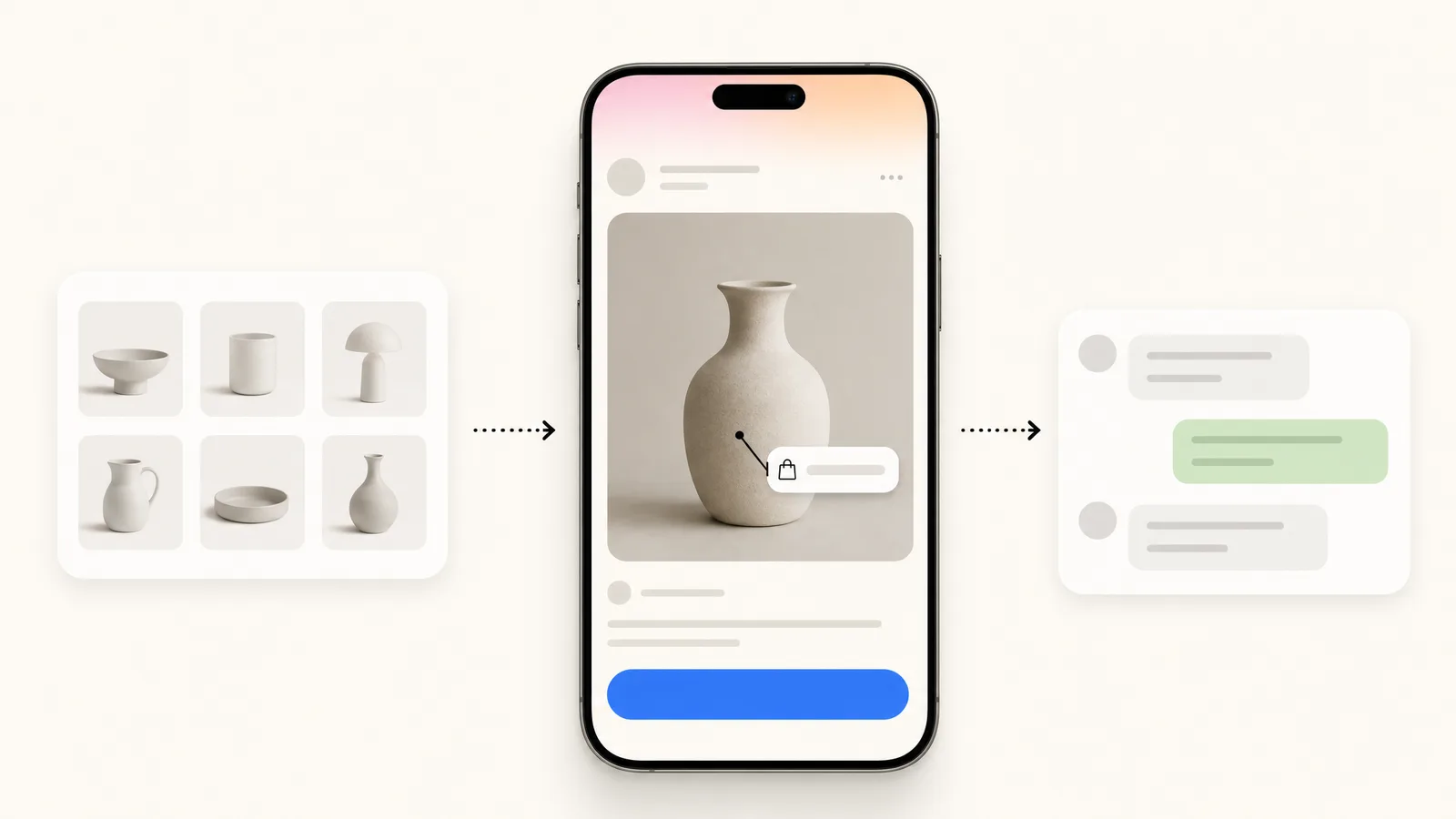
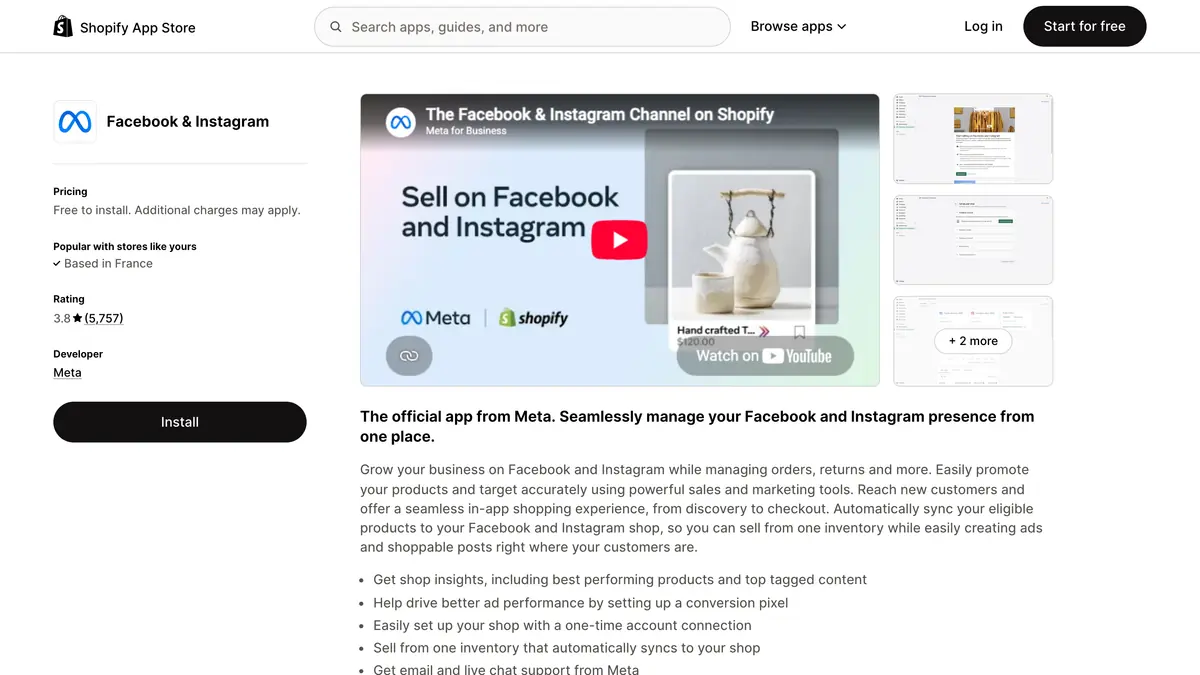
To connect Shopify to Instagram, you install the Facebook & Instagram sales channel by Meta from the Shopify App Store, then link your Facebook account, your business portfolio, your Facebook Page and your Instagram professional account. Your products sync to a Meta catalog, a shop appears on your Instagram profile, you can tag products in posts, and customers pay on your Shopify checkout.
This guide follows Shopify's help center as it reads on October 11, 2026: requirements, steps, how the catalog syncs, what breaks and how to fix it, product tags, and then the part the help center does not cover, which is what to do with the DMs that a shop on Instagram generates. For that last part, see also Kanal's Instagram automation for Shopify stores.
What does the Shopify and Instagram integration do?
| What | How it works, according to Shopify |
|---|---|
| The connection | One sales channel, "Facebook and Instagram by Meta", with three features: Facebook Shop, Instagram Shopping and Meta marketing |
| The catalog | A single product catalog shared by the three features |
| On Instagram | A shop on your profile (View Shop) and product tags in posts and stories |
| The purchase | The customer selects "Checkout on seller's website" and pays on your Shopify store |
| The price | "Free to use with all Shopify plans, subject to store eligibility" |
One point of vocabulary that saves time later: Shopify insists that this is "a sales channel, not an app". After installation, it appears under Sales channels in your admin, not in Settings > Apps.
What do you need before you start?
Shopify's page on requirements and considerations lists two sets of conditions.
On the Shopify and Facebook side:
- A Shopify online store that is not in private mode.
- A valid sender email for your store.
- A Facebook account.
- A published Facebook Page for your business, and a business portfolio connected to that Page. Your personal Facebook account must have full control of both.
- An ad account in the business portfolio, if you want to run Meta ads.
On Meta's side (commerce eligibility):
- To sell on Instagram, a professional account associated with the Facebook Page of your business.
- A Page and an Instagram account that comply with Meta's terms and Community Standards.
- Products available for direct purchase from your verified domain.
- A business located in one of the supported countries for Shops on Facebook and Instagram.
On that last point, Meta's list of supported countries names the United States for the full Shops experience, and places 20 countries, including Canada, the United Kingdom, France, Germany and Australia, in an open beta where "some sellers may not have full capabilities".
If your Instagram account is still personal, switch it first: in the Instagram app, go to Settings and activity, then Account type and tools, then Switch to professional account. Our guide on how to sell on Instagram details that step and Meta's eligibility rules.
How do you connect Shopify to Instagram, step by step?
The desktop steps from Shopify's set-up page:
- From your Shopify admin, go to Settings > Sales channels.
- Click Shopify App Store, and log in if asked.
- Search for Facebook.
- Click Add channel (or Add app).
- Click Start set up on the feature you want to install first: Instagram Shopping, Facebook Shop or marketing.
- Click Connect account and sign in to your Facebook account.
- Connect the Facebook assets required for the features you want: business portfolio, Page, Instagram account, and so on.
- Accept the terms and conditions.
- Click Finish setup.
Three details from the same page prevent most of the confusion that follows:
- The business portfolio must own the Page. If the Facebook Page is owned by a different business portfolio, Shopify says it "isn't listed as an option to connect".
- Each staff member connects with their own Facebook account, which must have full control of the business portfolio and the Page. If a colleague set up the channel, it is displayed to you but "won't display as connected".
- Check your taxes before you finish. Shopify asks you to verify Settings > Taxes and Duties, for the reason explained in the next section.
What changed with checkout and taxes?
Older tutorials describe a checkout inside Instagram. That is no longer how it works.
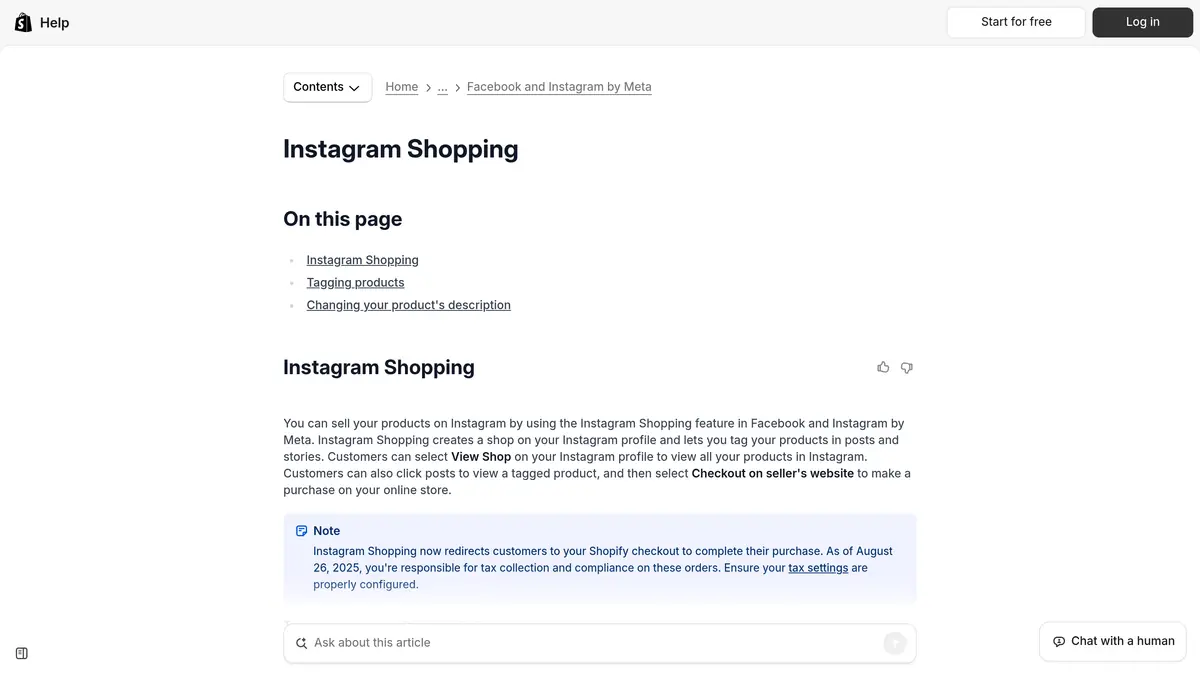
Shopify's help center states: "Instagram Shopping now redirects customers to your Shopify checkout to complete their purchase." And on the requirements page: "Meta is no longer a marketplace tax facilitator for new orders created as of August 26, 2025. Customers are now redirected to the online store to complete their purchase instead of Meta handling checkout natively on their platform."
Meta says the same from its side: "As of September 2025, Shops on Facebook and Instagram now use website checkout."
For a Shopify merchant, three consequences:
- You collect the tax. As of August 26, 2025, you are responsible for collecting sales tax on these orders, for configuring your Shopify tax settings and for filing and remitting.
- The order is a normal Shopify order. The customer adds products to the cart in the Instagram app, selects Checkout on seller's website, and completes the purchase on your online store.
- Old orders keep an exception. For orders created before August 26, 2025, Shopify cannot process arbitrary partial refunds: a partial refund is done in Commerce Manager.
How does the catalog sync between Shopify and Instagram?
The channel holds one catalog for Facebook Shop, Instagram Shopping and ads. Shopify draws the consequence: "If you make a product unavailable to the sales channel, then the product is removed from all three features." You cannot show a product in ads and hide it from your Instagram shop.
According to the page on publishing products, a product must:
- Be available to Facebook.
- Require shipping, so it cannot be a digital product.
- Have a return policy.
- Have a title, a description and an image that meet Meta's catalog specifications.
- Be eligible under Meta's Commerce Policy.
- Have a Google Product Category assigned.
- Not be free.
To make products available:
- On the Products page of your Shopify admin, click More filters.
- In the Availability section, select Unavailable on Facebook, then click Done.
- Select the products, then click More actions > Add available channel(s).
- Select Facebook, then click Make products available.
After that, the sync is automatic. Shopify writes that changes to product details "are automatically synced to Facebook" and display "after your products sync, which usually takes a few minutes". You edit the title, the image or the price in Shopify, never on Instagram.
One difference by country: "Collections sync to Facebook only for stores in the United States." Elsewhere, you create collections in Commerce Manager.
What breaks, and how do you fix it?
Shopify is candid about its limits here: the channel "is maintained by Meta, so Shopify has limited insight into the onboarding errors". Start by checking the Shopify Status page, then find your message below.
Errors during the connection
| Message | What it means and what to do |
|---|---|
| "This account can't be selected because it doesn't have an established presence on Instagram" | Meta wants an authentic, established presence, which may include a sufficient follower base. Try again once the account has more activity, or select another one |
| "This account can't be selected because you aren't an admin of the business account" | Your Facebook account lacks permissions. Ask the admin to give you access to the Page or the Instagram account |
| "Selected Instagram account is not eligible for Facebook commerce" | Review Instagram's commerce eligibility requirements |
| "We don't offer shop or catalogue setup in your region" | Confirm that you are located in a supported country |
| "This asset is already connected to another store" | The Page or the Instagram account is linked to another Shopify store. Disconnect it there first |
| "[name].myshopify.com is already being used by another business" | Your myshopify.com domain is linked to another business portfolio. Remove it there, then start the onboarding again |
| "This Facebook account is restricted" | Follow Meta's guide to troubleshoot a restricted account |
Errors on products
The Product status section of the channel (Sales channels > Facebook & Instagram) shows the products with errors, and the bulk editor lets you correct them. Shopify lists three common ones:
| Error | Solution |
|---|---|
| Add a product image | Upload or select an image for the product |
| Select a product category | Enter a Google product category that matches the product. Some categories require more information, such as age |
| Fix product variant errors | Add the information for each variant, such as size and color |
If a product is rejected by Facebook's review although it complies, Shopify indicates that you can request a review of the rejected item from Facebook's support team.
A disconnection that spreads
One warning deserves attention before you clean up old accounts: "disconnecting any of those accounts can result in disconnecting all active Facebook features". Do not remove a Page or a portfolio from the channel without planning the reconnection.
How do you tag Shopify products on Instagram?
Shopify's page on Instagram Shopping sets the conditions: your Instagram business profile has been approved, your Meta catalog is added, and the product is available both in the Meta catalog and in your Shopify online store.
In the Instagram app, you then create a post, tap More options, then Tag products, as Instagram's help page describes. Instagram allows up to 20 products in a photo feed post.
The Shopify-specific points:
- Variants. When a product has more than one variant in Shopify, you choose one variant for the tag.
- Stories. Shopping stickers work on image stories, not on videos.
- Description, name, price. To change what the tag displays, edit the product in Shopify and publish it. "Your product description cannot be different on Instagram to what it is in Shopify."
- A wrong price. Check the price and the compare-at price in Shopify, then look in Commerce Manager for a sale start date or end date on the product.
What do you do with the DMs your shop generates?
A shop on Instagram does not only bring clicks. It brings questions: "Is this in stock in M?", "Do you ship to Canada?", "Where is my order?". They arrive in your Instagram inbox, and how fast you answer decides a good part of what the integration is worth.
A sensible progression:
- Set up the native messages. Frequently asked questions in the Instagram app, an instant reply and an away message in Meta Business Suite. The menu paths are in our guide to Instagram automatic messages.
- Prepare your wording. Our Instagram DM templates cover size and stock, order status and comment replies.
- Automate when volume grows. Automation tools connect through Meta's Instagram messaging API (see our comparison of Instagram automation tools). ManyChat is the best-known name in the category (see ManyChat pricing explained and our guide to ManyChat on Instagram), and Kanal is our product for Shopify stores.
What Kanal adds on top of the Shopify integration
Kanal is a paid Shopify app. The sales channel connects your catalog to Instagram's shop and tags, and Kanal works on the conversations. Its Instagram automation page states:
- Comment to DM: keywords under posts and Reels trigger DMs with links, products or codes.
- Auto replies: DMs, story reactions and frequent questions answered instantly from templates, the scope of Instagram auto reply.
- AI answers: product questions answered from your catalog by the Instagram AI chatbot, with a buy link. The AI agent is part of the Scale plan, at $149 per month.
- Shopify sync: products, carts and orders inform every automation, with no export.
Kanal runs on Meta's official Instagram messaging API through your professional account, and one inbox holds your Instagram and WhatsApp conversations, with one customer profile. Instagram automation is included in Kanal's plans, from $89 per month, as shown on the pricing page. If WhatsApp is also part of your plan, the WhatsApp for Shopify page explains that side.
Checklist before you call it done
- The channel shows as connected under Sales channels, with your own Facebook account.
- Tax settings are verified in Settings > Taxes and Duties.
- The Product status section shows no error.
- View Shop appears on your Instagram profile and a test product opens your Shopify product page.
- One recent post carries a product tag.
- Frequently asked questions and an away message are switched on for your DMs.
Sources
Read on October 11, 2026. These help pages do not display a last-updated date.
- Facebook and Instagram by Meta, Shopify Help Center
- Requirements and considerations, Shopify Help Center
- Setting up Facebook and Instagram by Meta, Shopify Help Center
- Instagram Shopping, Shopify Help Center
- Publishing products, Shopify Help Center
- Facebook & Instagram, Shopify App Store
- Supported countries for Shops on Facebook and Instagram, Instagram Help Center
- About changes to Shops and checkout on Facebook and Instagram, Meta Business Help Center
Join the Instagram early access program
- Comment to DM, auto-replies and AI answers as they roll out
- Priority onboarding with the Kanal team
- The full WhatsApp suite, included from day one
Early access opens progressively
See Kanal for Instagram@claire.mrn commented on your Reel: "LINK"
Here is the link you asked for. The Riviera set is back in stock.
- brands
- 500+
- to set up
- 5 min
- open rate on WhatsApp
- +90%
Nicolas helps e-commerce brands grow revenue with WhatsApp marketing. With deep expertise in Shopify ecosystems and conversational commerce, he shares proven strategies for abandoned cart recovery, broadcast campaigns, and AI-powered customer engagement.