WhatsApp Backup: How to Back Up and Restore Your Chats
Back up WhatsApp to Google or iCloud, restore your chats on Android and iPhone, turn on encrypted backup and fix a stuck backup, with official steps.
 Nicolas ProvostOct 7, 2026 · 12 min read
Summarize this article with an AI
 ChatGPT
 Claude
Table of contents (10)
Key takeaways
- Back up WhatsApp from Settings > Chats > Chat backup, to your Google Account on Android or to iCloud on iPhone.
- Restoring requires uninstalling and reinstalling WhatsApp with the same phone number, because the settings contain no restore button.
- Only the latest backup is kept, and it is not end-to-end encrypted unless you turn on end-to-end encrypted backup.
To back up WhatsApp, open Settings > Chats > Chat backup and tap Back up on Android (the copy goes to your Google Account) or Back up now on iPhone (it goes to iCloud). To restore it, uninstall and reinstall WhatsApp, verify the same phone number and tap Restore when the app offers it: there is no restore button in the settings.
Every step and limit below comes from WhatsApp's Help Center and from Apple's and Google's help pages, all read on October 7, 2026 and linked where they are used.
How do you back up WhatsApp on Android?
On Android, WhatsApp backs up to your Google Account. The Help Center page How to back up your chat history asks for a few things first: a Google Account active on the phone, Google Play services installed, enough free space on the phone and in the Google Account, and a stable internet connection.
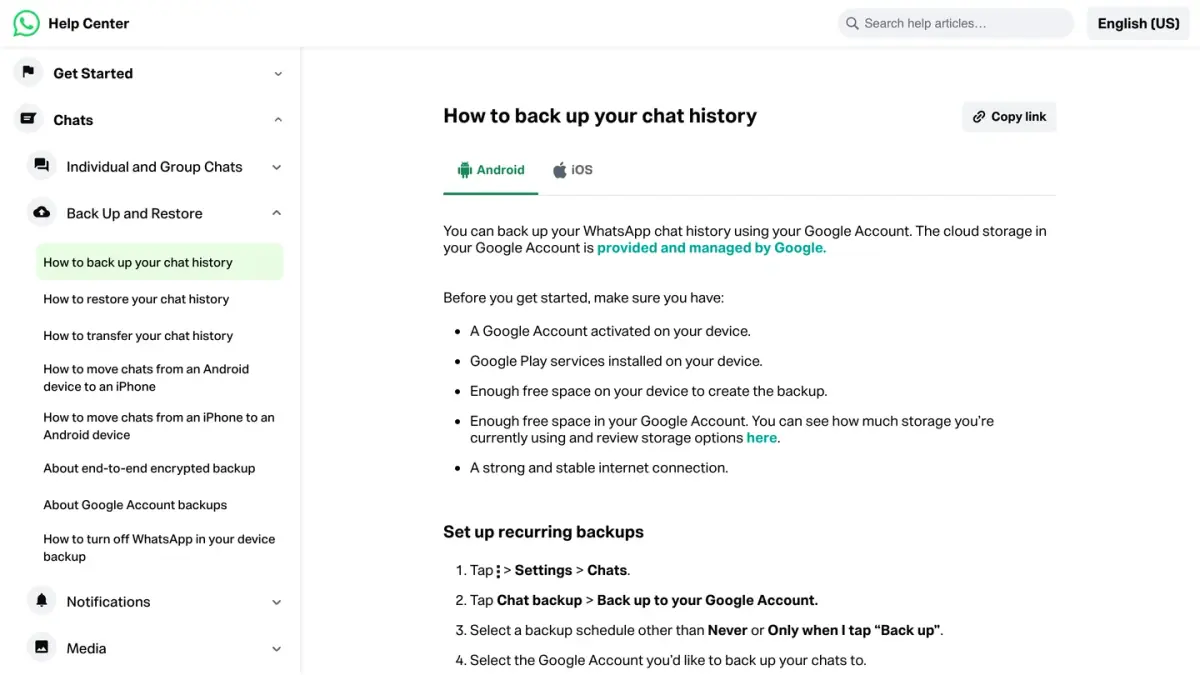
To set up automatic backups:
- Tap More options (the three dots), then Settings > Chats.
- Tap Chat backup > Back up to your Google Account.
- Pick a schedule other than Never or Only when I tap "Back up".
- Choose the Google Account that will hold the backup, or tap Add account.
- Turn on or off Include videos in chats, Back up using cellular and Include status archive.
To back up right now, go to Settings > Chats > Chat backup and tap Back up.
A few things are worth knowing:
- With a daily schedule, WhatsApp saves your chats to the Google Account every night, after the local backup made on the phone. (WhatsApp can schedule backups, not messages: here is what works to schedule a WhatsApp message.)
- The backup counts toward your Google storage. Google's page How your Google storage works lists WhatsApp backups on Android among the items that use the quota, which it describes as "up to 15 GB" per account, shared across Gmail, Google Drive and Google Photos (as of October 7, 2026). When you go over it, WhatsApp says you have to free up space before backups resume.
- A backup you never refresh can disappear. According to WhatsApp's page About Google Account backups, Google may automatically delete WhatsApp backups that have not been updated in 5 months (as of October 7, 2026).
- WhatsApp recommends Wi-Fi for backups, to avoid mobile data charges, and a power source for the first one, which can take a while.
How do you back up WhatsApp on iPhone?
On iPhone, WhatsApp describes two ways to back up your chats, and you can use either or both: the backup built into WhatsApp, saved to iCloud, and the iPhone's own iCloud backup.
The WhatsApp backup. Before you start, the iPhone version of the Help Center page asks you to use the same phone number and iCloud account as for your earlier backups, to update iOS, and to have free space on both iCloud and the iPhone of at least 2.05 times the size of the backup (as of October 7, 2026).
- In WhatsApp, tap Settings or your profile picture.
- Tap Chats > Chat backup.
- Tap Auto backup and choose a frequency.
- Turn on or off Include videos in chats and Include status archive.
For an immediate backup, tap Chats > Chat backup > Back up now.
The iPhone backup. Apple's page How to back up your iPhone or iPad with iCloud gives the path: Settings > your name > iCloud > iCloud Backup > Back Up Now. With Back Up This iPhone turned on, the iPhone backs itself up when it is plugged in, connected to Wi-Fi and locked.
Using both takes more iCloud storage, since the WhatsApp data is stored twice. There is also one incompatibility: once you turn on end-to-end encrypted backup in WhatsApp, your chat history is no longer included in the iPhone's device backup.
What is in a WhatsApp backup, and what are its limits?
| Android | iPhone | |
|---|---|---|
| Where the backup is stored | Your Google Account | Your iCloud account |
| How to start one | Settings > Chats > Chat backup > Back up | Settings > Chats > Chat backup > Back up now |
| Backups kept | One per WhatsApp phone number: each new backup overwrites the previous one | One per account: each new backup overwrites the previous one |
| What it is tied to | The phone number and the Google Account used to create it | The phone number and the iCloud account used to create it |
| Storage to plan for | Free space on the phone and in the Google Account | Free space on iCloud and on the iPhone of at least 2.05 times the backup size |
Sources: WhatsApp Help Center, How to back up your chat history and Can't back up or restore your chat history, as of October 7, 2026.
Beyond the table, keep these points in mind:
- Videos are optional. They are saved, and later restored, only if Include videos in chats was on when the last backup ran.
- Communities and channels. Backups include the messages and media of your communities. They include channel updates, but not channel media unless you are the channel admin.
- Only the last backup exists. You can restore the last successful backup and nothing older.
- Backups are not end-to-end encrypted by default. WhatsApp says the chats you back up are not protected by its end-to-end encryption unless you turn on the option described below.
- A new number means a new backup. Cloud backups are linked to the phone number used to create them. WhatsApp's page How to change your phone number warns that backups made with the old number can no longer be used after a number change, and recommends creating a new one right away.
- WhatsApp has no copy. WhatsApp states that it cannot restore, transfer or delete chats for you, because your chat history is not stored on its servers.
Should you turn on end-to-end encrypted backup?
Without it, your backup does not have the same protection as your chats. Once it is turned on, according to WhatsApp's page About end-to-end encrypted backup, the backup is protected by a passkey, a password you create or a 64-digit encryption key generated by WhatsApp.
- Go to Settings > Chats > Chat backup.
- Tap End-to-end encrypted backup.
- Tap Turn on, then Create a passkey and follow the prompts.
- To use a password or the 64-digit key instead, tap More options.
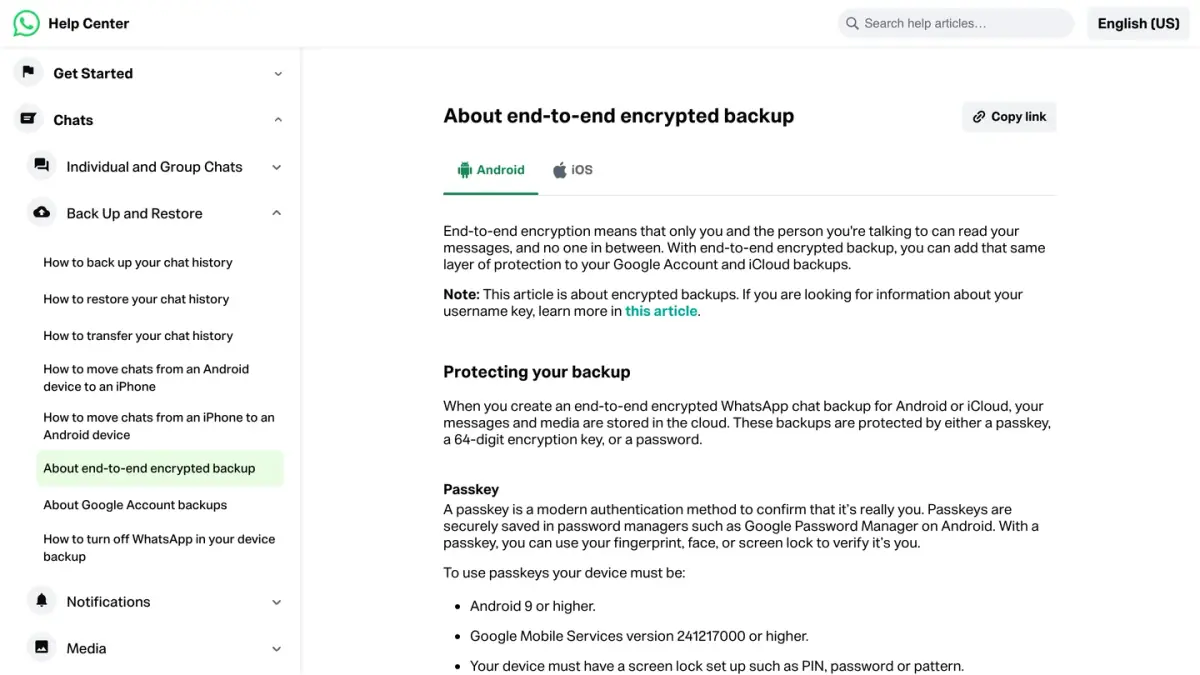
A passkey lets you unlock the backup with your fingerprint, your face or your screen lock. WhatsApp lists the requirements in the Android and iPhone versions of that page (as of October 7, 2026): Android 9 or higher, plus a minimum version of Google Mobile Services given on the page, or iOS 18 or higher, and in both cases a screen lock set up on the phone.
The trade-off is real. WhatsApp states that without your password, key or passkey you cannot access the encrypted backup, and that it cannot send you a copy, reset it or restore the backup for you. If you have only forgotten the password and still have access to your WhatsApp account, you can change it: the same Help Center page links to the steps.
How do you restore a WhatsApp backup?
First check that a backup exists. On Android, WhatsApp's page How to restore your chat history sends you to the Google One app, under Storage > Other. On iPhone, open Settings > Chats > Chat Backup in WhatsApp: the time and size of the last backup are shown there.
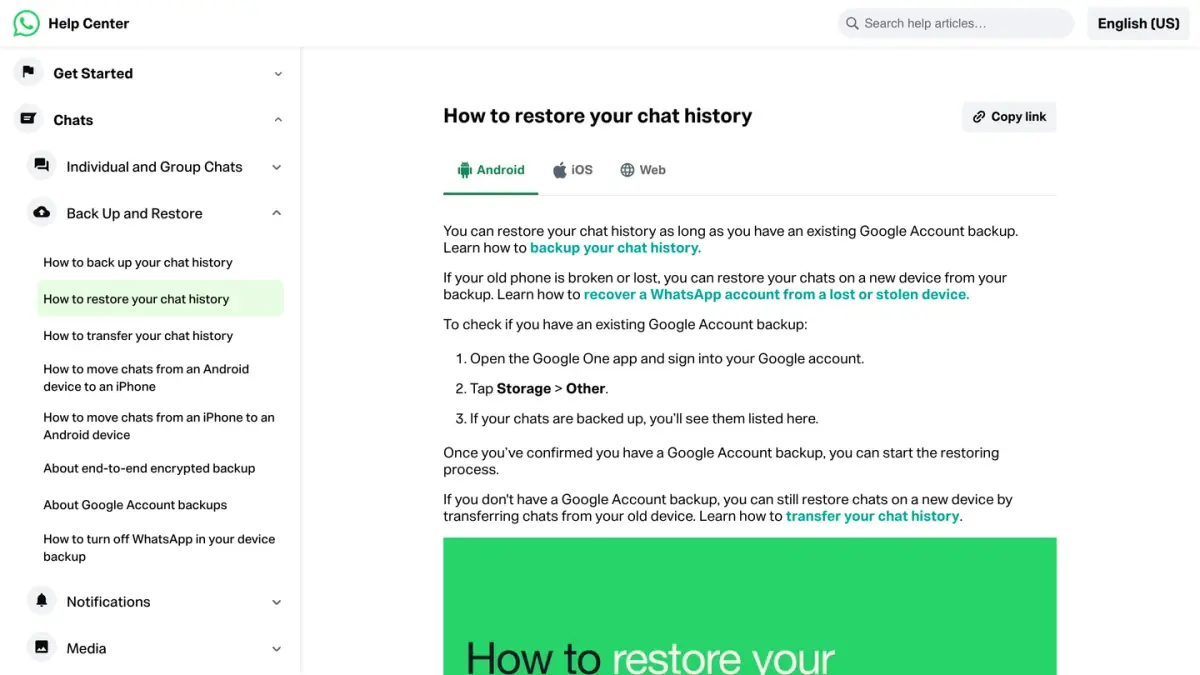
On Android:
- Uninstall WhatsApp, then reinstall it.
- Verify your phone number.
- Tap Restore when prompted.
On iPhone:
- Uninstall WhatsApp, then reinstall it.
- Verify your phone number and Apple ID.
- Tap Restore Chat History.
There is no other way to restore a backup. WhatsApp's troubleshooting page says it in so many words: the Chat backup screen only contains backup options, and the restore option appears during the initial setup.
For the restore to work, WhatsApp sets these conditions:
- The same phone number as the one used for the backup.
- The same Google Account on Android, or the same Apple Account or iCloud on iPhone.
- Enough room: on Android, more free space on the phone than the size of the backup, and on iPhone, enough free space on both iCloud and the phone.
WhatsApp may also ask you to confirm your identity with a code sent by text message or call. And if you skip the restore, a later backup replaces the old one with only the chats received since then: accept the restore the first time it is offered.
What you will not get back: anything sent or received after the last backup. If the messages you are looking for were deleted before that backup ran, see our guide on how to recover deleted WhatsApp messages. On iPhone, WhatsApp's restore page also notes that an account is deleted after 120 days of inactivity (as of October 7, 2026), and that an iCloud backup can still be restored by reinstalling the app.
Why is the backup stuck, and what can you try?
WhatsApp's page Can't back up or restore your chat history lists the checks to run (as of October 7, 2026).
On Android:
- Restart the phone.
- Sign out of your Google Account and back in.
- Turn Wi-Fi off and on, or try another network or mobile data. Switching networks during a backup can make it time out.
- Free up storage, or reduce the size of the backup.
- Charge the phone or plug it in.
- Force stop WhatsApp.
- On a dual SIM phone, check that the SIM tied to your WhatsApp number is active.
- Update Google Play Services.
- As a last resort, uninstall WhatsApp, restart the phone and reinstall the app from the Google Play Store.
On iPhone:
- Turn Wi-Fi off and on, or try another network or mobile data.
- Check free storage against the 2.05 times rule.
- Update iOS and WhatsApp.
- Close and reopen WhatsApp, and plug the phone in.
- Turn iCloud Drive off and back on (iPhone Settings > your name > iCloud > iCloud Drive), and check that WhatsApp is turned on in the list of apps syncing to iCloud Drive.
- Make sure you are using the phone number and iCloud account of the backup, and the right password or 64-digit key if the backup is encrypted.
- If nothing works, WhatsApp suggests signing out of iCloud and back in, then deleting the iCloud backup and creating a new one. Your chats stay on the phone as long as you do not uninstall WhatsApp.
If the backup is corrupted, WhatsApp says it cannot repair it or tell you what caused it. Chat history created in an unofficial version of WhatsApp is a separate risk: on its page About unofficial apps, WhatsApp says it cannot guarantee that such a history will carry over, and that using these apps can get an account banned.
How do you save a single conversation?
A backup is all or nothing. To keep a copy of one chat, WhatsApp has a separate feature, described on the page How to export your chat history:
- Android: open the chat, tap More options > More > Export chat, then Without media or Include media.
- iPhone: open the chat, tap the contact or group name, then Export chat, and choose Attach Media or Without Media.
You then pick where to send the file (email, notes or another app). WhatsApp points out that an exported chat is a text file, not a backup file: it cannot be imported back into WhatsApp.
Backup or transfer: which one for a new phone?
Both work, and they do not do the same job. A backup lets you get your chats back on a new phone even when the old one is lost or broken. A direct transfer moves your account and chats from one phone to the other while you have both in hand, with a QR code. The step-by-step version is in our guide on how to transfer WhatsApp to a new phone.
If you run a Shopify store
A phone backup protects a personal account. A store that talks to its customers on WhatsApp has different needs: several people answering on the same number, and messages tied to orders and carts. Kanal is a WhatsApp marketing and sales app for Shopify stores, with campaigns, abandoned cart recovery, order notifications and a team inbox.
If you run a business account, several people on one number and automated answers are what the WhatsApp Business API allows, and it is reached through a provider. See how to compare WhatsApp Business API providers and how WhatsApp chatbot platforms compare.
Sources
Pages read on October 7, 2026:
- WhatsApp Help Center: How to back up your chat history
- WhatsApp Help Center: How to restore your chat history
- WhatsApp Help Center: About Google Account backups
- WhatsApp Help Center: About end-to-end encrypted backup
- WhatsApp Help Center: Can't back up or restore your chat history
- WhatsApp Help Center: How to export your chat history
- WhatsApp Help Center: How to change your phone number
- WhatsApp Help Center: About unofficial apps
- Apple Support: How to back up your iPhone or iPad with iCloud
- Google One Help: How your Google storage works
Nicolas helps e-commerce brands grow revenue with WhatsApp marketing. With deep expertise in Shopify ecosystems and conversational commerce, he shares proven strategies for abandoned cart recovery, broadcast campaigns, and AI-powered customer engagement.