WhatsApp Community vs Group: Limits & How It Works (2026)

Summarize this article with an AI
 ChatGPT
 Claude
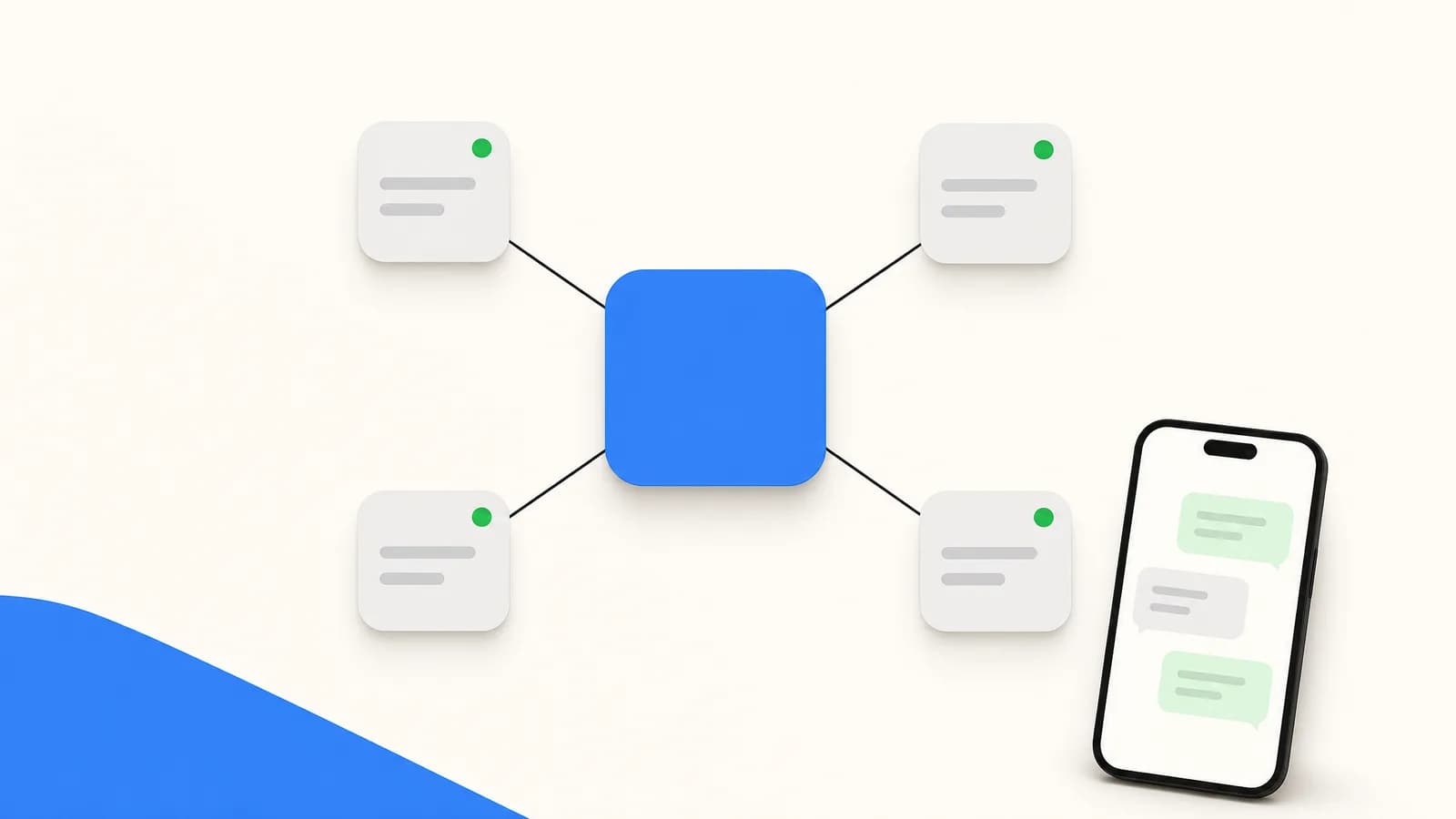
A WhatsApp community links up to 100 groups and 2,000 members around one announcement group. Community vs group, member limits, and how to create one.
Table of contents (11)
Key takeaways
- A WhatsApp community links up to 100 groups around an announcement group where only admins post, with a total limit of 2,000 members.
- A group is a single chat of up to 1,024 members where everyone can post, while a community organises several related groups under one name.
- You create one from the Chats tab of the standard WhatsApp app with New community, because the WhatsApp Business app cannot create communities.
Quick answer
What is a WhatsApp Community? A WhatsApp Community is a parent container that links up to 100 groups around a shared announcement group, where admins can message every member at once, up to 2,000 members in total (figures from WhatsApp's Help Center, read on October 7, 2026). The groups stay independent for daily chat. It's Meta's answer to managing large audiences (schools, sports clubs, customer communities) without cramming everyone into a single group. Free, created from the standard WhatsApp app on iPhone, Android or WhatsApp Web, but not from the WhatsApp Business app.
Introduction: Why WhatsApp Communities Matter
WhatsApp groups have always been good at one thing and bad at another. They are great for a single conversation among a handful of people. They become chaotic the moment you try to organise hundreds of members across several topics.
WhatsApp Communities were built to fix exactly that. A Community is a structure that sits above your groups, ties related ones together, and gives admins a clean way to broadcast announcements without the noise of an open chat.
This guide explains what a Community is, how it differs from a plain group, how to create one step by step, how to manage member groups and admin controls, the member limits you need to know, and how an online store can use Communities sensibly, with an honest note on where the WhatsApp Business API is the better choice.
What is a WhatsApp community and how does it work?
A WhatsApp Community is an organisational layer that groups multiple WhatsApp groups under a single name and identity. Think of a residents' Community for an apartment block: one Community, with separate groups for the parents' association, the maintenance committee, and general chat.
Every Community has two parts. The first is the announcement group, created automatically, where only admins can post and every member receives the update. The second is the set of member groups, the regular topic-based chats that members can browse and join. Each member group remains an ordinary group chat, so the usual chat settings still apply there, including disappearing messages and chat lock.
Communities are free and created from the standard WhatsApp app. WhatsApp's Help Center notes that a community cannot currently be created from the WhatsApp Business app, where you can only take part in communities you already belong to (About communities on the WhatsApp Business app). They are designed for membership organisations: schools, clubs, neighbourhoods, hobby circles, and small brand fan groups. They are about structure and belonging, not bulk promotion.
WhatsApp community vs group: the key differences
A group and a Community solve different problems. Here is how they compare.
| Feature | WhatsApp Group | WhatsApp Community |
|---|---|---|
| Structure | One single chat | Multiple grouped chats |
| Announcement channel | None | Yes, admin-only announcement group |
| Number of groups | One | Up to 100 |
| Member capacity | One group's own limit | Up to 2,000 across all its groups |
| Who can post | Everyone, unless restricted | Members in groups, admins in announcements |
| Cross-group privacy | N/A | Members do not see numbers in other groups |
| Use it for | A single conversation | Organising many related conversations |
The simplest way to decide: if you need one room, create a group. If you need a building with several rooms and a noticeboard, create a Community. A single group holds up to 1,024 members (WhatsApp Help Center, read on October 7, 2026): our group guide covers how many people can be in a WhatsApp group and how to create one.
How to create a community on WhatsApp
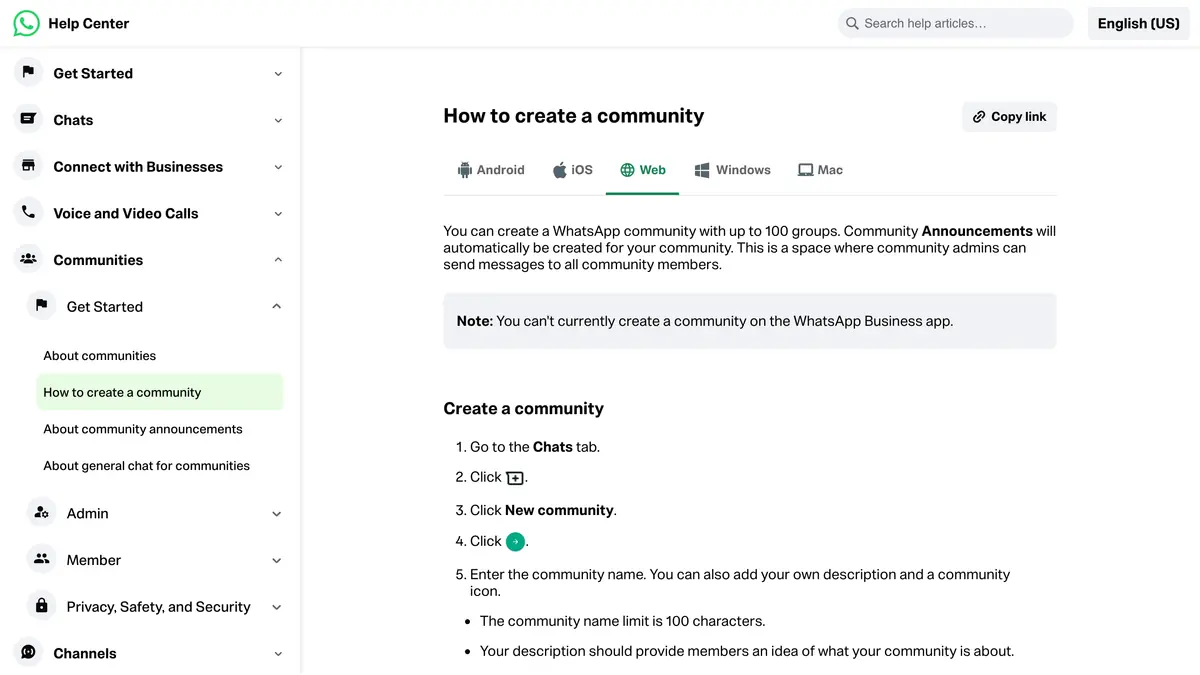
Creating a community takes a couple of minutes. The steps below follow WhatsApp's Help Center (How to create a community, read on October 7, 2026). The flow is nearly identical on Android, iPhone and WhatsApp Web.
- Open WhatsApp (the standard app, not WhatsApp Business) and go to the Chats tab.
- Tap the new chat icon, then New community, then Get started.
- Enter a community name of up to 100 characters. You can also write your own description and add a community icon so members recognise it.
- Confirm with the check mark (Android) or Create (iPhone). WhatsApp automatically creates the announcement group, called Community Announcements.
- Add groups: tap Add group, then Create new group, or Add existing groups for groups you are an admin of.
- Invite members: open the community, tap Invite members and share the community invite link. People you add directly can accept the invitation or leave.
That is the whole setup. New members landing through the invite link join the announcement group first and can then browse the member groups they are allowed to see. Anyone with WhatsApp can use the link, so share it only with people you trust. If it spreads too far, an admin can reset it from Community info.
Managing Member Groups Inside a Community
Member groups are the working chats of your Community. A Community can hold up to 100 groups, so you have room to organise by topic, region, or interest. By default, members and admins can all add a new group, and admins can restrict that to admins only (How to add or suggest a group).
You have three ways to populate a Community with groups:
- Create fresh groups directly from the Community screen, useful when you are starting from scratch.
- Link existing groups you already run, which keeps current conversations and history intact.
- Approve groups that members request to add, if you allow member-created groups.
A single group can only belong to one Community at a time. When you link a group, its members are notified and the group inherits the Community structure. You can unlink a group later without deleting it, and it simply returns to being a standalone group.
Keep the number of groups deliberate. Three or four well-named groups beat fifteen overlapping ones, because members can actually find where they belong.
Admin Controls and the Announcement Group
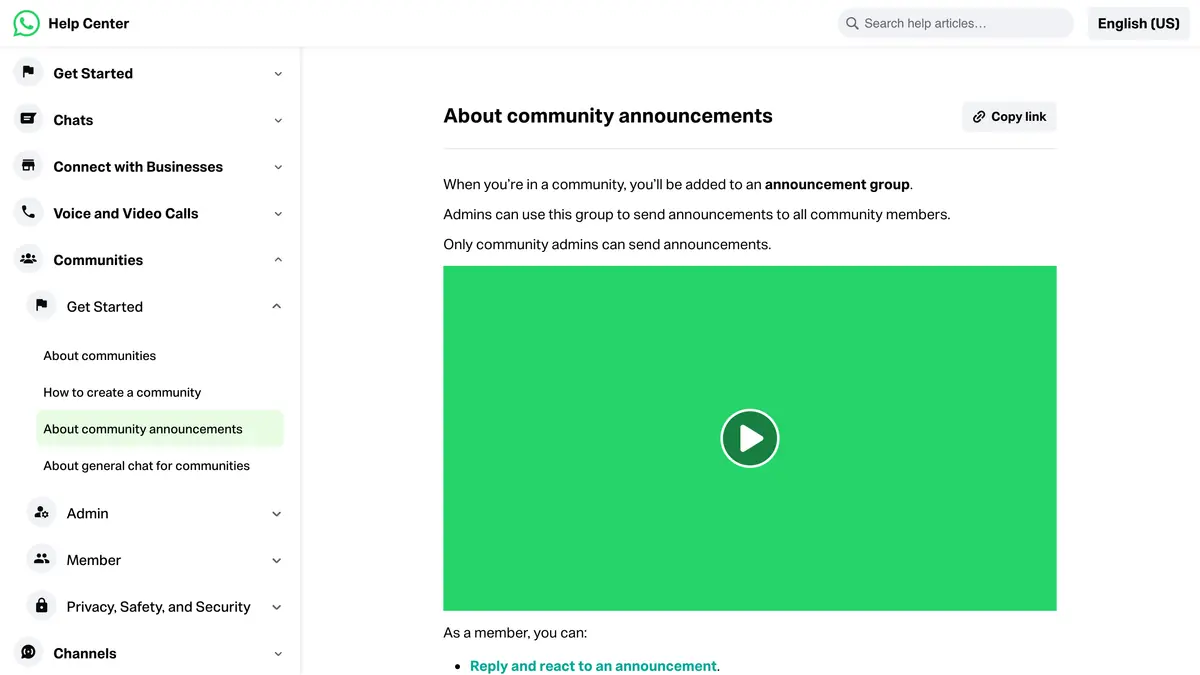
The announcement group is the heart of a Community. Only admins can post in it, and every Community member receives those posts, which makes it the cleanest channel for important updates without the back-and-forth of an open chat.
Community admins have a focused set of controls:
- Post announcements that reach all members at once.
- Add or remove member groups and approve member-created groups.
- Promote or remove admins across the Community.
- Remove members and manage who can add new groups.
- Edit Community details: name, description, and photo.
Announcement posts support text, images, videos, documents, and polls, so you can run a quick poll on WhatsApp to gather member opinions without leaving the app. Members can react to announcements with emoji and reply in a dedicated thread, which keeps feedback visible without flooding the main feed.
WhatsApp community limits: members and groups
Knowing the ceilings up front saves you from rebuilding later. Here are the limits WhatsApp publishes in its Help Center, read on October 7, 2026.
| Limit | Figure |
|---|---|
| Members in a community | Up to 2,000, counting everyone in its groups and in the announcement group |
| Groups in a community | Up to 100 |
| Community name | Up to 100 characters |
When a community is full, nobody can be added until a member leaves. If you have read 5,000 members or 50 groups elsewhere, those are not the figures on WhatsApp's Help Center today (How to create a community, About community announcements).
These numbers suit clubs, schools, and tight-knit brand audiences. They are still finite, which matters for a growing store: a Community cannot hold tens of thousands of customers, and that is exactly where a different approach is needed. For a public audience with no member list to manage, a WhatsApp Channel is the one-way alternative.
How an Online Store Can Use WhatsApp Communities
For a Shopify store, a Community can be a genuine engagement asset when used for the right job. Some practical setups:
- A VIP customer Community with a group for early product drops and a group for feedback.
- A wholesale or stockist Community where retail partners get restock announcements.
- An ambassador Community that bundles your most active fans and creators.
- A local Community per city or store location for events and pickups.
The announcement group is a quiet, low-pressure way to share launches and updates, and the member groups build a sense of belonging that pure broadcasts cannot.
But be honest about the limits. Communities cap at 2,000 members, members opt in manually, you cannot segment by purchase history or cart value, you cannot automate, and you have no analytics. There is also a practical catch for stores: a community cannot be created from the WhatsApp Business app, so you create it from a standard WhatsApp account, and a number that runs on the Business app can only take part in communities it already belongs to. For organising a fan base, that is fine. For driving revenue at scale, it is not the tool.
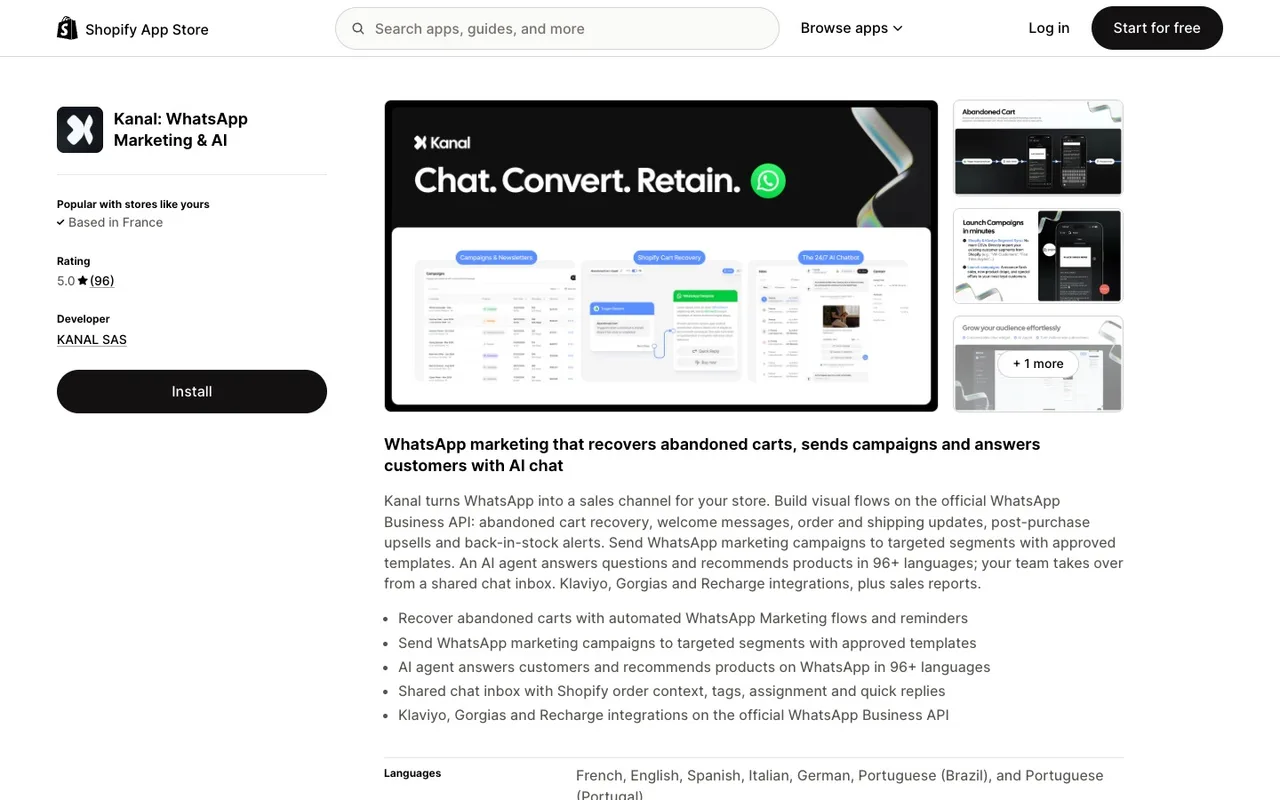
This is where Kanal fits in. Kanal connects your Shopify store to the WhatsApp Business API, so you can do what Communities cannot: recover abandoned carts automatically, send order and shipping notifications, run segmented broadcast campaigns to unlimited opted-in customers, and let an AI chatbot answer buyers around the clock. The API is built for outbound marketing at scale, with delivery and conversion analytics on every message. See the WhatsApp Business API guide for how the API model works, browse the best Shopify apps for messaging, or check Kanal pricing to start.
A simple rule: use a Community to gather and engage your most loyal members, and use Kanal for everything that needs to reach many customers, convert, and be measured.
If you run a business account and automation is what a Community lacks, note that Meta bills each message delivered through the WhatsApp Business API and that automated answers come from a chatbot the business sets up. See what businesses pay per WhatsApp message and WhatsApp chatbots compared for online stores.
Conclusion: Pick the Right Tool for the Job
WhatsApp Communities are a real upgrade over loose groups. They give membership organisations structure, a clean announcement channel, and a sense of belonging, all for free and inside an app your audience already uses every day.
For a brand, a Community works best as a loyalty and engagement space for a defined, manageable audience. It is not built for promotional reach, segmentation, automation, or measurement. The moment those become the goal, the WhatsApp Business API, through a platform like Kanal, is the honest answer. Use both for what each does well, and your WhatsApp presence stays organised and effective.
Resources
Frequently asked questions
What is the difference between a WhatsApp Community and a WhatsApp group?
A WhatsApp group is a single conversation where everyone can post. A Community is an umbrella that bundles several related groups under one structure, with a shared announcement group that only admins can post to. A group is one room. A Community is the building that holds many rooms.
How many people can join a WhatsApp Community?
A community can have up to 2,000 members, a limit that counts everyone in its groups and in the announcement group, according to WhatsApp's Help Center (read on October 7, 2026). A community can link up to 100 groups. When the community is full, new people can only join after someone leaves.
Can I send marketing messages through a WhatsApp Community?
You can post updates in the announcement group, but Communities are built for organising members, not outbound marketing. For promotions, segmented campaigns, and cart recovery at scale, the WhatsApp Business API through a platform like Kanal is the right tool.
Can members see each other's phone numbers in a Community?
WhatsApp states that in a community your phone number is only visible to community admins, to people who have saved your number in their contacts, and to people who already have it from your other chats. In the announcement group, everyone can see the total number of members, but only admins can see who the members are.
Is a WhatsApp Community free to create?
Yes. Creating and running a community is free in the standard WhatsApp app. One limit matters for stores: WhatsApp's Help Center says a community cannot currently be created from the WhatsApp Business app, which only lets you take part in communities you already belong to. You only pay when you move outbound messaging to the WhatsApp Business API, where Meta charges per delivered message.
How do you create a Community on WhatsApp?
In the standard WhatsApp app, go to the Chats tab, tap the new chat icon, then New community and Get started. Enter a name of up to 100 characters, a description and an icon, then confirm. WhatsApp automatically creates the announcement group. Then add new or existing groups and share the community invite link, on iPhone, Android or WhatsApp Web. A community cannot be created from the WhatsApp Business app.

Nicolas helps e-commerce brands grow revenue with WhatsApp marketing. With deep expertise in Shopify ecosystems and conversational commerce, he shares proven strategies for abandoned cart recovery, broadcast campaigns, and AI-powered customer engagement.
Glossary terms in this article
Quick definitions for the WhatsApp Business terms used above.
WhatsApp Web
WhatsApp Web is the official browser client that mirrors a WhatsApp account on a computer, so users can read and send messages with a desktop keyboard.
Read full definitionWhatsApp Business App
The WhatsApp Business App is a free mobile application designed for small businesses to chat with customers, with a catalog, quick replies, and automated greeting messages.
Read full definitionWhatsApp Communities
WhatsApp Communities bring several related WhatsApp groups together under one umbrella, with an announcements space where admins reach every member at once. A community can hold up to 100 groups and 2,000 members.
Read full definitionSegmentation
Segmentation is the practice of splitting a WhatsApp contact list into groups based on traits like purchase history, behavior, or engagement, so each group receives messages that are actually relevant.
Read full definitionSuggested articles
WhatsApp Group: How to Create One & 1024 Member Limit (2026)
A WhatsApp group holds up to 1,024 members. How to create a group on iPhone, Android and Web, add members, share an invite link, and go past the limit.

How to Schedule a WhatsApp Message (What Works in 2026)
WhatsApp has no schedule button for regular chats. What its Help Center does document: scheduled business broadcasts, away messages, events and reminders.
How to edit a WhatsApp message (15-minute limit)
You can edit a WhatsApp message for 15 minutes after sending it. The steps on Android, iPhone and Web, what the other person sees, and what to do after.
How to Check if a Number Is on WhatsApp (2026)
How to check if a number is on WhatsApp: the free wa.me link method, the contact-save method, and how to validate a whole opt-in list with the API.