Recover Deleted WhatsApp Messages in 2026 (iPhone, Android)

Summarize this article with an AI
 ChatGPT
 Claude
Recover deleted WhatsApp messages on iPhone and Android: restore a backup made before the deletion, what that restore costs you, and what is left without one.
Table of contents (13)
Key takeaways
- A deleted WhatsApp message can only be recovered if it was saved in a backup made before you deleted it.
- Restoring means reinstalling WhatsApp and tapping Restore, and messages sent or received after that backup are lost.
- WhatsApp keeps a single backup that each new one overwrites, so do not back up manually after the deletion.
A deleted WhatsApp message can be recovered in one case: it was saved in a backup made before you deleted it. You then uninstall WhatsApp, reinstall it and tap Restore when the app offers your iCloud (iPhone) or Google Account (Android) backup, knowing that the messages sent and received after that backup are lost.
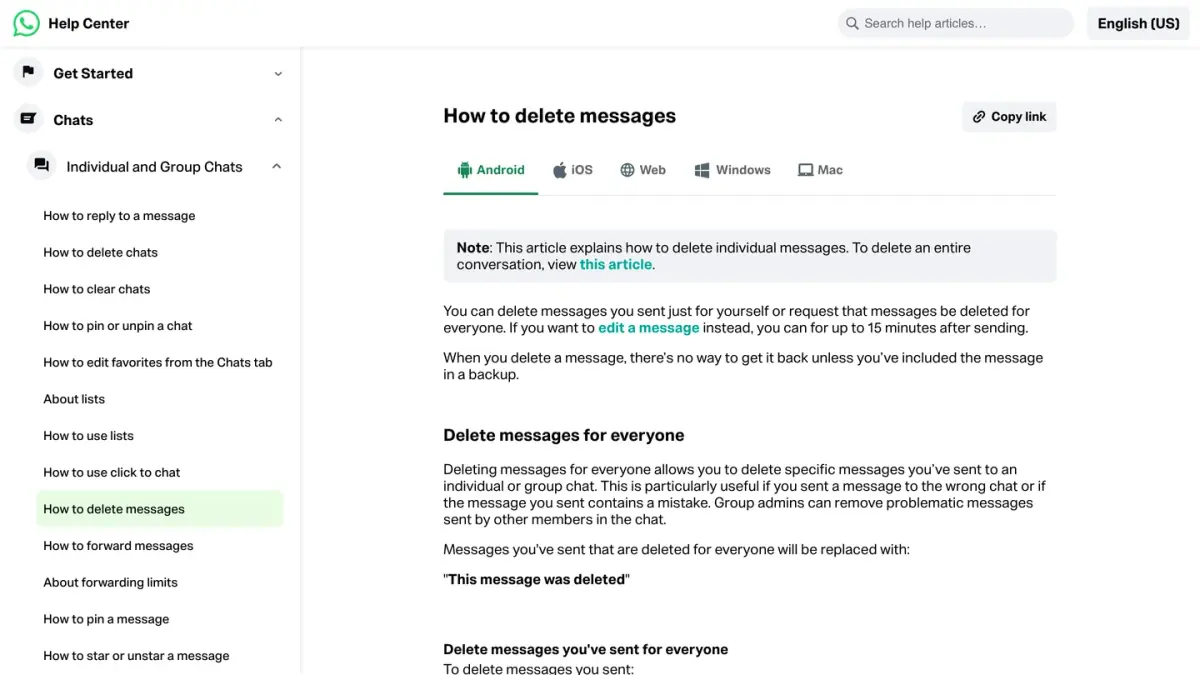
Without such a backup, WhatsApp's Help Center is clear: its page How to delete messages says there is no way to get a deleted message back unless it was included in a backup (as of October 7, 2026). This guide follows what WhatsApp, Google and Apple document, on iPhone and on Android, and says plainly where a method is not documented.
Can you recover a deleted WhatsApp message?
It depends on what happened and on what you have. Here are the cases WhatsApp's Help Center covers, as of October 7, 2026.
| Your situation | Can you get the message back? |
|---|---|
| You tapped Delete for me a moment ago | Yes: you have 5 seconds to tap Undo |
| The message was in a backup made before the deletion | Yes, by restoring that backup. Messages sent and received after the backup cannot be restored |
| You have no backup, or the last backup ran after the deletion | No: WhatsApp says it is unable to recover deleted messages for you |
| The message was a disappearing message | Not through a backup: disappearing messages are deleted when a backup is restored |
Sources: WhatsApp Help Center, How to delete messages, How to restore your chat history and About disappearing messages.
Where does WhatsApp keep your messages?
Knowing where a copy can still exist tells you what is worth trying.
On your phone. WhatsApp's privacy policy says your messages are stored on your device and not typically on its servers. Deleting a message or a chat removes that copy.
In your cloud backup, if you turned it on. WhatsApp can save your chat history to iCloud on iPhone or to your Google Account on Android. This is the recovery route WhatsApp documents, with one limit: there is a single backup. The page Can't back up or restore your chat history states that iCloud stores one backup per account, that a Google Account stores one backup per WhatsApp phone number, and that each new backup overwrites the old one (as of October 7, 2026). If an automatic backup runs after the deletion, the copy that contained your message is replaced.
On WhatsApp's servers, only in transit. The same privacy policy says messages are deleted from WhatsApp's servers once they are delivered, and that a message that cannot be delivered is kept in encrypted form for up to 30 days before it is deleted (as of October 7, 2026). That is why WhatsApp writes that it cannot restore your chats for you: your chat history is not stored on its servers.
What should you check before restoring a backup?
Restoring means reinstalling WhatsApp, so rule out the simple cases first.
- Did you just tap Delete for me? WhatsApp gives you 5 seconds to tap Undo (as of October 7, 2026). After that, its Help Center says the deleted messages cannot be recovered.
- Is the chat only archived? An archived chat is hidden, not deleted. On Android, scroll to the top of the Chats tab and tap Archived. On iPhone, tap Archived at the top of the Chats screen. WhatsApp describes both on its page about archiving a chat.
- Does the other person still have it? Delete for me removes your copy and nothing else: WhatsApp says your recipients still see the messages in their chat. Ask them to forward the message to you. Deleting for everybody works differently, and we cover it in our guide on how to delete a WhatsApp message for everyone.
- Was it a disappearing message? If the timer is on in that chat, the message was removed by design. Our guide to WhatsApp disappearing messages explains how to see and change that setting.
One warning before you go further: do not start a manual backup now. Tapping Back up (Android) or Back up now (iPhone) after the deletion overwrites the backup that may still contain your message.
How do you restore deleted messages on iPhone?
These are the steps of the iPhone version of WhatsApp's page How to restore your chat history.
- Check that a backup exists and when it was made. In WhatsApp, open Settings, then tap Chats > Chat Backup. If your chats are backed up, you see the time and size of the last backup. If that time is later than the deletion, restoring will not bring the message back.
- Uninstall WhatsApp, then reinstall it from the App Store.
- Verify your phone number and Apple ID.
- Tap Restore Chat History.
WhatsApp sets a few conditions:
- The phone number used for the backup and the one used for the restore must be the same.
- There must be enough free space on both iCloud and the iPhone.
- For security, WhatsApp may ask you to confirm your identity with a code sent by text message or call.
- Videos are restored only if Include videos was turned on before the last backup.
How do you restore deleted messages on Android?
On Android, the backup lives in your Google Account. The steps come from the Android version of the same page.
- Check that a backup exists. Open the Google One app, sign in to your Google Account and tap Storage > Other. If your chats are backed up, they are listed there.
- Uninstall WhatsApp, then reinstall it from Google Play.
- Verify your phone number. It has to be the number the backup was created with. WhatsApp adds that backups are tied to the phone number and the Google Account they were created with.
- Tap Restore when prompted.
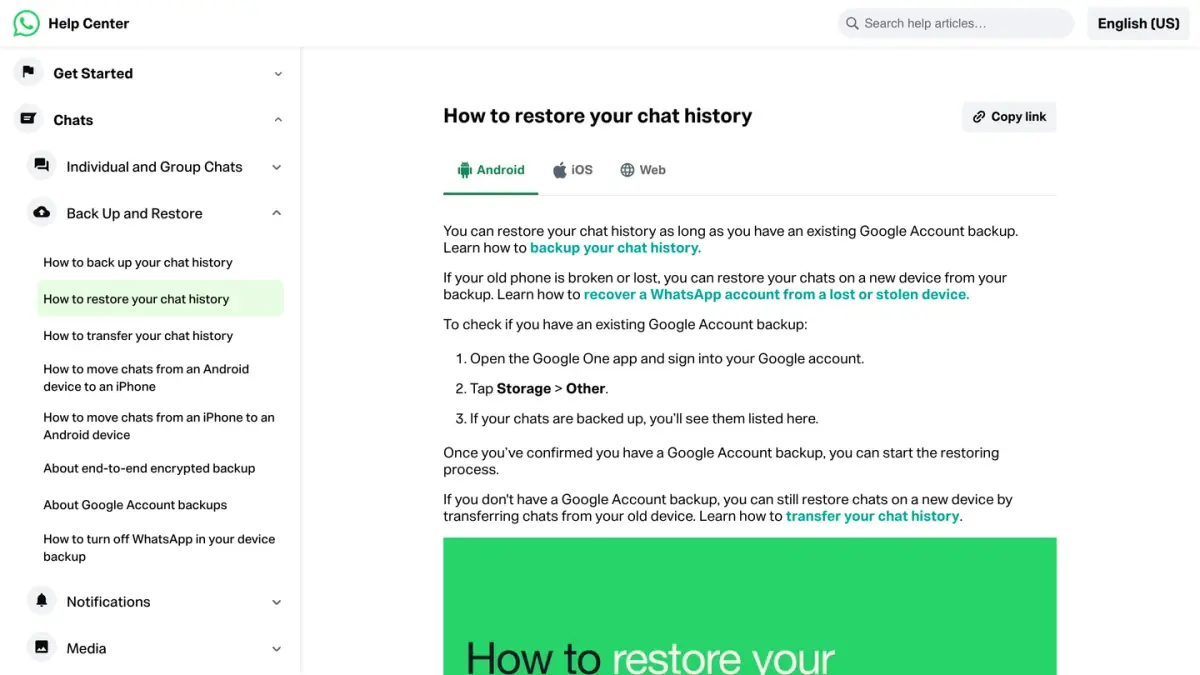
Why reinstall? Because WhatsApp's troubleshooting page says there is no Restore option in the settings: the screen under Settings > Chats > Chat backup contains backup options, and the restore option appears during the initial setup. The free space on the phone must also be larger than the backup you want to restore.
Accept the restore the first time it is offered. If you skip it and another backup runs, WhatsApp says the previous backup is replaced with only the chats received since then.
What if the backup is end-to-end encrypted?
If you turned on end-to-end encrypted backup, you need the passkey, the password or the 64-digit encryption key that protects it. WhatsApp's page About end-to-end encrypted backup says you cannot access the encrypted backup without one of them, and that WhatsApp cannot send you a copy, reset it or restore the backup for you (as of October 7, 2026).
What about the local backup on Android?
WhatsApp's Help Center mentions a local backup on Android in one sentence: with a daily schedule, chats are saved to the Google Account every night after the local backup. Many tutorials explain how to restore local backup files by hand, and how many days of them the phone keeps. As of October 7, 2026, we found no WhatsApp Help Center page that documents that procedure or that number, so we do not describe either here. The documented route on Android is the Google Account backup.
What do you lose when you restore a backup?
A restore is not a search through your history: it replaces your current chats with the content of the backup. Before you uninstall WhatsApp, weigh what WhatsApp says about it.
- Everything after the backup. Messages sent and received after the latest backup cannot be restored. If the last few hours or days matter, save those conversations first: our guide to WhatsApp backup and restore shows how to export a single chat.
- Disappearing messages. WhatsApp deletes them when a backup is restored.
- Videos, unless Include videos was on when the backup ran.
- Any older version of your chats. There is one backup, so you cannot pick an earlier date.
Can you recover messages without a backup?
By WhatsApp's own account, no. What follows are two things you can look at before giving up. Neither is presented by WhatsApp as a recovery method, and neither is guaranteed.
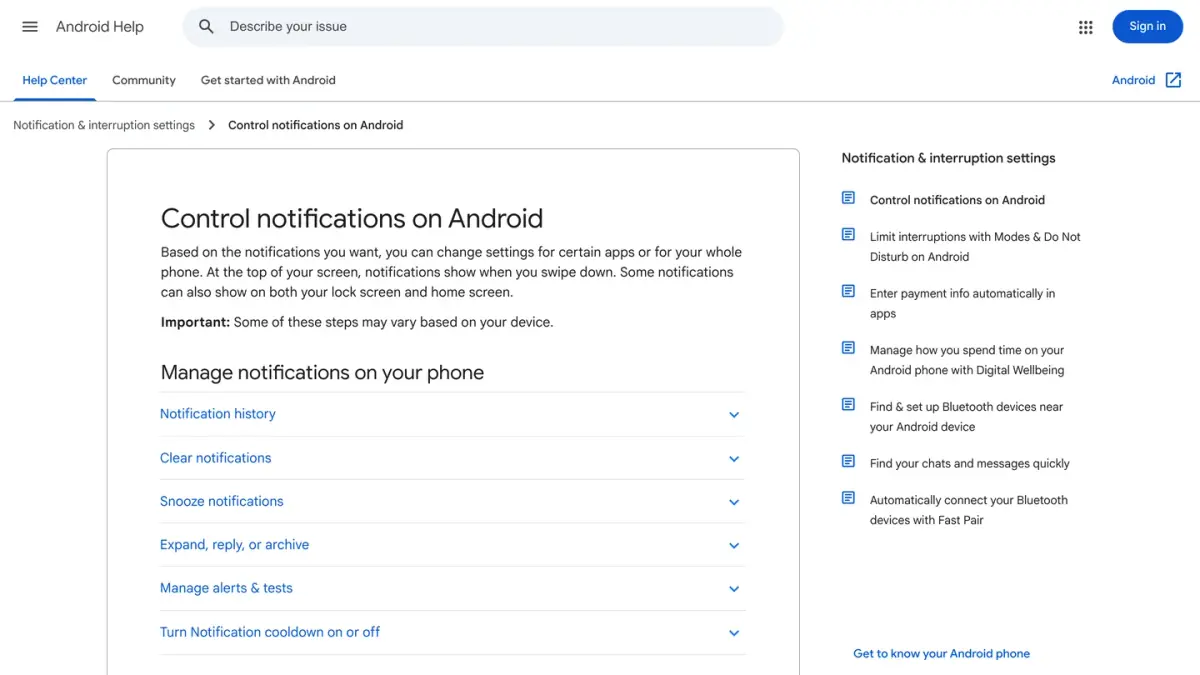
The notification history on Android. Google's page Control notifications on Android describes a notification history, found under Settings > Notifications, that shows recently dismissed notifications and a history of the day's notifications. It also warns that some devices do not have it. If the feature was on when the message arrived, the text shown in the notification may still be listed. At most you will read what fitted in the notification, not the conversation and not the photos.
A linked device that was offline. When you link a computer, WhatsApp's page About message history on linked devices says the phone sends it a copy of your most recent message history, which is stored locally. It adds that a deletion syncs across all online devices where you are logged in. A computer that has been switched off since before the deletion has therefore not received it yet. If you open WhatsApp there without an internet connection, the message may still be visible long enough to copy it. Our guide to WhatsApp Web and Desktop explains how linked devices work.
If you change phones instead of recovering a message, a restore is one of two ways to move your chats: the other is described in our guide on how to transfer WhatsApp to a new phone.
Do WhatsApp recovery apps work?
Search for this topic and you will find software that promises to recover deleted messages without a backup. We do not review or recommend any of it. Three statements from WhatsApp are enough to judge the promise:
- WhatsApp has no copy to give. Your chat history is not stored on its servers, so nothing can be requested from WhatsApp.
- An encrypted backup stays closed without your key. Without the password, the 64-digit key or the passkey, the backup cannot be accessed.
- Unofficial versions of WhatsApp put your account at risk. On its page About unofficial apps, WhatsApp says that using unofficial versions of WhatsApp, or linking your account to them, violates its Terms of Service, that these apps might carry malware, and that the account might be temporarily or permanently banned. If that happens, see our guide on a banned WhatsApp account.
How do you avoid losing messages again?
Recovery depends on a backup that already exists. Setting one up takes a few minutes.
- Turn on automatic backups. On Android, tap More options > Settings > Chats > Chat backup > Back up to your Google Account and pick a schedule. On iPhone, tap Settings > Chats > Chat backup > Auto backup and choose a frequency. The steps are on WhatsApp's page How to back up your chat history.
- Keep the backup fresh on Android. WhatsApp's page About Google Account backups warns that backups that have not been updated in 5 months might be automatically deleted by Google (as of October 7, 2026).
- Protect it with end-to-end encryption, and keep the key. Under Chat backup, tap End-to-end encrypted backup, then Turn on. WhatsApp reminds you that the password or key is the way to access the backup later.
- Use Wi-Fi. WhatsApp recommends connecting to Wi-Fi before backing up, because backup files can use mobile data.
If you run a Shopify store
This guide is about your own chats; if you also run a Shopify store and talk to customers on WhatsApp, Kanal is a WhatsApp marketing and sales app for Shopify stores, with campaigns, abandoned cart recovery, order notifications and a team inbox.
If you run a business account, one fact is worth knowing: the WhatsApp Business app works from a phone, while the WhatsApp Business API is used through a provider's tool. See WhatsApp Business API providers side by side and, for Shopify stores, the WhatsApp apps on the Shopify App Store compared.
Sources
Pages read on October 7, 2026:
- WhatsApp Help Center: How to delete messages
- WhatsApp Help Center: How to restore your chat history
- WhatsApp Help Center: How to back up your chat history
- WhatsApp Help Center: Can't back up or restore your chat history
- WhatsApp Help Center: About Google Account backups
- WhatsApp Help Center: About end-to-end encrypted backup
- WhatsApp Help Center: About disappearing messages
- WhatsApp Help Center: About message history on linked devices
- WhatsApp Help Center: How to archive or unarchive a chat or group
- WhatsApp Help Center: About unofficial apps
- WhatsApp: Privacy Policy
- Android Help: Control notifications on Android
Frequently asked questions
Can you recover a deleted WhatsApp message?
Yes, if the message was saved in a backup made before you deleted it. You uninstall WhatsApp, reinstall it, verify the same phone number and tap Restore when the app offers the iCloud or Google Account backup. The restore brings back the chats as they were at the time of that backup, so messages sent and received after it cannot be restored.
Can I recover WhatsApp messages without a backup?
WhatsApp's Help Center says that when you delete a message, there is no way to get it back unless it was included in a backup, and that WhatsApp cannot recover deleted messages for you. Without a backup, what remains is uncertain: the notification history on some Android phones, a linked computer that was offline, or asking the other person, who still has the message if you deleted it for yourself.
How do I restore WhatsApp messages on an iPhone?
In WhatsApp, open Settings, then Chats, then Chat Backup, and check that the time of the last backup is earlier than the deletion. Then uninstall and reinstall WhatsApp, verify your phone number and Apple ID, and tap Restore Chat History. WhatsApp requires the same phone number as the backup and enough free space on both iCloud and the iPhone.
How do I restore WhatsApp messages on Android?
Open the Google One app, tap Storage, then Other, and check that your chats are backed up. Then uninstall and reinstall WhatsApp, verify the same phone number and tap Restore when prompted. WhatsApp's settings contain no restore button: the option appears during the initial setup, and the phone needs more free space than the size of the backup.
Does WhatsApp keep deleted messages on its servers?
No. WhatsApp's privacy policy, read on October 7, 2026, says messages are stored on your device and deleted from its servers once they are delivered. A message that cannot be delivered is kept in encrypted form for up to 30 days, then deleted. This is why WhatsApp says it cannot restore your chats for you.
Can a disappearing message be recovered from a backup?
No. According to WhatsApp's Help Center, a disappearing message is included in a backup when the backup is created before the message disappears, but disappearing messages are deleted when someone restores from that backup. Restoring a backup therefore does not bring them back. While the timer is still running, a message can be kept so that it stays in the chat.

Nicolas helps e-commerce brands grow revenue with WhatsApp marketing. With deep expertise in Shopify ecosystems and conversational commerce, he shares proven strategies for abandoned cart recovery, broadcast campaigns, and AI-powered customer engagement.
Glossary terms in this article
Quick definitions for the WhatsApp Business terms used above.
Suggested articles
WhatsApp Backup: How to Back Up and Restore Your Chats
Back up WhatsApp to Google or iCloud, restore your chats on Android and iPhone, turn on encrypted backup and fix a stuck backup, with official steps.
How to Schedule a WhatsApp Message (What Works in 2026)
WhatsApp has no schedule button for regular chats. What its Help Center does document: scheduled business broadcasts, away messages, events and reminders.
How to edit a WhatsApp message (15-minute limit)
You can edit a WhatsApp message for 15 minutes after sending it. The steps on Android, iPhone and Web, what the other person sees, and what to do after.
How to Check if a Number Is on WhatsApp (2026)
How to check if a number is on WhatsApp: the free wa.me link method, the contact-save method, and how to validate a whole opt-in list with the API.