Shopify Flow: What It Is, How It Works and Its Limits
Shopify Flow explained: the automation app built by Shopify, the plans that include it, triggers, conditions and actions, setup steps and documented limits.
 Nicolas ProvostOct 7, 2026 · 11 min read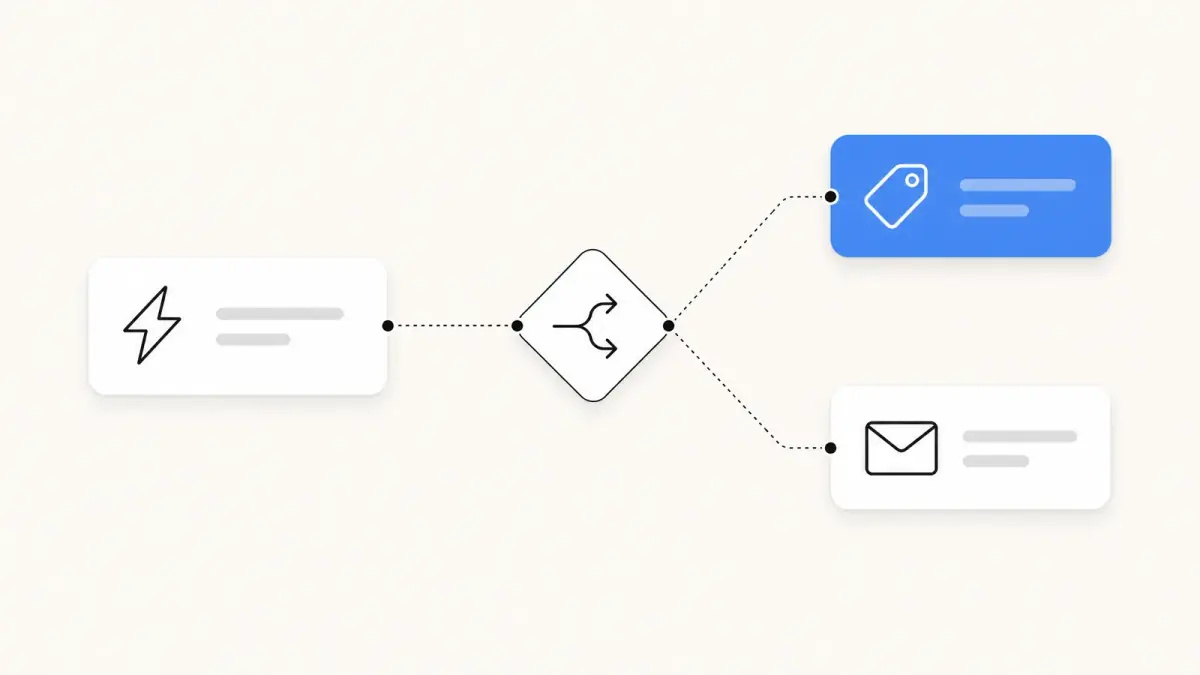
Summarize this article with an AI
 ChatGPT
 Claude
Table of contents (11)
Key takeaways
- Shopify Flow is a free automation app built by Shopify, available on the Basic, Grow, Advanced and Plus plans, that runs triggers, conditions and actions.
- The Send HTTP request action requires Grow or above, and tasks created by custom partner apps are reserved for Plus.
- A workflow has only one trigger, Get data actions return at most 100 items, and run history is removed after 14 days.
Shopify Flow is Shopify's own automation app: it watches your store for events, such as a new order or a change in inventory, and runs the steps you defined in response. The Shopify Help Center describes it as a free app available on the Basic, Grow, Advanced and Plus plans, as of October 7, 2026.
This guide explains what Shopify Flow does, which plans get which features, how to build a first workflow with the labels used in the Shopify admin, and the limits Shopify documents. Every fact comes from Shopify's own pages, read on October 7, 2026.
What is Shopify Flow?
Shopify's definition is short: Flow is "an ecommerce automation platform" that lets you automate tasks and processes within your store and across your apps. It monitors your store for events and lets you create a sequence of actions taken in response (Shopify Help Center).
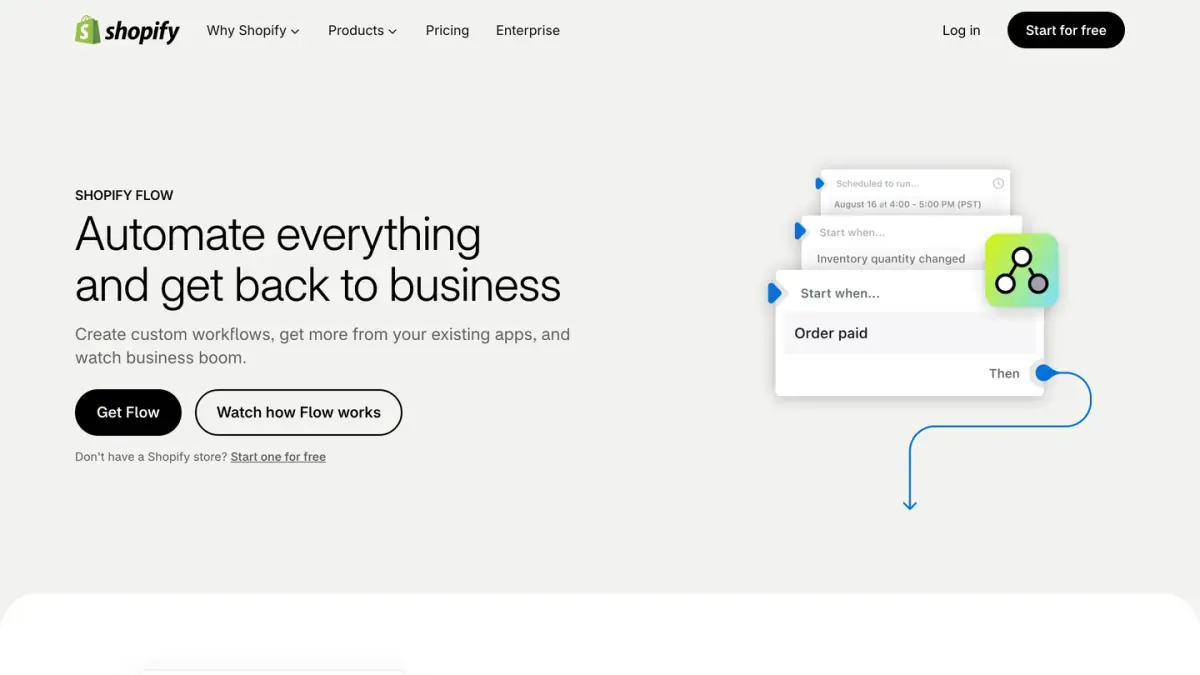
You build that sequence, called a workflow, in a drag-and-drop editor. According to the getting started guide, a workflow is made of three kinds of steps:
| Step | What it is | Example given by Shopify |
|---|---|---|
| Trigger | An event that starts a workflow | The Order created trigger |
| Condition | What is checked to decide how the workflow proceeds | Whether the order total meets or exceeds $500 |
| Action | What the workflow does | The Add customer tags action applies a VIP tag |
Source: Shopify Help Center, as of October 7, 2026.
Shopify's own example ties the three together: instead of checking each order by hand, you let Flow analyze every new order and tag the customer as a VIP when the order reaches $500. If the condition isn't met, the workflow does nothing. A tag like this is often the first brick of an ecommerce loyalty program with VIP tiers.
A fourth component appears in the workflow documentation: connectors, which are actions provided by Flow for third-party services. Shopify's examples are sending a Slack message and adding a row to Google Sheets.
Is Shopify Flow free, and which plans have it?
The Help Center calls Shopify Flow a free app, and you install it from the Shopify App Store before it appears in your admin. On October 7, 2026, its App Store listing showed a price of Free, a rating of 4.7 from 14,563 reviews, Shopify as the developer and a launch date of September 18, 2017.
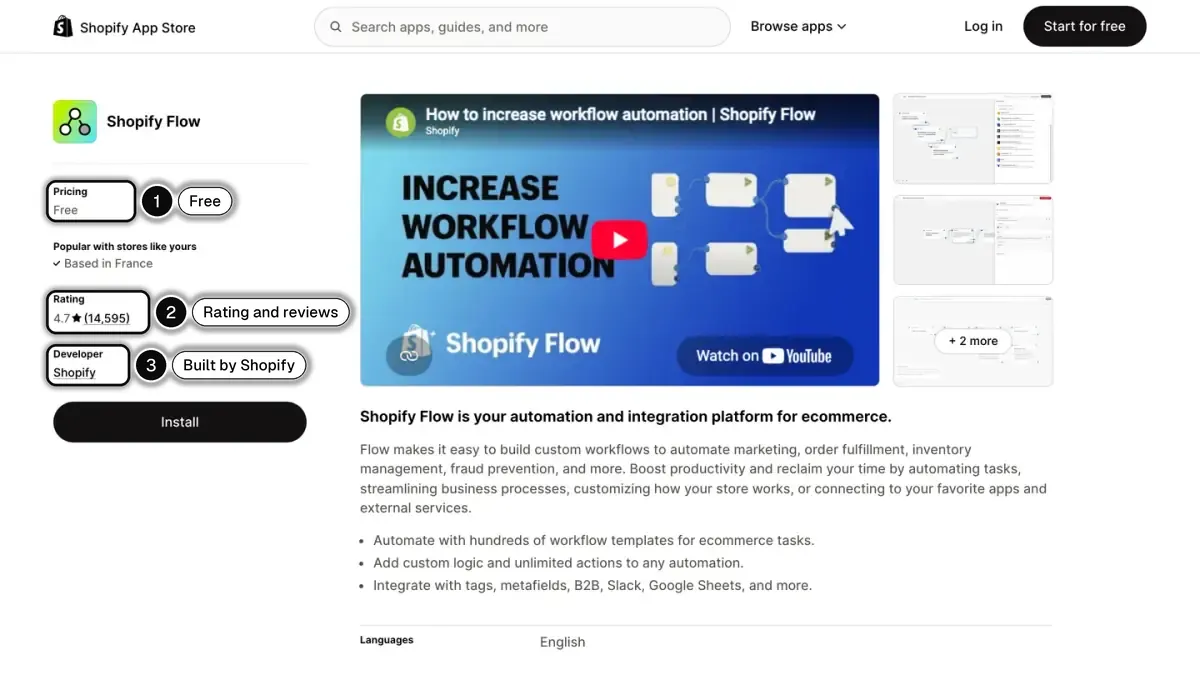 In 1, the Free price; in 2, the rating and review count; in 3, Shopify as the developer.
Most features are the same on every plan. The Help Center lists three differences:
| Feature | Basic | Grow | Advanced | Plus |
|---|---|---|---|---|
| Shopify Flow app | Yes | Yes | Yes | Yes |
| Send HTTP request action | No | Yes | Yes | Yes |
| Tasks created by custom partner apps | No | No | No | Yes |
| Usage limits | Set by the API limits of each plan |
Source: Shopify Help Center, as of October 7, 2026.
The cost of Flow is therefore your Shopify subscription. Our guide to Shopify pricing lists what each plan costs, and the one on Shopify Plus pricing covers the top plan.
How does a workflow run?
Every workflow starts with a trigger. Shopify states that a workflow can have only 1 trigger at a time, followed by any number of conditions and actions. A trigger can be an internal event in Shopify, a specific time and date, or an event in a third-party app.
Conditions then check the properties of the event and of the objects involved, such as orders, products and customers. Each condition splits the workflow into a True branch and a False branch, and you can place different actions on each one.
Actions do the work. The actions reference lists them all. A few examples, with the names used in the editor:
- Store changes: Add order tags, Add customer tags, Hold fulfillment order, Cancel order, Update product status, Publish product.
- Notifications: Send internal email, Send order invoice, Send payment reminder.
- Data: Get order data, Get customer data, Get product data, Count, Sum, For each loop (iterate).
- Advanced: Run code, Send Admin API request, Send HTTP request, Wait.
Shopify notes that actions use the GraphQL Admin API to change your store. The Add order tags action, for example, uses the tagsAdd mutation. Actions also need the right data: a workflow that starts with a Customer created trigger and then tries to add order tags results in a missing data error, because the trigger brings customer data and not order data.
How do you create a workflow in Shopify Flow?
Shopify documents three ways to create a workflow: manually, from a template or with Sidekick.
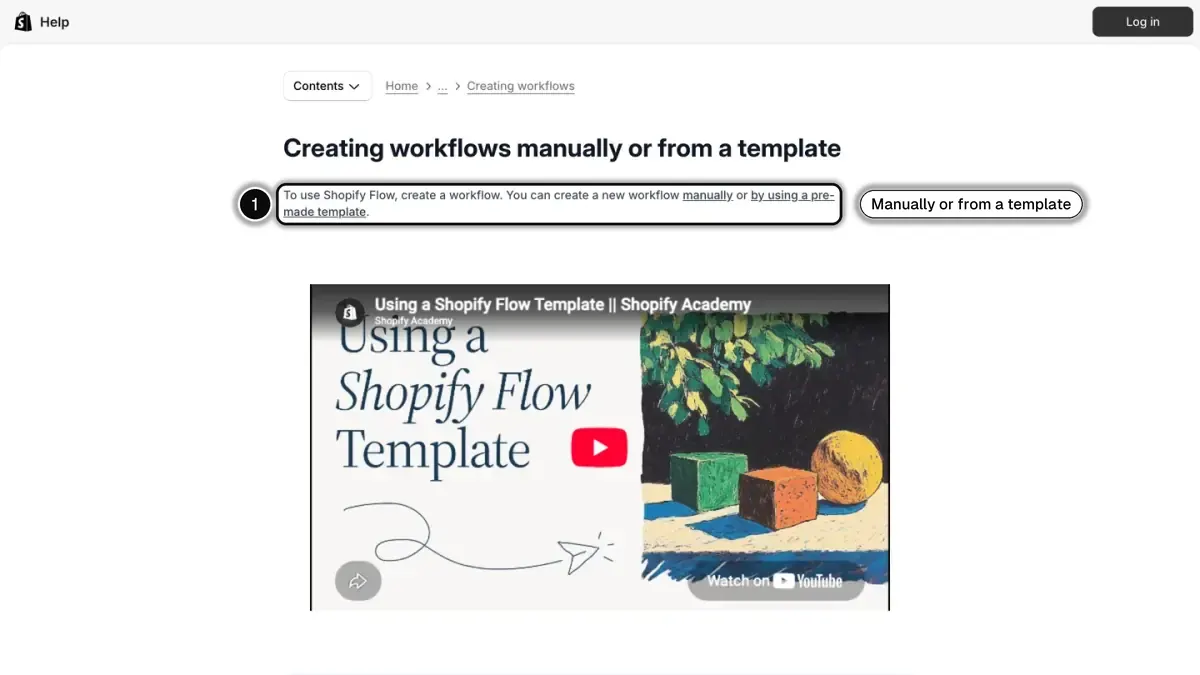
Manually
- From your Shopify admin, go to Apps > Flow.
- Click Create workflow.
- Click Select a trigger, then select the trigger that starts the workflow.
- Click + to create a new step. Click Condition, then define the condition that must be met before any action runs.
- Click + > Action on the True option to select the action taken when the condition is true.
- Optional: click + on the False option to add steps for the other case.
- Click New Workflow and enter a title.
- Click Turn on workflow.
From a template
A template is a pre-made workflow created by Shopify. Click Create workflow, then Browse templates, select a template and click Install. Templates come with placeholder data: Shopify asks you to check the tags, the recipient email addresses and the apps used before you activate one. Many templates rely on app triggers or actions, and the matching connector must be installed.
The examples page says the template library provides hundreds of examples, grouped into categories such as customers, fulfillment, inventory and merchandising, loyalty, orders, payment reminders, promotions and risk. Among the templates Shopify lists: "Organize customers by lifetime spend tiers", "Get notified about irregularly large order quantities" and "Tag orders by their shipping method".
With Sidekick
You can describe a workflow in plain language to Sidekick, Shopify's AI assistant, which generates the steps for you to review. Shopify sets out four points to know:
- You must be using a desktop device.
- Workflows generated by Sidekick are Inactive by default, so you turn them on yourself.
- They are automatically tagged with
sidekick. - Sidekick might omit business-specific logic in complex workflows, so Shopify tells you to review and test the result.
Our Shopify Sidekick guide covers the assistant itself.
What can you automate with Shopify Flow?
Beyond event-based workflows, the Help Center describes a set of advanced building blocks:
- Scheduled time trigger: starts a workflow at a time and date you choose, and can recur hourly, daily, weekly or monthly.
- Get data actions: fetch a list of orders, products, customers or other objects that match a query.
- For each loop (iterate): applies conditions and actions to each item of that list.
- Count and Sum: calculate on the list, for example the number of late orders and their value.
Shopify gives six examples built with them, including a daily summary of orders that miss a two-day fulfillment window, a daily email listing products that are out of stock, and a workflow that checks whether the same customer placed other orders within the last 24 hours and puts fulfillment on hold so the orders ship together.
You can also run workflows manually from the Shopify admin on individual orders, draft orders, customers or products, duplicate a workflow, copy it between stores, and export or import it.
What are the limits of Shopify Flow?
Shopify's documentation is explicit about what Flow does not do or guarantee. The limits below are quoted from its pages, as of October 7, 2026.
| Limit | What Shopify documents | Source |
|---|---|---|
| Triggers | A workflow can have only 1 trigger at a time | Creating workflows |
| Speed | Workflows run as soon as possible, with no defined length of time to complete | Considerations |
| Tags | Conditions on tags might not work beyond 250 tags on the order, product or customer | Considerations |
| Draft orders | Orders and draft orders are treated separately | Considerations |
| Lists | Get data actions can only run on lists up to 100 items long | Advanced workflows |
| Schedules | The Scheduled time trigger can run as frequently as every 10 minutes | Advanced workflows |
| History | Workflow runs are stored for 14 days after a run has completed | Monitoring runs |
| HTTP requests | Flow waits a maximum of 30 seconds for a response code | Send HTTP request |
Two of these deserve a closer look.
Timing. Shopify explains that some fields are filled in asynchronously, particularly on orders. Fulfillments, UTM parameters or risk levels might not be available yet when a workflow starts from Order created. Its advice: test before activating, and pick a trigger that fires once the data exists, such as Order risk analyzed for a workflow based on risk.
Monitoring. After each execution, Flow keeps a log called a workflow run, visible under Apps > Flow > Recent runs. You can filter runs by text, workflow, errors, start time or run ID, and open them from an order, a customer or a product with More actions > Search Flow runs. After 14 days a run is removed and is no longer available, so a problem that goes unnoticed for longer cannot be traced back in Flow.
For the Send HTTP request action, you choose what happens on an error: Retry (for up to 24 hours), Fail or Ignore.
How does Shopify Flow fit with your other apps?
Flow automates what happens inside your Shopify admin and hands off to other tools through connectors, app triggers and app actions. What an app exposes to Flow depends on its developer, so check each app's listing before you plan a workflow around it. Our roundup of Shopify automation apps compares the main options, and our guide to ecommerce marketing automation covers the customer-facing side: welcome series, cart recovery, post-purchase messages.
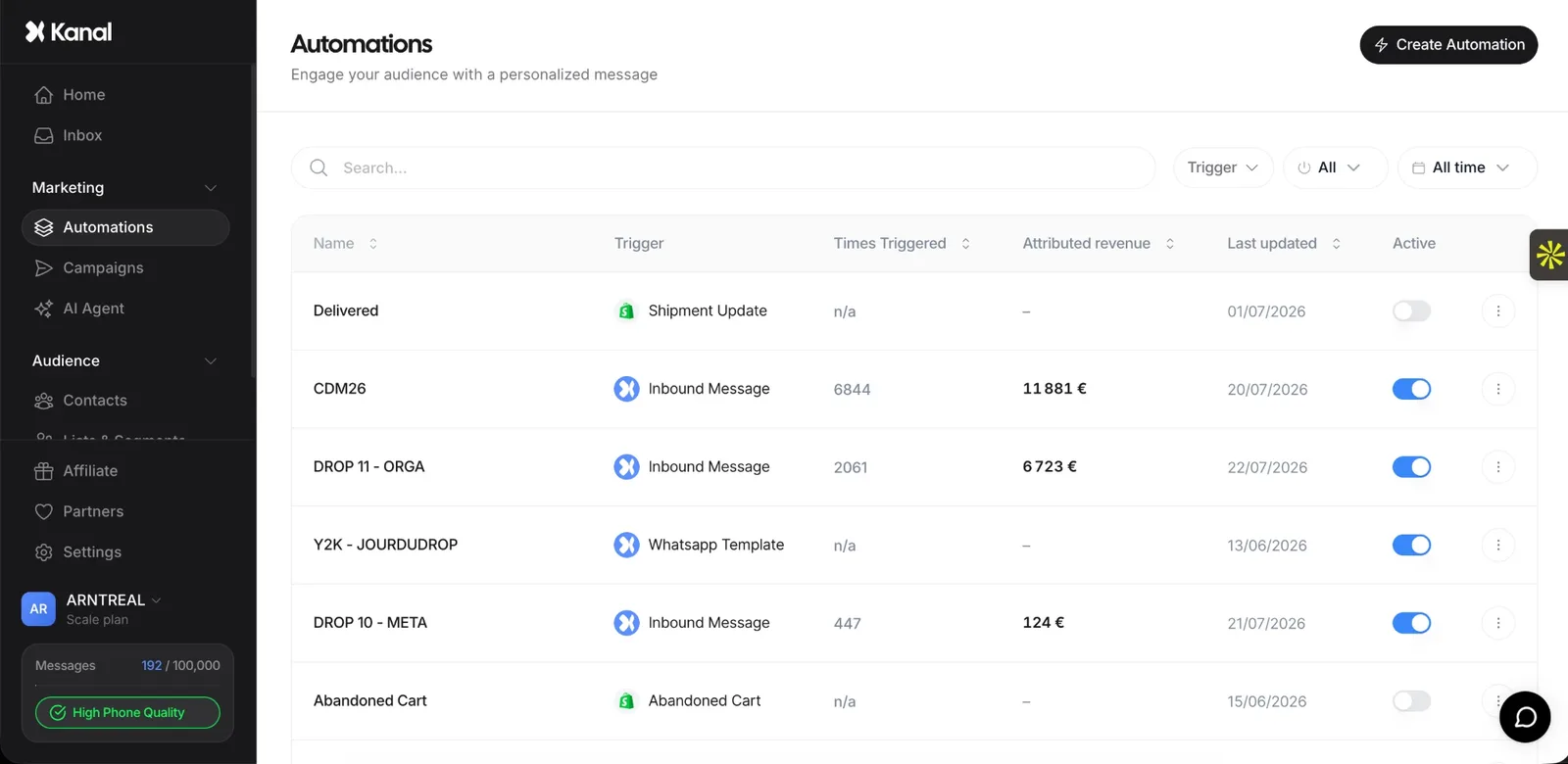
Kanal works on that customer-facing side, on WhatsApp. It is a WhatsApp marketing and sales app for Shopify stores, and its own automations are triggered by Shopify events, such as an abandoned checkout or a new order. They are built and managed in Kanal, separately from your Shopify Flow workflows.
Shopify Flow in one table
| Question | Answer, from Shopify's pages on October 7, 2026 |
|---|---|
| What is it? | An automation app built by Shopify |
| Price | Free app, with a Shopify subscription |
| Plans | Basic, Grow, Advanced, Plus |
| Building blocks | Triggers, conditions, actions, connectors |
| Where | Shopify admin, Apps > Flow |
| Ways to start | Manually, from a template, with Sidekick |
| Run history | 14 days |
| Plan-specific | Send HTTP request (Grow and above), custom partner app tasks (Plus) |
If you are new to Flow, start with a template close to a task you already do by hand, replace the placeholder values, test it on a real event and check the result in Recent runs before you rely on it.
See Kanal on your own store
- Your campaigns and cart reminders on WhatsApp, starting from your own store
- Post-purchase offers, back-in-stock alerts, then the AI agent that advises your customers
- You leave with the plan that fits and its price
From €89/month
- brands
- 500+
- to set up
- 5 min
- open rate on WhatsApp
- +90%
Nicolas helps e-commerce brands grow revenue with WhatsApp marketing. With deep expertise in Shopify ecosystems and conversational commerce, he shares proven strategies for abandoned cart recovery, broadcast campaigns, and AI-powered customer engagement.