Shopify Return Policy: How to Create One and Set Rules
How to create a return policy on Shopify: the written policy page, return rules, self-serve returns, return labels, restocking fees and documented limits.
 Nicolas ProvostOct 7, 2026 · 11 min read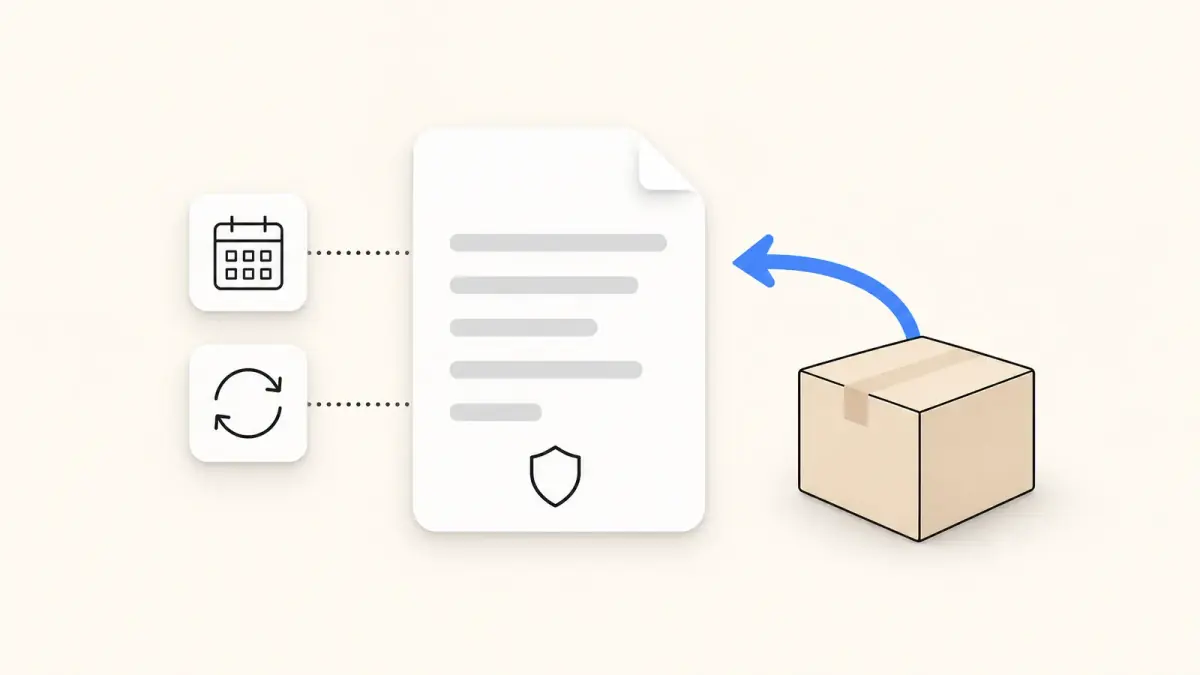
Summarize this article with an AI
 ChatGPT
 Claude
Table of contents (19)
Key takeaways
- A Shopify return policy has two parts in Settings > Policies, a written policy page and return rules, and Shopify does not keep them in sync.
- Return rules set the window, the return shipping cost, a restocking fee and final sale items, and changes apply to future orders only.
- Fees are not deducted automatically from refunds, and prepaid return labels are available for US domestic orders only.
A Shopify return policy has two parts that you set up in Settings > Policies: a written return and refund policy that customers read, and return rules that Shopify applies to orders (return window, return shipping cost, restocking fee, final sale items). You create the first with a text editor or a template, and the second in the Return and cancellation rules section (Shopify Help Center, as of October 7, 2026).
What this article covers: the return policy of your own Shopify store, meaning what your customers can return to you. It is not about refunds of Shopify's subscription fees, which one short section addresses at the end. It is not legal advice either: Shopify itself tells merchants to consult a legal professional about consumer protection laws.
All steps and limits below come from Shopify's own pages, read on October 7, 2026.
What makes up a return policy on Shopify?
| Part | What it is | Where you set it |
|---|---|---|
| Written return and refund policy | The text customers read, published at /policies/refund-policy | Settings > Policies > Written policies |
| Return and cancellation rules | Settings applied automatically to each order | Settings > Policies > Return and cancellation rules |
| Self-serve returns and cancellations | Lets customers submit requests from their account | Settings > Customer accounts |
| Return labels | Prepaid labels you send to customers (US only) | From the return, in Orders |
Sources: Shopify Help Center pages on store policies, return rules, self-serve returns and return labels, as of October 7, 2026.
One point is easy to miss: the two main parts are not connected. Shopify states that the generated policy "doesn't automatically include the return rules that you set up". If your rule says 30 days and your text says 14, nothing warns you. Keep them in sync by hand.
How do you create the return policy page?
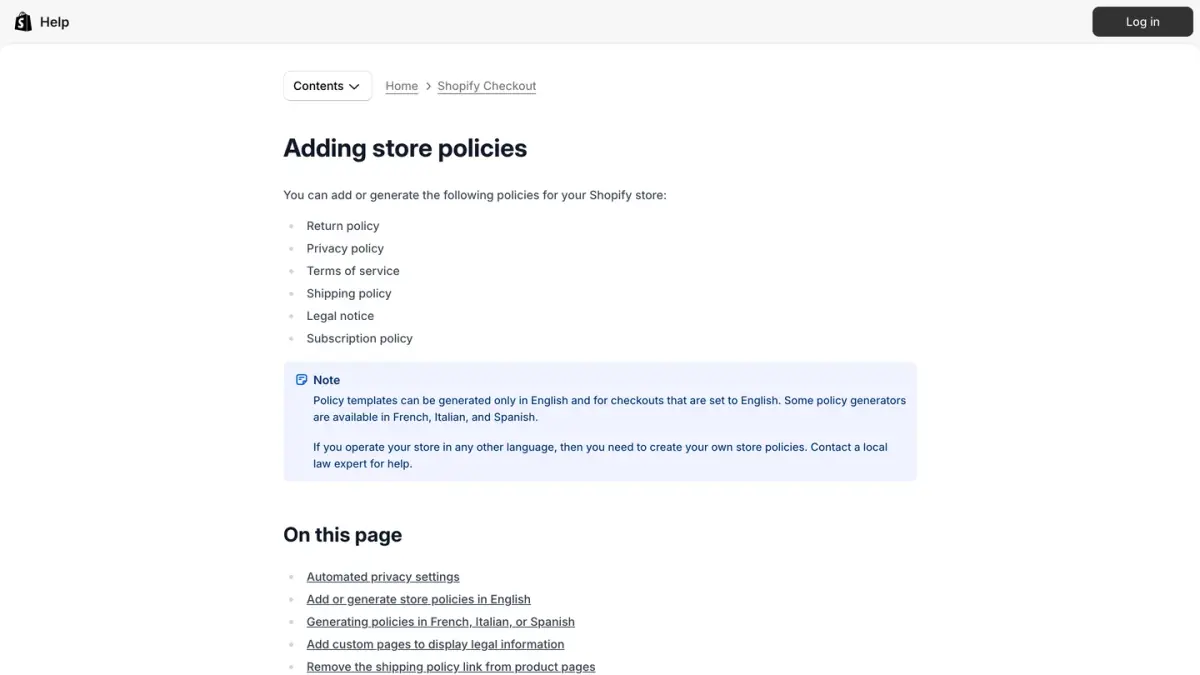
Steps from the Help Center:
- From your Shopify admin, go to Settings > Policies.
- In the Written policies section, click Return and refund policy.
- Enter your policy, or click Insert template to generate the default template. The rich text editor lets you add formatting, links and images.
- Review the policy and make your changes.
- Click Save to publish.
What Shopify says about the result:
- Where it shows. The policy is automatically linked in the footer of your checkout pages, and a link to your return policy is listed on the order review page. To show it elsewhere, add it to a menu under Content > Menus.
- Its address. Add
/policies/refund-policyto the end of your store's domain to get a direct link. - Languages. Policy templates can be generated in English, and some generators exist in French, Italian and Spanish. In any other language, you write your own.
- Responsibility. "Although Shopify can generate templates, you're responsible for following your published policies."
- Sidekick. You can ask Shopify's assistant to insert the template and fill in its placeholders. Nothing changes until you click Save. Our Shopify Sidekick guide describes the assistant.
Shopify does not prescribe what the text should say. A template gives you a structure, and the return rules below give you the list of decisions to make: how long, who pays for return shipping, any fee, and which items are excluded.
How do you set up return rules?
Return rules are applied to an order when the customer places it. They determine which items are eligible, and Shopify uses them to display an estimated refund to customers. Changes apply to future orders only, so customers who already ordered keep the rules that applied to them.
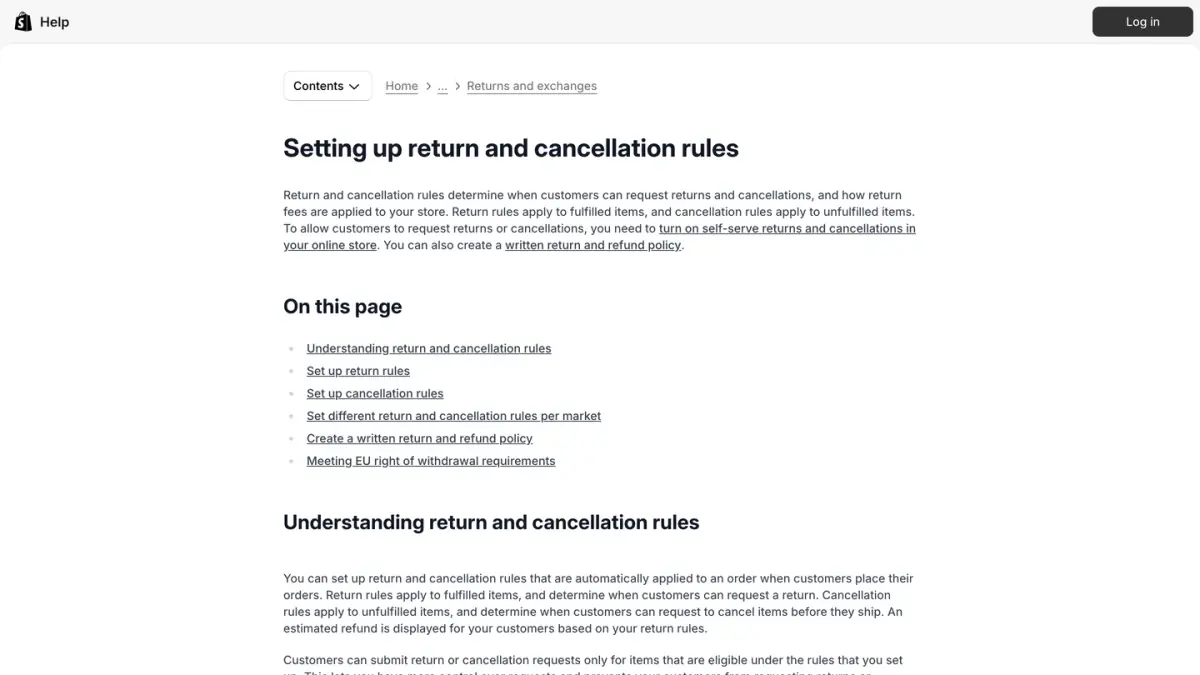
Return window
You choose a preset or a custom number of days:
- 14 days
- 30 days
- 90 days
- Unlimited
- Custom days
In the Starting from menu, you pick when the window starts: Item's delivery (each item has its own window) or Delivery of last item in order (the whole order shares one). An option extends the window to the next business day when its last day lands on a weekend or holiday.
Return window overrides give specific collections, products or variants a longer or shorter window. If an item falls under several overrides, the shortest one applies. Shopify's example: a default of 30 days, a clearance collection at 14 days and a furniture collection at 90 days. A product in both collections gets 14 days.
Return shipping cost
Three options:
- Offer free return shipping.
- Add a flat rate return shipping fee, charged one time per return.
- Have customers buy their own return shipping label.
Restocking fee
You can charge a restocking fee as a percentage of the return. It is displayed when a customer requests a return and when you create one, and you can edit it for a specific return, including by item.
Two details matter here:
- Fees are not deducted for you. "Return fees aren't automatically deducted from refunds. When you create a refund, you need to manually deduct any applicable return fees."
- Tax on return shipping fees. Starting October 23, 2026, for orders shipped to a United States address by stores using Shopify Tax or Tax Platform, tax is calculated on return shipping fees when the fee is taxable in that jurisdiction. Tax isn't calculated on restocking fees.
Final sale items
You can mark products or collections as final sale, so customers can't submit return or cancellation requests for them. Shopify's examples are perishable, custom or personal care items, and heavily discounted items. Two limits: bundles can't be set as final sale, and you can add several products or several collections, but not both products and collections.
The steps
- Go to Settings > Policies.
- In the Return and cancellation rules section, click the rule you want to edit.
- In the Return window section, select the window and when it starts.
- In the Return shipping cost section, select how return shipping is handled, and enter the flat rate if you chose one.
- Optional: select Charge restocking fee and add a percentage.
- Optional: in the Final sale items section, select Specific collections or Specific products and add them.
- Optional: click + Return window override, enter the Days and choose what it applies to.
- Click Save.
Cancellation rules
The same section holds cancellation rules for unfulfilled items. The window options are: No cancellations, Until item is fulfilled, 15 minutes, 1 hour or 24 hours.
What return rules do not do
- They apply to all orders, including B2B: "You can't apply separate return rules to specific order types."
- Different rules per market exist, but Shopify labels the feature as early access, available to certain merchants.
- Using return rules with Shopify POS requires Shopify POS Pro.
- A restocking fee isn't displayed when you refund an unfulfilled order: it shows when you create a return for a fulfilled one.
How do self-serve returns work?
Without self-serve returns, customers write to you and you create the return. With it, they submit a request themselves, and you still decide on each one.
Turn it on
- Go to Settings > Customer accounts.
- In the Customer accounts section, turn on Self-serve returns and cancellations.
- In the request type menu, select Return and cancel requests, Return requests only or Cancel requests only.
Customers then need a way in. Shopify gives two: use the current version of customer accounts, or add the customer accounts URL to your footer, your refund policy or another page. Customers sign in with their email address and a six-digit verification code, without a password.
What Shopify says it does not do
From the setup page:
- It doesn't work with legacy customer accounts.
- Exchanges can't be requested in self-serve returns.
- A cancellation request doesn't change the order on its own: you review and decide on every request.
- A return request can't contain more than 250 line items.
- It applies to all orders, including B2B. You can't activate it for specific types of orders.
- Digital goods and personalized products aren't automatically exempted from cancellations.
Return rules keep working without it. Shopify specifies that fees such as the restocking fee still apply when you process returns manually from the admin.
How do you process a return and send a return label?
To create a return yourself:
- Go to Orders and click the order.
- Click Return (or More actions > Return if some items are unfulfilled).
- Enter the quantity to return and select a Return reason.
- Optional: edit the Restocking fee or Return shipping in the Summary section, or add exchange items.
- In Return shipping options, choose Create a return label in Shopify, Upload a return label or No shipping required.
- Click Create return.
You can create a return only for fulfilled items that haven't been refunded. Shopify also advises creating the return before the refund when items are coming back, because a refund without a return doesn't record a return reason.
Return labels: what Shopify documents
| Point | What the Help Center states |
|---|---|
| Availability | US domestic orders, from a fulfillment location in the United States |
| Carriers | USPS, FedEx, UPS |
| Billing | Pay-on-scan: you're charged after the carrier scans the package, not when you create the label |
| Unused labels | Not charged. Labels can't be voided, but they expire |
| Expiry | USPS 1 year, UPS 6 months, FedEx 90 days after purchase |
| Not covered | US military addresses (APO/FPO/DPO), US territories that require a customs form, international addresses |
Source: Buying return labels, Shopify Help Center, as of October 7, 2026.
Shopify does not publish a fixed price for return labels: they are sold at its discounted carrier rates, which depend on the shipment. Our guide to Shopify shipping rates explains how label pricing works. Outside the United States, Shopify says to buy return labels from a carrier or through a shipping app.
Why does your return policy matter beyond your store?
Shopify uses your policy in several places outside the policy page.
- Shop app. When you configure a return window, it might be displayed on your product pages in the Shop app. Shopify labels this an early access feature, and adds that a policy written only as free text, without a configured window, won't be displayed.
- AI channels. To sell through Shopify's agentic storefronts, including ChatGPT, you must have your Terms of service, Privacy policy and Return and refund policy completed in Settings > Policies (Help Center). Our guide to selling on ChatGPT with Shopify covers that setup.
- European Union. If you sell to EU consumers, Shopify's page describes settings for the 14-day right of withdrawal: a return window of at least 14 days starting from Delivery of last item in order, and cancellations Until item is fulfilled. It also states that using these tools doesn't automatically make a store compliant.
Does Shopify refund its own subscription fees?
This is a separate question from your store's return policy, but people search for both with the same words. Shopify's Terms of Service, last updated on August 1, 2026, state: "Shopify does not provide refunds." They add that, unless otherwise provided in the terms, you are not entitled to refunds of any fees, pro rata or otherwise. For what the plans cost, see our Shopify pricing guide.
How do you handle return questions from customers?
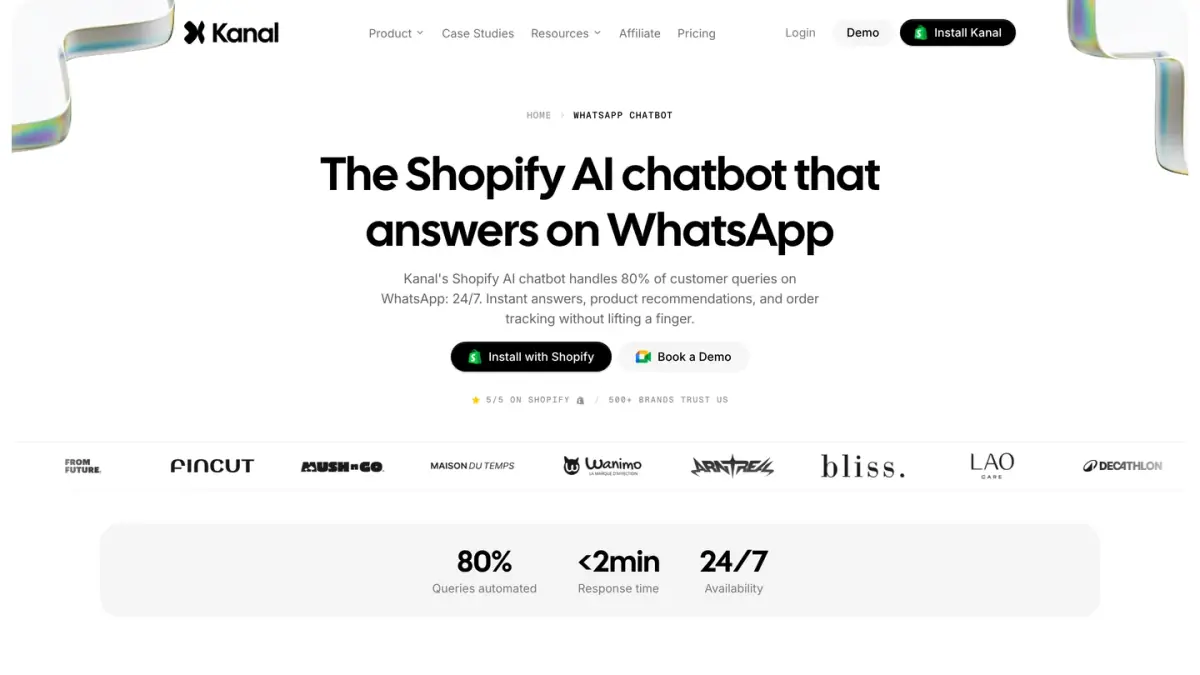
A clear policy removes part of the questions, and the rest arrive as messages: "Can I still return this?", "Where is my refund?". Return questions are one part of a store's customer service, and the same rule applies to all of it: automate what your policy already answers, keep refunds and exceptions with a person. On your storefront, Shopify Inbox can answer from your policies. For stores whose customers write on WhatsApp, Kanal, a WhatsApp marketing and sales app for Shopify, provides a team inbox and an AI chatbot for those conversations, and our guide to WhatsApp customer support on Shopify shows how stores organize it.
Shopify return policy checklist
- Write or generate the policy in Settings > Policies > Return and refund policy, then Save.
- Set a return rule: window, start date, return shipping cost, restocking fee, final sale items.
- Check that the text and the rule say the same thing.
- Decide whether customers can request returns themselves, and give them a link to their account.
- If you ship from the US, decide when you send a prepaid return label.
- Remember to deduct return fees manually when you refund.
- Link the policy in your footer menu, not only at checkout.
See Kanal on your own store
- Your campaigns and cart reminders on WhatsApp, starting from your own store
- Post-purchase offers, back-in-stock alerts, then the AI agent that advises your customers
- You leave with the plan that fits and its price
From €89/month
- brands
- 500+
- to set up
- 5 min
- open rate on WhatsApp
- +90%
Nicolas helps e-commerce brands grow revenue with WhatsApp marketing. With deep expertise in Shopify ecosystems and conversational commerce, he shares proven strategies for abandoned cart recovery, broadcast campaigns, and AI-powered customer engagement.