How to Create a Poll on WhatsApp Group or Chat (+ Who Voted)

Summarize this article with an AI
 ChatGPT
 Claude
How to create a poll on WhatsApp, in a group or a chat: tap attach, then Poll, add up to 12 options, hide voter names or set an end time, edit the question.
Table of contents (12)
Key takeaways
- To create a WhatsApp poll, open the chat or group, tap the attachment icon, choose Poll, type a question and add 2 to 12 options.
- Before sending, choose single or multiple answers, hidden voter names and an end time, because these settings are locked once the poll is sent.
- Only the question can be edited, for 15 minutes after creation, and voter names stay visible to everyone unless you hid them.
Quick answer
How do you create a poll, or run a vote, on WhatsApp?
- Open the chat or group.
- Tap the + (iPhone) or 📎 attachment icon (Android).
- Select Poll.
- Type your question and add 2 to 12 options.
- Choose your settings: one or several answers, hidden voter names, an end time.
- Tap Send.
The poll appears in the chat instantly and everyone in the conversation can vote, with results updating live as people respond. Polls work in one-to-one chats and groups, on iPhone, Android and WhatsApp Web.
Introduction: Why WhatsApp Polls Are Worth Knowing
WhatsApp polls turn a chat into a tiny voting booth. Instead of ten people typing "pizza", "no sushi", "actually Thai", you post one question, everyone taps an option, and the answer is obvious in seconds. The feature is built into the consumer app, free, and works in both group chats and one-to-one conversations.
WhatsApp announced in-chat polls on November 3, 2022 and has refined them since: its current Help Center page, read on October 7, 2026, lists single-vote polls, hidden voter names, an end time and a 15-minute window to edit the question. They are now one of the fastest ways to make a group decision or collect a quick opinion without a single follow-up message.
This guide covers everything: creating a poll in a chat and in a group, the exact steps on Android, iPhone and WhatsApp Web, single versus multiple choice, viewing and sharing results, ending or deleting a poll, and how a Shopify store can use polls for real customer feedback. No fluff, just the steps.
1. What a WhatsApp Poll Can and Cannot Do
Before the steps, here is the honest scope of the feature so you set the right expectations:
- Up to 12 options per poll, minimum 2. Each option is limited to 100 characters and the question to 255.
- Multiple choice by default: voters can select several options. You can switch this off.
- Voter names visible by default: everyone can see who voted for what, unless the creator turns on Hide voter names before sending. Then no one, the creator included, sees who voted for what, and the vote counts stay visible.
- Limited editing: the question can be edited for 15 minutes after the poll is created. The settings are locked once the poll is sent. Text messages follow their own rule, covered in how to edit a WhatsApp message.
- Optional end time: you can set a time at which voting closes. Without one, a poll stays open until you delete it.
- One question per poll: for a survey with several questions, send several polls or use a proper survey tool.
- Works in chats and groups: a poll is just a message type, so it lives anywhere a message can.
If you need multi-question surveys, answers tied to customer records, or an export of the results, the native poll is too basic. We cover the business-grade alternative in section 8.
2. How to Create a Poll in a One-to-One Chat
Polls are not a group-only feature. You can poll a single person, which is handy for picking a gift, a meeting time, or a design between two friends. Once the time is agreed, a WhatsApp event can announce it, as shown in our guide on scheduling a WhatsApp message.
- Open the individual chat with the contact.
- Tap the attachment icon: the plus (+) on iPhone, the paperclip on Android.
- In the attachment menu, tap Poll.
- Type your question in the top field.
- Add your options (tap "Add" or the next empty line for each one).
- Choose whether to allow multiple answers (see section 5).
- Tap the green send arrow.
The poll appears as a normal message bubble. Your contact taps an option to vote, and the result count updates live for both of you.
3. How to Create a Poll in a Group Chat
This is the most common use: deciding something with a group.
- Open the group chat.
- Tap the attachment icon (plus on iPhone, paperclip on Android).
- Tap Poll.
- Enter the question, for example "Where do we eat Friday?".
- Add up to 12 options.
- Set single or multiple choice.
- Tap send.
Every group member can vote, and WhatsApp shows a running tally inside the bubble. When someone votes, a small system note can appear so the group knows the poll is active. Anyone in the group can open the poll and check live results.
4. Step-by-Step on Android, iPhone and WhatsApp Web
The poll feature exists on all platforms, with tiny interface differences.
On Android
- Open the chat or group.
- Tap the paperclip icon near the message field.
- Select Poll.
- Fill in the question and options, set multiple choice, tap the send arrow.
On iPhone
- Open the chat or group.
- Tap the plus (+) icon to the left of the message field.
- Tap Poll.
- Add your question and options, choose the answer mode, tap Send.
On WhatsApp Web and Desktop
- Open
web.whatsapp.comor the WhatsApp Desktop app. - Open the chat, then click the plus (+) or attachment icon near the text box.
- Click Poll.
- Type the question, add options, set multiple choice, then press Enter or click send.
Polls created on one device sync everywhere, so you can start a poll on your phone and watch results come in on the desktop. If your Web session is not loading, fix that first; sending a poll into a broken session does not deliver it.
5. Single Choice vs Multiple Choice
By default, a WhatsApp poll lets each person pick several options. That is great for "Which toppings does everyone want?" but wrong for "Which single date works?".
To control it, look for the "Allow multiple answers" toggle on the poll creation screen:
- Toggle ON (default): each voter can select as many options as they like.
- Toggle OFF: each voter can select only one option. Picking a new one replaces their previous vote.
Pick the mode before you send, because you cannot change it afterward. A quick rule: use single choice for decisions (one winner) and multiple choice for preferences or feature requests (several valid answers).
The same screen holds two other settings: Hide voter names, for an anonymous vote, and Set an end time for your poll, to close voting at a time you choose. All three are locked once the poll is sent. WhatsApp's Help Center documents these two settings for Android and iPhone. Its WhatsApp Web instructions only mention Allow multiple answers, so create the poll on your phone if you need hidden names or an end time.
6. How to View and Share Poll Results
Reading results is simple, and sharing them is just forwarding.
View live results
- The poll bubble shows each option with a vote count and a progress bar.
- Tap "View votes" under the poll to see exactly who picked each option. If the creator hid voter names, only the counts are shown.
- To find an old poll, tap the search bar on the Chats tab and choose the Polls filter.
See vote changes
- If single choice is on, a voter can switch their answer and the tally updates instantly.
- With multiple choice, voters can add or remove selections at any time.
Share results
- To share a poll or its outcome with another chat, long-press the poll message and choose Forward. The recipient sees the poll with current counts.
- You can also screenshot the results for a recap, useful for a quick summary to people not in the group.
7. How to Edit, End or Delete a Poll
WhatsApp keeps poll management simple, and it is more flexible than it used to be.
- Editing: you can edit the poll question within 15 minutes of creating the poll. On Android, tap and hold the poll, tap the pencil icon in the top banner, update the question and confirm. On iPhone, tap and hold the poll, then tap Edit. On WhatsApp Web, click the poll, then Edit. WhatsApp documents editing for the question only: to change the options or the settings, delete the poll and create a new one.
- Ending or closing: set an end time on the poll creation screen, and voting closes at the time you choose. A poll sent without an end time stays open: to stop the voting, delete the poll for everyone or tell the group voting is closed.
- Deleting: tap and hold the question of the poll, tap the trash icon, and choose Delete for everyone (WhatsApp gives two days after sending) or Delete for me. Deleting for everyone removes the poll and all its votes for the whole chat. For the full mechanics, see our guide on deleting a WhatsApp message for everyone.
Because the settings are locked once the poll is sent, the practical workflow is: decide on the end time and on hidden names first, write the question carefully, then send.
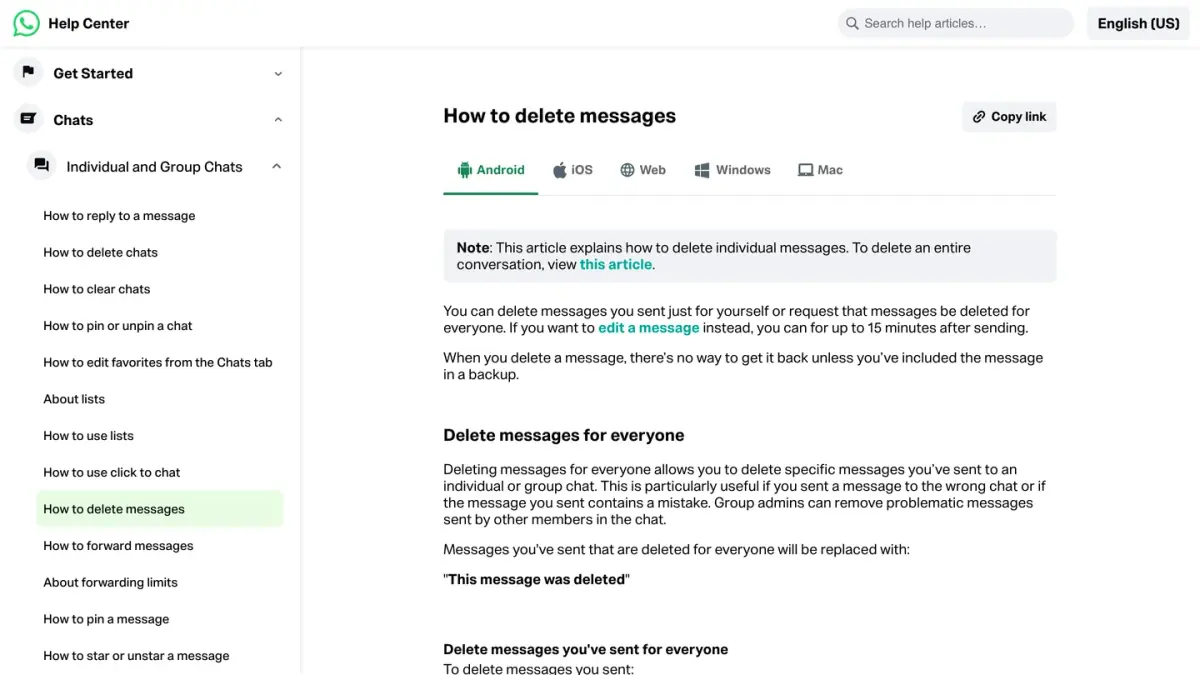
Source for this section: WhatsApp Help Center, How to use polls and How to delete messages, read on October 7, 2026.
8. How Online Stores Use WhatsApp Polls (and Where They Break)
For a small audience, polls are a brilliant feedback tool. Shopify merchants and DTC brands use them to:
- Pick the next product: poll a VIP group on the next color, flavor or scent.
- Validate before launch: ask "Would you buy this at 39 dollars?" before committing stock.
- Run quick customer surveys: "How did you hear about us?" or "What should we improve?".
- Boost engagement: a fun poll in a community keeps the group active and gives you data at the same time.
- Test promotions: "Free shipping or 10 percent off?" to see what your buyers actually prefer.
This works beautifully in a single group of loyal customers. For more on building that audience, see our WhatsApp communities guide and our walkthrough on how to create a WhatsApp group.
The problem appears at scale. The consumer app caps group size, a poll holds one question, and you cannot export results into a spreadsheet or your CRM. If you want to poll every customer who bought in the last 90 days, the native feature simply cannot do it.
That is where Kanal comes in. Kanal is a Shopify app built on the WhatsApp Business API that turns WhatsApp into a real sales and feedback channel. Instead of one manual poll in one group, you can:
- Send an opt-in broadcast with quick-reply buttons to thousands of customers at once (a structured poll at scale). See our WhatsApp broadcast guide for how broadcasts work.
- Collect every response automatically, attributed to the customer and their order history.
- Trigger a follow-up flow based on the answer, for example a discount to anyone who picked "interested".
- Run it all alongside cart recovery, order notifications and an AI chatbot from one inbox.
The Business API needs a proper setup, which our WhatsApp Business API guide explains in full. If you are comparing tools first, our best Shopify apps roundup is a good starting point, and you can always check live functionality on a demo or review plans on the pricing page.
If you run a store and want answers collected automatically, two comparisons help you find your way: WhatsApp apps for Shopify stores, which range from a simple chat button to a full marketing platform, and WhatsApp chatbot platforms, from scripted flows to AI agents.
Conclusion: Polls Are for Decisions, Kanal Is for Scale
Creating a WhatsApp poll takes a few taps: attachment icon, Poll, question, options, send. It works in any chat or group, on iPhone, Android and Web, with up to 12 options and your choice of single or multiple answers, hidden voter names and an end time. The catch is simple to remember: those settings are locked once the poll is sent, and only the question can be edited, for 15 minutes.
For a quick group decision or a fun community question, the native poll is perfect. For a Shopify store that wants to survey hundreds of customers, keep results structured, and act on the answers automatically, the consumer app runs out of road. That is the job of the WhatsApp Business API and a tool like Kanal, which turns one-off polls into a measurable customer messaging channel. Start with a quick poll in your group today, and when feedback becomes a real workflow, scale it properly.
Resources
Frequently asked questions
Can I create a poll in a one-to-one WhatsApp chat?
Yes. Polls are not limited to groups. Open any individual chat, tap the attachment icon (the paperclip on Android, the plus on iPhone), choose Poll, type your question and options, then send. The other person votes directly inside the chat and the tally updates live for both of you.
How many options can a WhatsApp poll have?
A WhatsApp poll takes up to 12 options, each limited to 100 characters, under a question of up to 255 characters, according to WhatsApp's Help Center (read on October 7, 2026). By default a poll is multiple choice (voters can pick several answers). You can toggle "Allow multiple answers" off so each person can select only one option.
Can I edit a WhatsApp poll after sending it?
Partly. You can edit the poll question within 15 minutes of creating the poll: tap and hold the poll, then tap Edit (a pencil icon on Android). WhatsApp documents editing for the question only, and the settings (multiple answers, hidden voter names, end time) cannot be changed once the poll is sent. To change them, delete the poll and create a new one: the votes already cast are lost.
Can poll voters see who voted for what?
By default, yes: anyone in the chat can tap "View votes" to see which contact selected which option. The creator can make a poll anonymous by turning on "Hide voter names" before sending it: no one, the creator included, then sees who voted for what, while the vote counts stay visible to everyone. Choose this setting for a sensitive question, because it cannot be changed afterward.
How do online stores use WhatsApp polls?
Stores use polls for quick product feedback, to pick the next drop color or flavor, to test discount preferences, and to gauge interest before a launch. For polling hundreds or thousands of customers at once, manual polls do not scale, so merchants move to the WhatsApp Business API with a tool like Kanal to send broadcasts and collect structured responses.
How do you create a poll on WhatsApp?
Open the chat or group, tap the attachment icon (the plus on iPhone, the paperclip on Android), then choose Poll. Type your question, add between 2 and 12 options, decide whether voters can pick several answers, and tap send. The poll posts as a regular message and the results update live as people vote.
How do you close or end a poll on WhatsApp?
Set an end time when you create the poll: voting closes at the time you choose. The setting cannot be added once the poll is sent, and WhatsApp's Help Center documents no close button. For a poll without an end time, delete it for everyone (possible for two days after sending) or post a follow-up message announcing that the vote is closed, with the final tally.
How do you create a vote on WhatsApp?
A vote on WhatsApp is run with a poll. Open the chat or group, tap the attachment icon, choose Poll, type the question people will vote on and add up to 12 options. For a one-person, one-vote ballot, turn off "Allow multiple answers". For a secret ballot, turn on "Hide voter names", and set an end time if voting must close at a given moment.
How do you vote in a WhatsApp poll?
Tap the option you want directly inside the poll bubble: a checkmark confirms your vote and the live tally updates for everyone in the chat. If the creator allowed multiple answers, you can select several options. Tap a selected option again to withdraw that vote, and open View votes to see who chose what.

Nicolas helps e-commerce brands grow revenue with WhatsApp marketing. With deep expertise in Shopify ecosystems and conversational commerce, he shares proven strategies for abandoned cart recovery, broadcast campaigns, and AI-powered customer engagement.
Glossary terms in this article
Quick definitions for the WhatsApp Business terms used above.
WhatsApp Web
WhatsApp Web is the official browser client that mirrors a WhatsApp account on a computer, so users can read and send messages with a desktop keyboard.
Read full definitionOpt-in
A WhatsApp opt-in is the permission a person gives a business to send them messages on WhatsApp. WhatsApp's Business Messaging Policy requires it before any message: the business must have the person's phone number and their agreement to hear from that business.
Read full definitionSuggested articles
How to Schedule a WhatsApp Message (What Works in 2026)
WhatsApp has no schedule button for regular chats. What its Help Center does document: scheduled business broadcasts, away messages, events and reminders.
How to edit a WhatsApp message (15-minute limit)
You can edit a WhatsApp message for 15 minutes after sending it. The steps on Android, iPhone and Web, what the other person sees, and what to do after.
How to Check if a Number Is on WhatsApp (2026)
How to check if a number is on WhatsApp: the free wa.me link method, the contact-save method, and how to validate a whole opt-in list with the API.
WhatsApp Community vs Group: Limits & How It Works (2026)
A WhatsApp community links up to 100 groups and 2,000 members around one announcement group. Community vs group, member limits, and how to create one.