WhatsApp Group: How to Create One & 1024 Member Limit (2026)

Summarize this article with an AI
 ChatGPT
 Claude
A WhatsApp group holds up to 1,024 members. How to create a group on iPhone, Android and Web, add members, share an invite link, and go past the limit.
Table of contents (14)
Key takeaways
- A WhatsApp group holds up to 1,024 members, admins included, and nobody can join a full group until someone leaves or is removed.
- To create one, open the Chats tab, tap the new chat icon, choose New group, select members and type a name of up to 100 characters.
- An invite link or QR code from Group info lets people join without being in your contacts, and resetting the link invalidates the old one.
Quick answer
What is the WhatsApp group member limit in 2026? A WhatsApp group can have up to 1,024 members, admins included (WhatsApp Help Center, read on October 7, 2026). WhatsApp raised the limit to 512 in May 2022, then to 1,024 in November 2022. To go beyond, a WhatsApp Community links several groups but is itself capped at 2,000 members, a WhatsApp Channel is a one-way feed anyone can follow, and the WhatsApp Business API sends one-to-one messages to opted-in contacts. Once a group is full, nobody can be added until someone leaves.
Introduction: why WhatsApp groups still matter
WhatsApp groups are the simplest way to get a set of people talking in one place. Family chats, sports teams, work projects, neighbourhood updates, and small customer communities all run on them. Creating one takes under a minute, and once it exists it works the same on every phone.
For online stores, a group can be a genuinely useful tool for a tight circle of fans, but it has clear limits. This guide covers the full picture: how to create a group on iPhone, Android and WhatsApp Web, how to add and remove members, how admin controls and privacy settings work, the 1,024-member cap, invite links and QR codes, and where groups stop making sense for a growing business.
By the end you will know exactly how to set up a group properly, and when a broadcast list or the WhatsApp Business API is the smarter choice.
How to create a WhatsApp group on iPhone
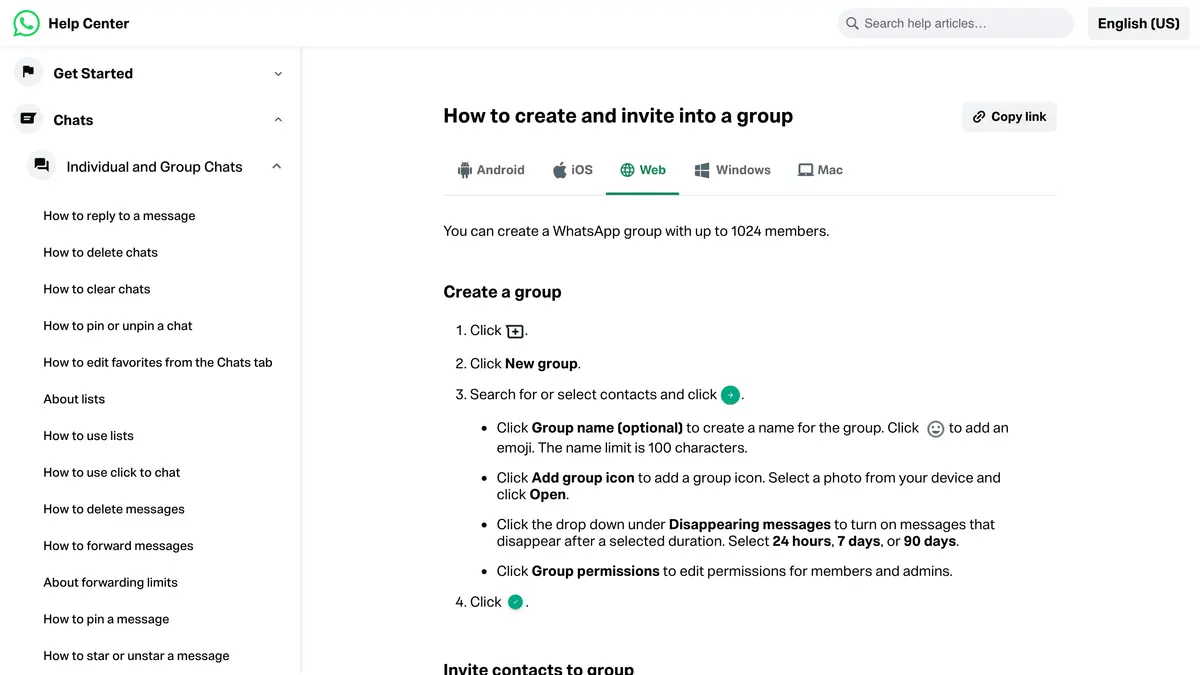
Creating a group on iOS takes four steps.
- Open WhatsApp and go to the Chats tab.
- Tap the new chat icon (a plus sign in a circle), then choose New group.
- Select the contacts you want to add. You can add members now or create the group with just yourself and add people later. Tap Next.
- Type a group name (up to 100 characters) and, optionally, tap the camera icon to set a group icon. Tap Create.
The group is live immediately. Everyone you selected receives a system message telling them they were added, and the chat appears in their Chats list.
How to create a WhatsApp group on Android
The Android flow is nearly identical, with one small difference in where the button sits.
- Open WhatsApp and stay on the Chats tab.
- Tap the green chat icon in the bottom-right corner, then tap New group.
- Choose contacts from your list, then tap the green arrow to continue.
- Add a group subject (the name), an optional icon, and a group description if you want one. Tap the green check mark to finish.
You can also set a disappearing messages timer at creation time on recent versions, so messages auto-delete after 24 hours, 7 days or 90 days. This is handy for groups where you do not want a permanent history. To keep a group out of your main chat list, you can also lock the chat.
How to create a WhatsApp group on WhatsApp Web
If you prefer a keyboard, WhatsApp Web and the desktop app handle group creation just as well.
- Open web.whatsapp.com and link it to your phone, or open the desktop app.
- Click the New chat icon (top-left), then click New group.
- Search and select contacts, then click the arrow to proceed.
- Enter a group name and optional icon, then click the green check to create.
The desktop flow is the same one covered in our WhatsApp Web and Desktop guide. Your phone does not need to stay online for WhatsApp Web to work: linked devices keep working without it, but they are logged out if the phone goes unused for over 14 days (About linked devices).
How to add and remove members
Once a group exists, managing who is in it is an admin task.
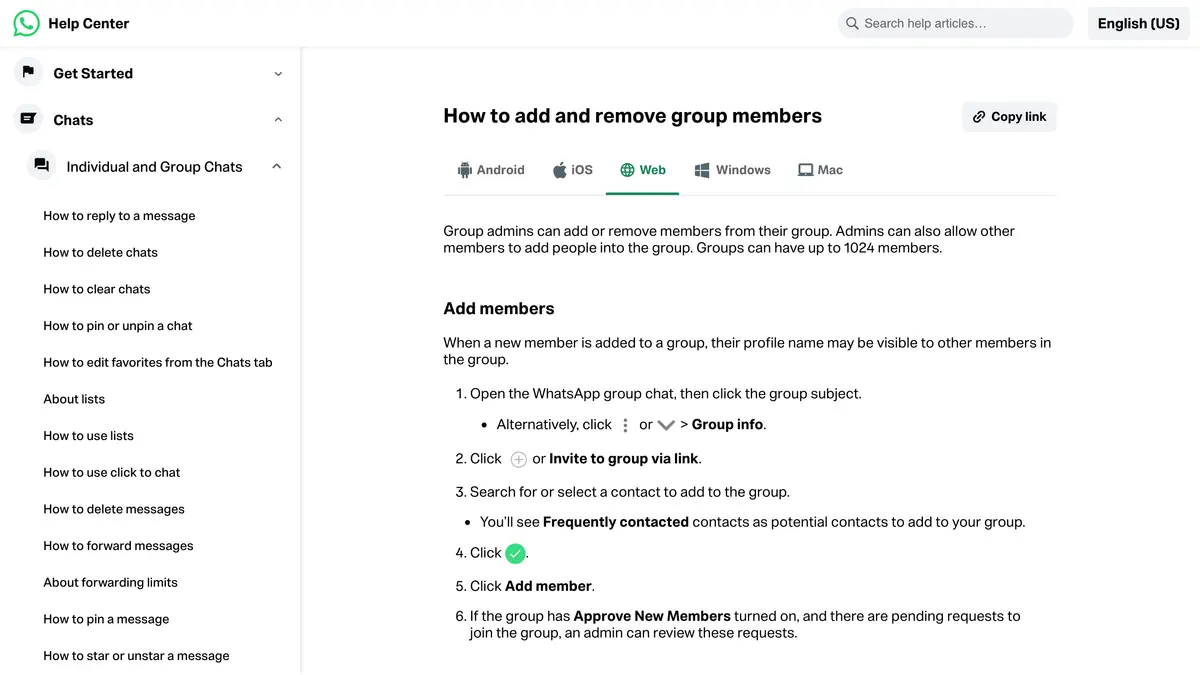
To add members:
- Open the group and tap the group name at the top to open Group info.
- Tap Add members (or Add participants).
- Pick contacts and confirm.
If a contact has set their privacy so that only their own contacts can add them to groups, you will not be able to add them directly. WhatsApp will instead offer to send them an invitation to join via a private message, which they can accept or ignore. They have three days to accept before the invitation expires (How to change group privacy settings).
A number that is not in your address book is not a blocker: in Add members, type the phone number and select it (How to add and remove group members, read on October 7, 2026). WhatsApp publishes no daily limit, but the same page warns that after adding too many members to groups you might see an error message and have to wait 24 hours before adding more.
To remove a member:
- Open Group info and tap the member's name.
- Choose Remove from group.
Removed members see a system message and lose access to all future messages, though they keep the history from while they were in the group.
Admin controls and group settings
The group creator is the first admin and can promote others. Open Group info, tap a member, and choose Make group admin. Tap an admin and choose Dismiss as admin to demote them.
Inside Group info > Group permissions, admins can lock down the group (labels from WhatsApp's Help Center):
- Edit group settings: restrict who can change the name, icon and description to admins only.
- Send new messages: switch the group to admins only, turning it into an announcement-style channel where members can read but not post.
- Add other members: decide whether all members or only admins can add new people.
- Invite via group link or QR code: decide whether members or only admins can share the invite link.
- Approve new members: require admin approval before anyone who uses the invite link can actually join.
These controls are what make a group usable for a brand. Setting Send new messages to admins only, for example, gives you a clean broadcast feel without the chaos of 1,000 people replying at once.
How many people can be in a WhatsApp group? The 1,024-member limit and invite links
A single WhatsApp group holds up to 1,024 members, admins included (WhatsApp Help Center, read on October 7, 2026). WhatsApp announced groups of up to 512 people on May 5, 2022, then groups of up to 1,024 on November 3, 2022. Once a group is full, no one else can join until someone leaves or is removed.
Here is how the group limit compares with the other WhatsApp formats, using the figures WhatsApp publishes:
| WhatsApp format | Limit |
|---|---|
| Group | Up to 1,024 members |
| Broadcast list | Up to 256 contacts per list |
Can you add 5,000 members to a WhatsApp group?
No. A group stops at 1,024 members, and a Community, which links several groups, does not reach that size either. For an audience of 5,000 people or more, the formats that fit are a WhatsApp Channel, a one-way feed that anyone can follow, or one-to-one messages sent to opted-in contacts through the WhatsApp Business API.
How many members can you add to a group per day?
WhatsApp publishes no daily number. Its Help Center only says that if you have added too many members to groups, you might see an error message and need to wait 24 hours before adding more members or creating more groups. Sharing an invite link, so that people join by themselves, avoids the issue.
How to invite people with a link or QR code
To grow a group without manually adding everyone, use an invite link:
- Open Group info and tap Invite via link or QR code.
- Tap Send link via WhatsApp to share it in a chat, Copy link, Share link to use another app, or QR code.
- Anyone who opens the link or scans the QR joins instantly (unless you enabled member approval).
In a group started with fewer than 33 members, every member can create invite links by default, and admins can limit that to admins in Group permissions. You can reset the link at any time from the same screen, which instantly invalidates the old one, and the previous link cannot be restored. Resetting the link is how you revoke access for people who have not joined yet. To turn a number into a one-to-one chat link instead of a group link, use our free WhatsApp link generator.
If you expect to outgrow 1,024 people, look at WhatsApp Communities, which let you group many chats under one structure with a shared announcement group. Our guide explains what a WhatsApp Community is, its member limits and how to create one.
Using WhatsApp groups for your store (and the limits)
A WhatsApp group can be a real asset for an online store, in the right size.
Where groups work well:
- A VIP or insider group of your most loyal customers, capped at a few hundred people, where you drop early access and product news.
- A product launch or pre-order group that runs for a few weeks and is then archived.
- A wholesale or stockist group for B2B buyers who genuinely want to talk to each other.
To keep it controlled, set Send new messages to admins only so it behaves like a clean announcement feed, and you can still gather feedback with a quick WhatsApp poll.
Where groups fall short for marketing:
- The 1,024 cap is far too small for a store newsletter audience.
- There is no segmentation: everyone gets the same message, with no way to target by purchase history or location.
- Member phone numbers are visible to everyone else in the group, which is a privacy and compliance problem.
- You cannot personalise messages or automate them based on cart activity or order status.
This is the point where a dedicated platform takes over. Kanal connects to your Shopify store and uses the official WhatsApp Business API to send one-to-one messages: abandoned cart recovery, order and shipping notifications, segmented broadcasts, and an AI chatbot that replies in your brand voice. Numbers stay private, every message is personalised, opt-in is tracked for compliance, and there is no 1,024 ceiling. Groups are for community; Kanal is for selling at scale.
If you are comparing options, our roundup of the best WhatsApp apps for Shopify breaks down where each tool fits, and the WhatsApp Business API guide explains how proper at-scale messaging is structured.
If you run a business account, keep in mind that messages sent through the WhatsApp Business API are billed by Meta per delivered message, and that automated replies come from a chatbot the business runs on its own number. See WhatsApp Business pricing explained and WhatsApp chatbots compared.
Conclusion: groups for community, Kanal for scale
Creating a WhatsApp group is quick on any device: open a new chat, choose New group, pick members, name it, and you are done. Managing it well comes down to using admin controls, invite links and group settings to keep things organised, and remembering the 1,024-member cap.
For a small, engaged circle, a group is excellent. For reaching every customer with personalised, automated, compliant messaging, a group cannot do the job. That is where a broadcast list or the WhatsApp Business API steps in.
If your store is ready for WhatsApp that actually scales, book a Kanal demo or review the pricing plans to see how it fits.
Resources
Frequently asked questions
How many people can be in a WhatsApp group?
A WhatsApp group can hold up to 1,024 members, including the admins, according to WhatsApp's Help Center (read on October 7, 2026). WhatsApp raised the limit to 512 in May 2022, then to 1,024 in November 2022. To reach a larger audience, look at a WhatsApp Community (several groups under one umbrella), a WhatsApp Channel or the WhatsApp Business API.
How do I add someone to a WhatsApp group?
Open the group, tap the group name to open Group info, then tap Add members and pick contacts from your address book. If the person is not in your contacts or has restricted who can add them, you cannot add them directly. In that case, share the group invite link instead and let them join themselves.
Can I create a WhatsApp group without saving contacts?
Yes. WhatsApp lets you add people whose numbers are not saved in your contacts: open the group, tap Add members, type the phone number and select it. The other route is the group invite link: generate it from the group info screen, then send it over SMS, email or another app. People tap it and join without you saving their number first.
How do I make someone an admin of a WhatsApp group?
Open Group info, tap the member's name, and choose Make group admin. Admins can add or remove members, edit the group name, icon and description, change group settings, and promote or remove other admins. The original creator cannot be removed from the group by anyone else unless they leave on their own.
Are WhatsApp groups good for marketing my store?
Groups work for small, engaged communities such as VIP customers or early-access buyers, but they are not built for marketing at scale. Every member sees every reply, there is no segmentation, and the 1,024 cap is restrictive. For store-wide campaigns, broadcast lists or the WhatsApp Business API (used by platforms like Kanal) deliver personalised, one-to-one messages that respect opt-in rules.
How do you create a WhatsApp group?
Open WhatsApp on the Chats tab, tap the new chat icon, choose New group, and select the members. Then type a group name of up to 100 characters, optionally add a group icon, and tap Create. The group goes live immediately, and the invite link lets you bring in people who are not in your contacts.
How can I add 5,000 members to a WhatsApp group?
A single WhatsApp group cannot hold 5,000 people: the limit is 1,024 members. A WhatsApp Community, which links several groups, does not reach that size either. To reach 5,000 people or more, use a WhatsApp Channel, a one-way feed that anyone can follow, or the WhatsApp Business API, which sends one-to-one messages to opted-in contacts.
How many members can you add to a WhatsApp group per day?
WhatsApp publishes no daily number. Its Help Center only says that if you add too many members to groups, you might see an error message and need to wait 24 hours before adding more members or creating more groups. The fixed limit is 1,024 members per group in total. Sharing the group invite link, so people join by themselves, avoids the problem.

Nicolas helps e-commerce brands grow revenue with WhatsApp marketing. With deep expertise in Shopify ecosystems and conversational commerce, he shares proven strategies for abandoned cart recovery, broadcast campaigns, and AI-powered customer engagement.
Glossary terms in this article
Quick definitions for the WhatsApp Business terms used above.
WhatsApp Web
WhatsApp Web is the official browser client that mirrors a WhatsApp account on a computer, so users can read and send messages with a desktop keyboard.
Read full definitionWhatsApp Communities
WhatsApp Communities bring several related WhatsApp groups together under one umbrella, with an announcements space where admins reach every member at once. A community can hold up to 100 groups and 2,000 members.
Read full definitionSegmentation
Segmentation is the practice of splitting a WhatsApp contact list into groups based on traits like purchase history, behavior, or engagement, so each group receives messages that are actually relevant.
Read full definitionOpt-in
A WhatsApp opt-in is the permission a person gives a business to send them messages on WhatsApp. WhatsApp's Business Messaging Policy requires it before any message: the business must have the person's phone number and their agreement to hear from that business.
Read full definitionSuggested articles
WhatsApp Community vs Group: Limits & How It Works (2026)
A WhatsApp community links up to 100 groups and 2,000 members around one announcement group. Community vs group, member limits, and how to create one.
How to Schedule a WhatsApp Message (What Works in 2026)
WhatsApp has no schedule button for regular chats. What its Help Center does document: scheduled business broadcasts, away messages, events and reminders.
How to edit a WhatsApp message (15-minute limit)
You can edit a WhatsApp message for 15 minutes after sending it. The steps on Android, iPhone and Web, what the other person sees, and what to do after.
How to Check if a Number Is on WhatsApp (2026)
How to check if a number is on WhatsApp: the free wa.me link method, the contact-save method, and how to validate a whole opt-in list with the API.