WhatsApp Business Catalog: Shopify Setup Guide (2026)


Summarize this article with an AI
 ChatGPT
 Claude
Set up a WhatsApp Business catalog synced with Shopify: manual setup, API auto-sync, image specs, catalog message templates and WhatsApp Pay (2026).
Table of contents (36)
Key takeaways
- The free WhatsApp Business app holds up to 500 products entered by hand, while the API with Commerce Manager supports 30,000 items and automatic Shopify sync.
- Product images must be at least 500 by 500 pixels, and square 1080 by 1080 images render sharper on mobile.
- WhatsApp Pay only works in India, Brazil and Singapore, so elsewhere a catalog cart ends with a Shopify checkout link sent in the chat.
WhatsApp commerce is no longer a side experiment. The WhatsApp Business app had more than 200 million monthly users in July 2023, according to Meta, and the catalog is becoming the storefront that lives inside the conversation. For Shopify merchants, this means a second sales surface inside the chat that requires no app install.
In this guide you will learn what the WhatsApp Business catalog is, how to set it up on both the free app and the API, how to sync your Shopify products automatically, the image and copy specs that pass Meta review on the first try, and how to send catalog messages in campaigns that drive in-chat purchases.
What is the WhatsApp Business catalog?
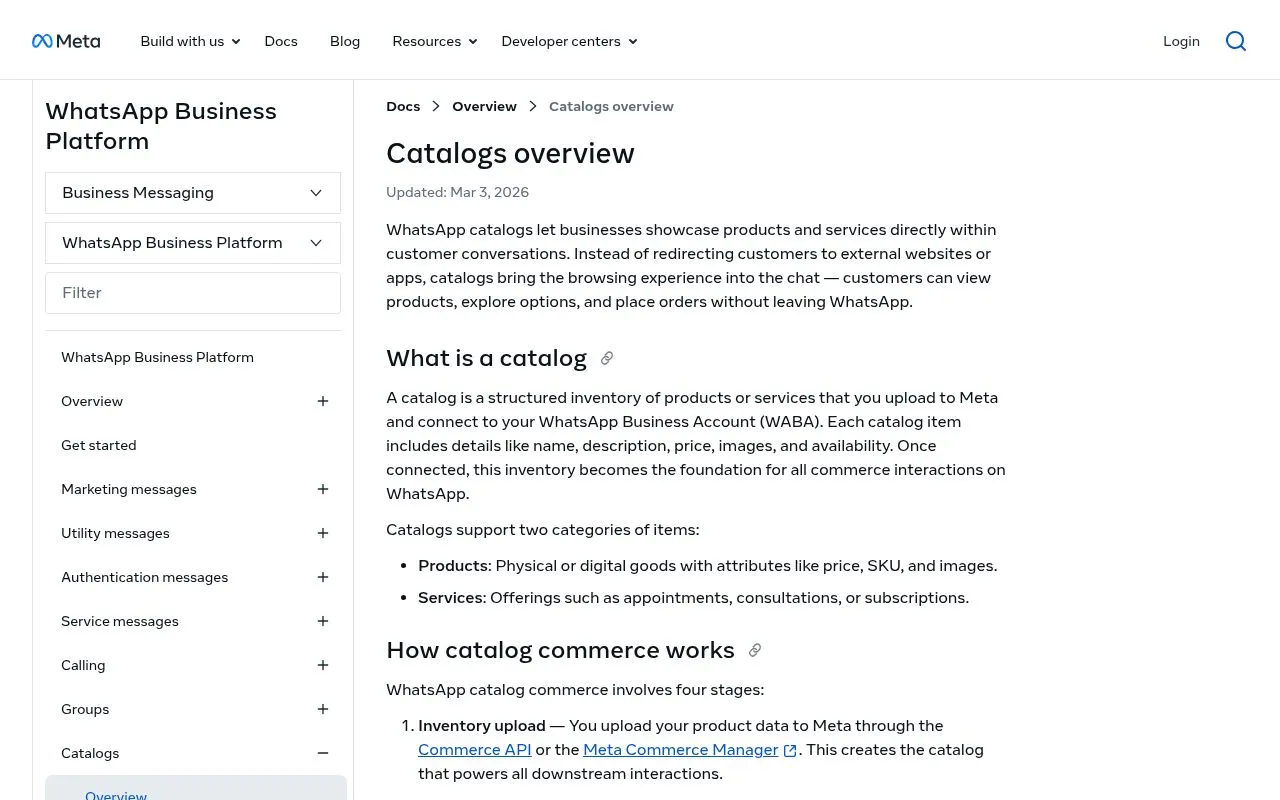
The WhatsApp Business catalog is a built-in product showcase inside WhatsApp. Customers tap your business profile, see a grid of products with images, prices, and descriptions, and can add items to a cart that triggers a chat with you. The catalog lives inside Meta's Commerce Manager, the same backend that powers Facebook Shop and Instagram Shop.
Two parts matter:
- Catalog: the list of products (title, image, price, description, link)
- Cart: the buyer-side surface that collects items before they send an order message
The flow is simple. A customer opens your business profile, taps "View catalog", browses products, taps "Add to cart", and submits the cart as a chat message. Your team receives the order with the SKU list, replies with a Shopify checkout link or a WhatsApp Pay request, and closes the loop without the customer ever leaving WhatsApp.
The catalog is free to use, free to host, and free to display. Meta does not charge per product or per view. What Meta charges are the messages you send: a catalog template in a campaign is charged per delivered marketing message, and your replies inside the 24-hour customer service window (the checkout link after a cart, for example) were not charged until September 30, 2026, and now cost the utility rate after 1,000 free service messages per business phone number each month (see the WhatsApp Business pricing guide for current rates).
Catalog vs single product link: when to use each
Sending a single product link in a chat works for one-off recommendations. The catalog wins for browsing.
| Use case | Single product link | Catalog message |
|---|---|---|
| Customer asks "show me your bestseller" | Single link works | Overkill |
| Customer asks "what do you have under 50 euros?" | One link per product, friction | Catalog message, native browse |
| Reactivation campaign on opt-in list | Generic template | Catalog with curated set |
| Post-purchase cross-sell | Link to one complementary SKU | Catalog filtered by category |
| Live chat agent recommending | Pasting links | Tapping product set |
Rule of thumb: under 5 products, send links. Over 5 products, send the catalog or a product set curated for the customer. For conversational commerce strategy at scale, read the conversational commerce guide.
Setup on the WhatsApp Business app (free, manual)
The free path. Works for stores under 500 SKUs that do not need auto-sync.
Step 1: Open the catalog menu
Open WhatsApp Business on your phone, tap the three-dot menu, then Business tools, then Catalog. On first use, WhatsApp asks for your business name and country.
Step 2: Add products one by one
For each product:
- Upload 1 to 10 images (at least 500 by 500 pixels, JPG or PNG, under 5 MB each)
- Add a title (max 200 characters, no all caps)
- Enter a price in your local currency (optional but recommended)
- Write a description (max 7,000 characters, no URLs in this field for some markets)
- Add a product link pointing to your Shopify product page
- Add a SKU code (optional but useful for order matching)
WhatsApp reviews each product against Meta Commerce policies. Approval usually takes under an hour but can stretch to 24 hours for first uploads.
Step 3: Organize into collections
Once you have 10 or more products, group them into collections (Best sellers, Summer, Under 50 euros). Collections appear as tabs on the catalog view and make browsing faster.
Step 4: Share the catalog
Tap any product, then Share, then choose the chat or generate a public link. The link format is https://wa.me/c/<phone-number> and works as a click-to-chat alternative that opens directly on your catalog.
The free app limits: 500 products max, no auto-sync, manual price and stock updates, no analytics, no template messages with catalog blocks. Solid for solo founders, painful past the 50-SKU mark.
Setup via WhatsApp Business API (with Shopify auto-sync)
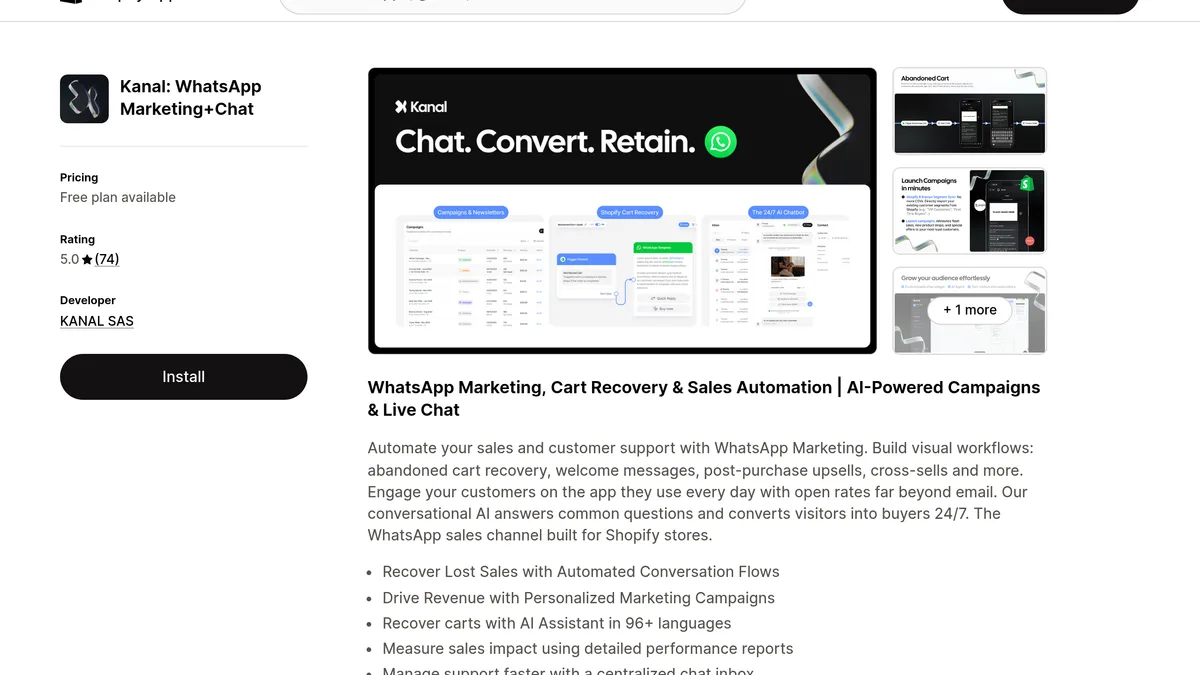
The professional path. Required if you want auto-sync from Shopify, catalog messages in campaigns, multi-agent shared inbox, or any kind of analytics on catalog views and add-to-cart events. Our WhatsApp Shopify setup guide walks through the connection itself.
Step 1: Get a WhatsApp Business API number
You need a verified WhatsApp Business API number. Read the WhatsApp Business API guide for the full onboarding flow. Plan for 1 to 3 days between application and approval depending on your provider.
Step 2: Create your catalog in Commerce Manager
In Meta Commerce Manager, create a new catalog under your business portfolio. Choose "E-commerce" as the catalog type. Pick the same business portfolio that owns your WhatsApp Business Account, otherwise the catalog will not be selectable in WhatsApp.
Step 3: Connect the catalog to your WhatsApp Business Account
In Meta Business Settings, open WhatsApp Accounts, then the account that holds your number, then Catalog. Select the catalog you just created. This binding is what makes catalog messages possible from the API.
Step 4: Push your Shopify products
Three ways to feed the catalog:
- Manual CSV upload: export Shopify products as CSV, map columns to Meta's expected schema (id, title, description, image_link, price, availability, link), upload to Commerce Manager. Works but breaks the moment stock or price changes.
- Meta Pixel and Shopify native integration: Shopify pushes products to Meta Commerce via the official Meta sales channel. The catalog updates automatically when Shopify products change. This is the standard path.
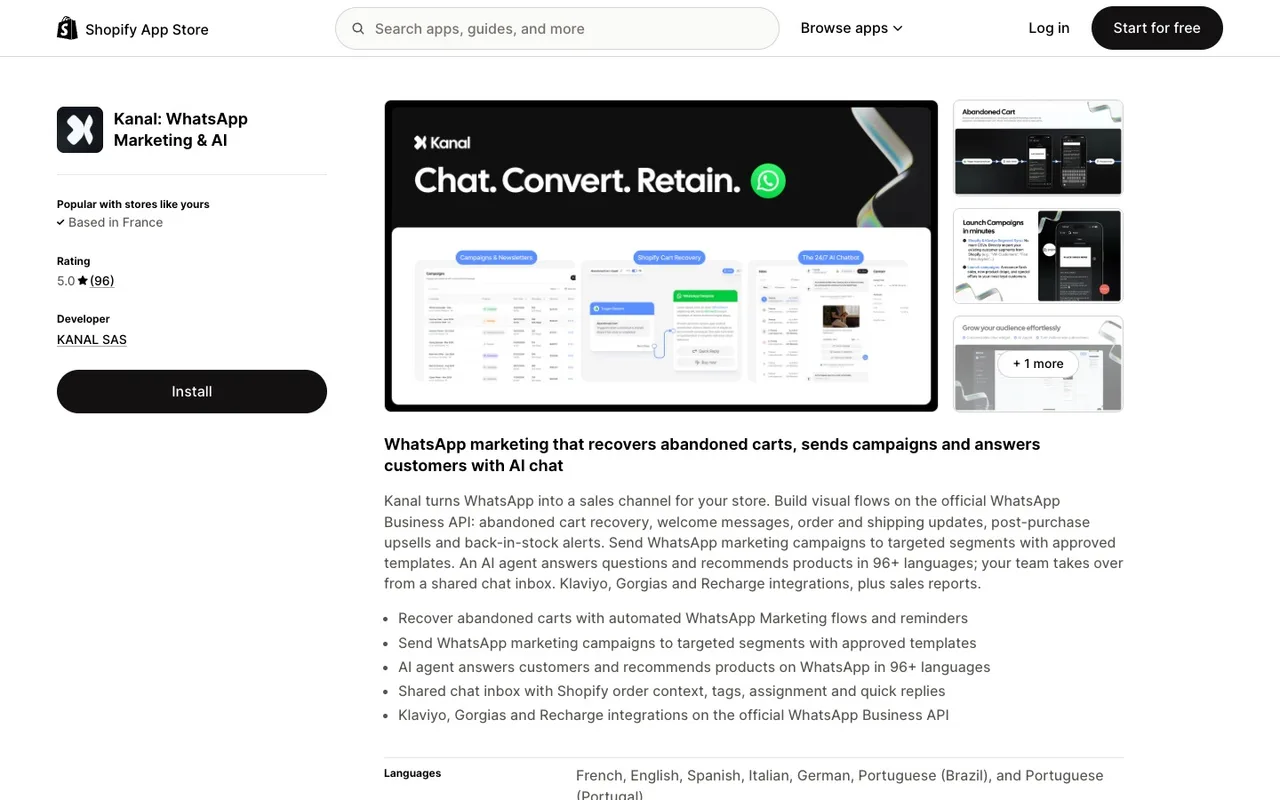
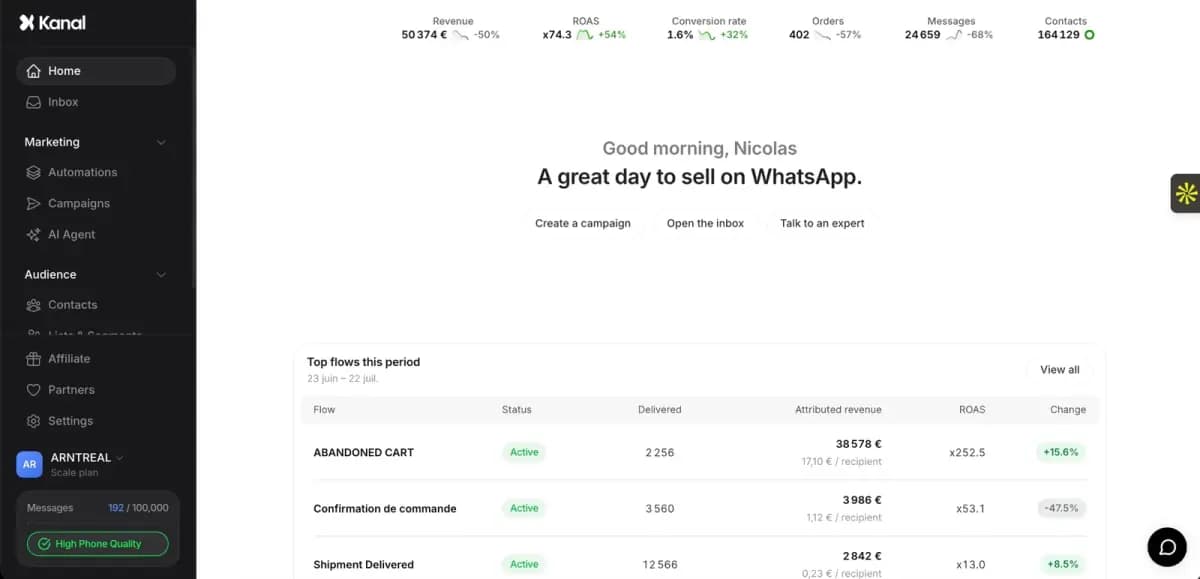
- WhatsApp platform integration: tools like Kanal connect Shopify and WhatsApp directly, sync the catalog on each product update, and surface in-chat browsing, cart capture, and order attribution natively. This is the path that unlocks revenue reporting per conversation.
After the first sync, every Shopify product becomes a row in your WhatsApp catalog, ready to be shown in chat or sent as a catalog message in a campaign.
Best practices for product images, titles, descriptions
The practices below keep a catalog easy to browse on a phone and clean for Meta review.
Images
- Square format, at least 1080 by 1080 pixels (Meta minimum is 500 by 500, but mobile renders crisp at 1080)
- White or neutral background for the primary image, lifestyle shots for image 2 and beyond
- Show the product, not the lifestyle, in image 1: WhatsApp crops aggressively in catalog grid view
- No text overlays in image 1 (Meta flags them in some markets)
- Same lighting and crop style across all SKUs, otherwise the catalog looks like a marketplace
Titles
- Front-load the product type, then the model, then a distinguishing feature
- Bad: "Beautiful summer floral dress for women perfect gift"
- Good: "Floral midi dress, navy, sustainable cotton"
- Keep under 60 characters so nothing truncates in the catalog grid
Descriptions
- First line is the only one visible without expanding, write it like an email subject
- Use bullet points for specs (size, material, care)
- End with a call to action that prompts a reply: "DM us your size for instant availability"
- Avoid URLs in this field outside the US, UK, and EU (some markets reject them)
Prices
- Always include a price even if it is "From X euros", so customers can shortlist products without having to ask
- For variant pricing, show the cheapest variant price and use the product page for the range
- Update prices through Shopify, not manually in Commerce Manager, otherwise sync conflicts will overwrite your changes
How to send a catalog message in a campaign
This is where catalogs go from passive showcase to active sales channel. A catalog message is a WhatsApp template that contains a catalog block, either showing all products or a curated product set.
Step 1: Create a product set
In Commerce Manager, create a product set (Filter by tag, collection, or manual selection) that matches your campaign. Examples:
- "Summer sale" product set with 12 SKUs tagged "summer" in Shopify
- "Back in stock" product set rebuilt nightly via Shopify tags
- "Cross-sell for buyers of category X" product set, manually curated
Step 2: Build a catalog template
In your WhatsApp platform (Kanal, or your API provider), create a marketing template with a catalog block. The template needs:
- A header (text, image, or video)
- A body with personalization tokens (
{{1}}first name,{{2}}cart value) - A footer (optional)
- A catalog button pointing to your product set
- Approval from Meta (24 to 48 hours)
Step 3: Send to your opt-in list
In your campaign tool, select a segment (For example, customers who bought in the last 60 days), pick the catalog template, and schedule. WhatsApp delivers the template with the catalog button. The recipient taps, lands on the product set inside the chat, adds to cart, and sends the order back.
Compare the click and order rates of catalog templates with your usual static image templates on the same segment. Curating the product set to the segment is the first lever to test.
For full campaign sending mechanics, see the Kanal WhatsApp broadcast guide.
WhatsApp Pay integration (where available)
WhatsApp Pay closes the loop by handling payment inside the chat. The customer reviews the cart, taps "Pay", authenticates with their bank, and the order is paid without leaving WhatsApp.
Available markets in 2026:
- India: UPI-based, broadest deployment, supported in WhatsApp Business API
- Brazil: PIX-based, available for both consumer and business accounts
- Singapore: PayNow-based, supported in WhatsApp Business API
In these markets, the flow becomes catalog browse, cart, in-chat payment, Shopify order created via webhook, all in one conversation.
Outside these markets, the equivalent flow is catalog browse, cart, then a Shopify checkout link sent in the chat. The handoff to a Shopify checkout adds friction but is still the standard for the EU, US, UK, and most of LATAM and APAC. Apple Pay, Google Pay, and one-tap Shop Pay reduce the friction to a near-equivalent experience.
Common catalog mistakes (and how to avoid them)
Mistake 1: Uploading images under 500 by 500 pixels
Meta auto-flags low-res images and the product disappears from the catalog without notice. Always export Shopify images at 1080 by 1080 minimum before sync. A platform like Kanal auto-upscales below-spec images on sync.
Mistake 2: Listing prohibited categories
Alcohol, tobacco, weapons, supplements (in some markets), adult content, and live animals are blocked. Listing goods prohibited by the Meta Commerce Policy can cost more than the listing: under the WhatsApp Business Policy, Meta may prohibit you from using some or all WhatsApp Business services. Audit your Shopify tags before sync and exclude flagged categories.
Mistake 3: Mixing currencies in one catalog
A WhatsApp catalog supports one currency at a time. If your Shopify store sells in EUR and USD, you need two catalogs and two WhatsApp Business numbers (or one number with locale-routed catalogs through a platform). Read the best WhatsApp apps for Shopify comparison for multi-currency setup options.
Mistake 4: Letting stock go stale
If Shopify shows "out of stock" but the catalog still shows the product as available, customers will order it and you will refund. Auto-sync solves this. Manual catalogs do not.
Mistake 5: No order confirmation back to Shopify
A catalog order arrives as a WhatsApp message. Without a connector, your Shopify backend never sees it. The fix is a platform that creates the Shopify draft order automatically from the catalog cart, then sends the checkout link. This keeps inventory accurate and your finance reporting clean.
FAQ
What is the WhatsApp Business catalog?
A native product showcase inside WhatsApp where customers browse items, view prices, and add to cart. Free in the WhatsApp Business app (up to 500 products), unlimited in the WhatsApp Business API with Shopify auto-sync.
Can I sync my Shopify catalog with WhatsApp automatically?
Yes, through the WhatsApp Business API and a platform like Kanal. The free app requires manual entry. API-based sync pushes Shopify product changes to WhatsApp in near real time.
How many products can I add?
500 in the free app, 30,000 per catalog through the API and Commerce Manager.
Do I need WhatsApp Pay to sell?
No. WhatsApp Pay (India, Brazil, Singapore) closes the loop in-chat. Elsewhere, the standard is catalog browse, cart, then a Shopify checkout link in the chat.
Why was my catalog rejected?
Low-resolution images, prohibited categories, missing or duplicate titles, or misleading prices. Audit Meta Commerce policies and re-upload corrected items.
Conclusion
The WhatsApp Business catalog turns chat from a support channel into a storefront. Done right with Shopify auto-sync, it adds a sales surface inside the chat that stacks on top of every other WhatsApp lever you already run.
The three actions to take now:
- Decide between the free app (under 500 SKUs, manual) and the API path (auto-sync, campaigns, analytics)
- Connect Shopify to your WhatsApp Business number with the Kanal Shopify integration
- Launch your first catalog campaign on an opt-in segment to validate conversion before scaling
Want to see a fully synced Shopify-to-WhatsApp catalog flow in production? Book a demo and we will walk you through the catalog sync and a first catalog campaign on your own store.
Resources
See Kanal on your own store
- Your campaigns and cart reminders on WhatsApp, starting from your own store
- Post-purchase offers, back-in-stock alerts, then the AI agent that advises your customers
- You leave with the plan that fits and its price

- brands
- 500+
- to set up
- 5 min
- open rate on WhatsApp
- +90%
5/5 on the Shopify App Store (125 reviews)

Nicolas helps e-commerce brands grow revenue with WhatsApp marketing. With deep expertise in Shopify ecosystems and conversational commerce, he shares proven strategies for abandoned cart recovery, broadcast campaigns, and AI-powered customer engagement.
Glossary terms in this article
Quick definitions for the WhatsApp Business terms used above.
WhatsApp Business App
The WhatsApp Business App is a free mobile application designed for small businesses to chat with customers, with a catalog, quick replies, and automated greeting messages.
Read full definitionWhatsApp Pay
WhatsApp Pay is the name commonly given to payments on WhatsApp: paying a person or a business without leaving the chat. For businesses, Meta documents payment features on the WhatsApp Business Platform for two countries, India and Brazil.
Read full definitionCustomer Service Window (24-hour window)
The customer service window is a 24-hour timer that starts when a WhatsApp user messages or calls a business. While it is open, the business can reply with free-form messages; once it closes, it can only send approved message templates.
Read full definitionOpt-in
A WhatsApp opt-in is the permission a person gives a business to send them messages on WhatsApp. WhatsApp's Business Messaging Policy requires it before any message: the business must have the person's phone number and their agreement to hear from that business.
Read full definitionConversational Commerce
Conversational commerce is the practice of selling and supporting customers through messaging channels like WhatsApp, where buying happens inside a chat.
Read full definitionwa.me Link (Click-to-Chat)
A wa.me link is WhatsApp's official click-to-chat URL. Opening it starts a conversation with a specific number, without the visitor saving the contact first.
Read full definitionWABA (WhatsApp Business Account)
A WABA (WhatsApp Business Account) is the account that represents a business on the WhatsApp Business Platform. A business needs one to send and receive messages through the API and to create message templates; it holds the phone numbers, the templates and the billing setup.
Read full definitionWhatsApp Catalog
A WhatsApp catalog is a list of products or services, with names, images, prices and descriptions, that a business connects to its WhatsApp account so customers can browse and order without leaving the chat.
Read full definitionMarketing Template
A marketing template is a WhatsApp message template used for promotion: offers, product launches, back-in-stock alerts or cart reminders. It can be sent at any time to customers who opted in, and Meta charges each delivered message at the marketing rate of the recipient's country.
Read full definitionWebhook
A WhatsApp webhook is an HTTP request with a JSON payload that Meta's servers send to a business's server whenever something happens on its WhatsApp account, such as an incoming message or a delivery status change.
Read full definitionSuggested articles
Conversational Commerce: Definition, Examples and Platforms
Conversational commerce means selling through chat: live chat, AI agents, WhatsApp, voice. How it works, examples, benefits, limits and 8 platforms.
Shopify vs WooCommerce: Costs, Fees and Control (2026)
Shopify vs WooCommerce compared for US stores: subscription or hosting costs, payment fees, maintenance, flexibility, apps and how to migrate between them.
Shopify vs Wix: Plans, Payment Fees and Selling (2026)
Shopify vs Wix compared for US merchants: plan prices, card rates, product limits, sales channels, apps, support and how to migrate between the two platforms.
Shopify vs Squarespace: Pricing, Fees and Selling (2026)
Shopify vs Squarespace compared for US merchants: plan prices, card rates, transaction fees, checkout, apps, support and how to move from one to the other.