How to Connect WhatsApp to Shopify: Setup Guide with Kanal

Summarize this article with an AI
 ChatGPT
 Claude
Step-by-step guide to connecting WhatsApp to your Shopify store with Kanal: install, cart sync, order webhooks, opt-in flows, and what to test before launch.
Table of contents (16)
Key takeaways
- Before installing, prepare a dedicated phone number, a Meta Business Manager account, full Shopify admin access and a WhatsApp Business profile.
- Marketing on WhatsApp needs explicit opt-in, collected at checkout, on the thank-you page, on product pages and through click-to-chat links.
- Before launch, test an order, an abandoned checkout, a marketing template, a delivery update and the STOP opt-out on your own number.
- Kanal connects in five steps: install the Shopify app, link WhatsApp through Meta's Embedded Signup, verify the business, submit templates and enable sync.
You can connect WhatsApp to a Shopify store in roughly five minutes. The harder question is what to do in the next five hours: which flows to turn on first, which opt-in points actually collect numbers, and what to test before you send a broadcast to your full list.
This guide walks through the 5-step Kanal install, the data Shopify pushes to WhatsApp automatically, the webhooks that power abandoned-cart and order flows, and the five checks I run before any store goes live. For what the connection covers once it is live, see Kanal's Shopify WhatsApp integration. If you want the background on the WhatsApp Business Platform itself, start with our WhatsApp Business API guide and the WhatsApp Business app vs API comparison.
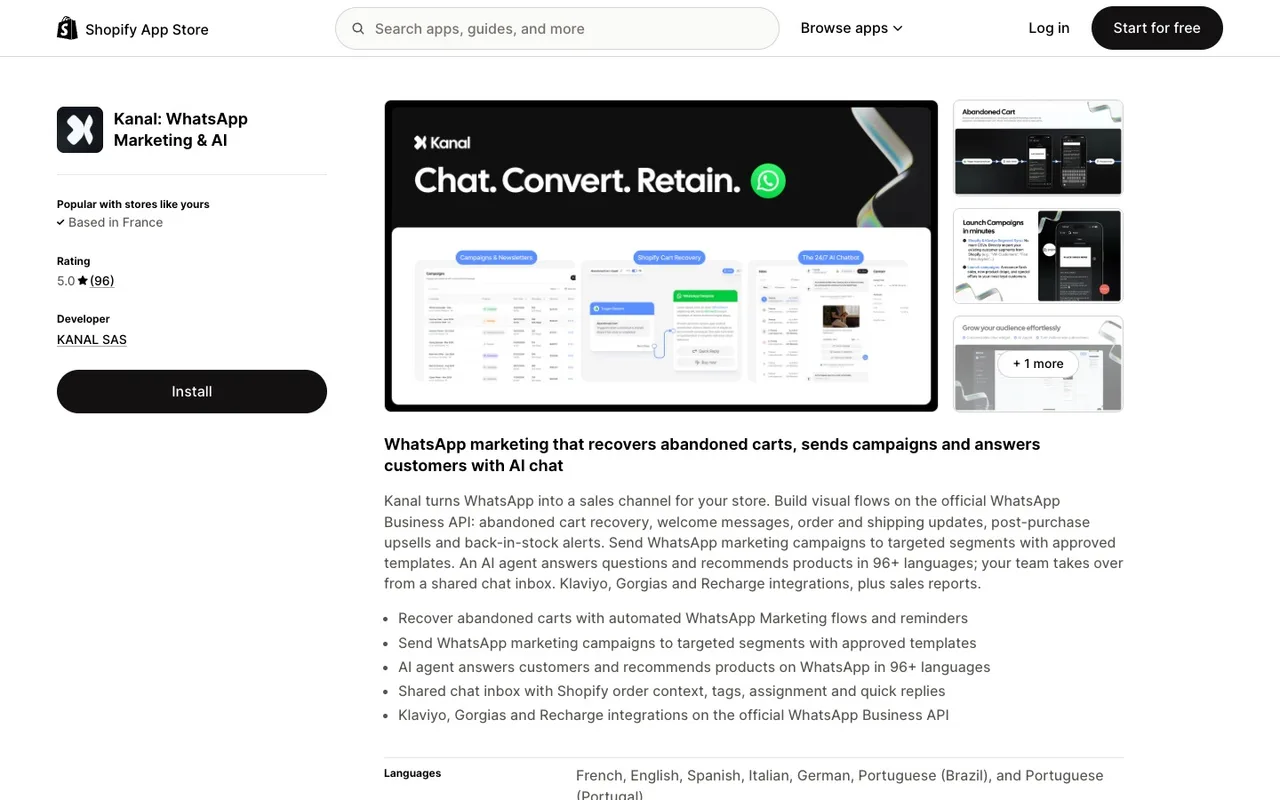
Kanal is a WhatsApp marketing and sales app for Shopify stores, installed from the Shopify App Store and running on the official WhatsApp Business Platform. Once connected, Kanal syncs the store's products, customers, checkouts and orders, so WhatsApp flows such as abandoned cart reminders and order notifications are triggered by Shopify events. Kanal is relevant for Shopify stores that want WhatsApp as a marketing and support channel. It sends WhatsApp and SMS messages: email stays in the merchant's other tools.
Why connect WhatsApp to Shopify
WhatsApp has more than 2 billion daily active users according to Meta, and your messages land in the app your customers already use to talk to friends and family. For a Shopify store, that shows up in three places:
- Abandoned cart recovery. A cart reminder only works while the purchase intent is fresh, and a WhatsApp message arrives in the app customers open to chat, not in a crowded inbox. Measure recovered carts against your email-only baseline.
- Order notifications. Shipping and delivery updates on WhatsApp answer "where is my order" before the customer asks. Customers see the tracking link in the same thread as their next reply, so compare your "where is my order" tickets before and after launch.
- Post-purchase revenue. Repeat-purchase flows run in a thread that is already warm, so you do not pay a new acquisition cost. Compare repeat purchases with and without the flow.
For the platform figures we could source, see our WhatsApp marketing statistics 2026 page and the WhatsApp marketing ecommerce guide. For what the connector covers once it is live, see Kanal's Shopify WhatsApp integration page.
Prerequisites: what to have ready
Before you start the install, get these four items lined up. Missing any one of them will block you at the Meta verification step.
- A dedicated phone number. Do not reuse a number that is already on a personal WhatsApp account, the Business app, or another Business Solution Provider. The number gets locked to the WhatsApp Business Platform once registered. A virtual number from Twilio or Vonage works, as long as it can receive an SMS or voice OTP from Meta.
- A Meta Business Manager account. Created at business.facebook.com. The Business needs a verified legal name and a domain that matches your Shopify storefront. Verification takes 1 to 3 business days, so start this first if you have not.
- Shopify admin access. You need full admin rights, not staff. The Kanal install requests scopes that staff accounts cannot approve.
- A WhatsApp Business profile. Logo (640x640px), business description (under 139 characters), category, and address. You can edit these later, but having them ready avoids back-and-forth during template review.
If you are still deciding between the consumer Business app and the Cloud API, the short version is: the app caps you at 256 broadcast recipients and has no automation hooks. Anything beyond a hobby store needs the Cloud API. Full breakdown in how to start WhatsApp Business 2026.
Step 1 to 5: the actual install
The install path through Kanal is five steps. None of them require code or a developer.
Step 1: install the Kanal app from the Shopify App Store
Search "Kanal" in the Shopify App Store or open Kanal directly. Click Add app, approve the scopes (read_orders, read_customers, read_products, read_checkouts, plus webhook scopes), and you land on the Kanal onboarding wizard.
Step 2: connect WhatsApp via Embedded Signup
Click Connect WhatsApp. This opens Meta's Embedded Signup flow inside an iframe. You will:
- Sign into your Facebook account (the personal one tied to your Business Manager).
- Select your Business Manager and WhatsApp Business Account (or create one).
- Add your phone number and verify it via SMS or voice OTP.
- Approve the Kanal system user permissions.
The flow returns to Kanal automatically. If you get stuck at the phone verification step, the most common cause is a number already registered on another WhatsApp account. See Meta's phone number requirements for details.
Step 3: trigger Meta Business Verification
If your Business Manager is not already verified, you need to submit a verification request. From Business Manager, go to Security Center > Business Verification and upload one of:
- Certificate of incorporation
- Business license
- Tax registration document
Meta usually responds within 1 to 3 business days. You can use the Cloud API in a sandbox mode before verification, but you cannot send marketing templates to real customers until it clears.
Step 4: register your message templates
Marketing and utility messages on WhatsApp require pre-approved templates. Kanal ships with 12 ready-to-submit templates for Shopify: order confirmation, shipping update, delivery confirmation, abandoned cart (3 variants), post-purchase review, back-in-stock, welcome, win-back, birthday, and promotional broadcast.
Open Kanal > Templates, pick the ones you want, edit the copy, and click Submit for review. Meta's review can take up to 24 hours.
For template best practices, see our WhatsApp Business templates guide.
Step 5: enable Shopify sync
In Kanal > Integrations > Shopify, toggle on:
- Order webhooks
- Abandoned checkout webhooks
- Customer sync
- Product catalog sync
This activates the realtime stream. From this point any new order, abandoned checkout, or customer update on Shopify is pushed to Kanal within seconds.
Cart abandonment sync: how it actually works
Shopify fires a checkouts/update webhook every time a customer enters or modifies a checkout without completing it. Kanal listens to this webhook, waits for the configured delay (default: 1 hour), then triggers the abandoned cart flow if the order is still not paid.
The flow sends a personalized template with:
- Customer first name
- Product image (pulled from the Shopify product, no manual upload)
- Cart total in the store's currency
- A button linking back to the abandoned checkout URL (Shopify's native recovery link, with the cart token intact)
A typical sequence runs 3 messages: 1 hour, 24 hours, 48 hours. After 72 hours the cart is too cold and you are better off rotating the lead into your normal broadcast list.
For copy templates and send timing, see WhatsApp abandoned cart recovery templates.
Order webhooks: what to wire up
Beyond abandoned cart, four Shopify webhooks drive the rest of the experience:
| Webhook | Trigger | Default Kanal flow |
|---|---|---|
orders/create | Order is paid | Order confirmation template |
fulfillments/create | Shipping label generated | Shipping update with tracking link |
fulfillments/update | Carrier marks as delivered | Delivery confirmation + review prompt |
refunds/create | Refund issued | Optional refund acknowledgement |
Each flow is on by default after the install, but you can disable any of them in Kanal > Flows. The order confirmation flow uses a utility template (cheaper than marketing; the customer's WhatsApp opt-in is still required, as for any message a business initiates). The review prompt that fires 7 days post-delivery uses a marketing template and requires the customer to have opted in.
The WhatsApp post-purchase playbook covers what to put in those flows beyond defaults.
Opt-in collection on Shopify: 4 places to capture
Marketing on WhatsApp requires explicit opt-in (Meta policy, plus GDPR if you have EU traffic). Four collection points work well on Shopify:
- Checkout opt-in. Add a checkbox to the Shopify checkout: "Receive order updates and exclusive offers on WhatsApp." Kanal sets this up via the Shopify checkout extension. Track the share of buyers who tick it.
- Post-purchase thank-you page. Place a "Get order updates on WhatsApp" CTA on the order status page. Higher intent, lower volume.
- Product page widget. A "Notify me when back in stock" or "Get product updates" widget on out-of-stock products. Doubles as inventory recovery. Details in WhatsApp Business catalog Shopify.
- Click-to-chat link in support areas. A button on the contact page, FAQ, and shipping policy that opens WhatsApp. Lower volume but high quality (these leads usually buy). See WhatsApp click-to-chat link.
Pop-ups also work, but only if you offer something concrete (a discount code, a guide). A generic "subscribe" pop-up gives visitors no reason to share their number. Our comparison of Shopify popup apps covers the tools to build one.
Test before launch: 5 checks
Before you send a single broadcast to your real list, run these five tests on yourself or a test customer.
- Place a test order. Confirm the order confirmation lands within 60 seconds. Check the order number, total, and tracking placeholder render correctly.
- Abandon a checkout. Add to cart, enter your email, leave the page. Wait the configured delay (set it to 5 minutes for testing). Confirm the abandoned cart message arrives with the right product image and a working checkout URL.
- Send yourself a marketing template. From Kanal, send the welcome or promo template to your own number. Check rendering on iOS and Android (button alignment differs).
- Trigger a delivery webhook. Mark a test order as fulfilled, then update the fulfillment to delivered. Confirm both the shipping and delivery messages fire.
- Test opt-out. Reply STOP or click the unsubscribe link in a marketing template. Confirm the contact moves to an unsubscribed state and stops receiving further marketing.
If any of these fail, the issue is almost always template approval status or webhook scopes. Re-check both before debugging deeper.
Common pitfalls
Three issues come up repeatedly in setups I have seen:
- Reusing a number from the consumer app. If the phone number was ever on a regular WhatsApp account, you need to delete that account fully before registering on Cloud API. Reset with the app's "Delete my account" flow, not just logging out.
- Marketing template rejected. Meta rejects templates that look like cold outbound. Avoid generic salutations ("Hi friend"), missing personalization, or sales-only copy. Lead with the customer's order, name, or recent action.
- Sending before Business Verification clears. You can technically send up to 50 unique numbers per day in unverified mode, but marketing templates are blocked. Wait for the green check before going live.
For a deeper look at the verification step, see WhatsApp Business verification and green tick and WhatsApp Business profile optimization.
Beyond setup: 7 flows to launch in week one
Once the install is done and tests pass, here is the order I recommend turning on flows:
- Order confirmation. Utility template, sent to customers who opted in to WhatsApp. Wins back support tickets immediately.
- Shipping update. Same.
- Delivery confirmation + review request. Marketing template (requires opt-in). Pairs naturally with order tracking.
- Abandoned cart, 1 hour. Single message, soft tone. Measure what it recovers on its own before you add the second reminder.
- Abandoned cart, 24 hours. Add a discount code if margin allows.
- Post-purchase upsell, day 7. Recommend a complement to the purchased product.
- Welcome series, day 0 and day 3. For new opt-ins from your homepage or pop-up.
After week one, consider a broadcast guide review and start segmenting your list. The Klaviyo WhatsApp integration guide covers how to orchestrate email plus WhatsApp from a single tool if you are already on Klaviyo.
For pricing context as you scale flows, see WhatsApp Business pricing guide and our best WhatsApp apps Shopify comparison.
Conclusion
The 5-minute install gets you connected. The real work is what you wire in afterwards: which opt-in surfaces collect, which flows fire when, and which templates Meta approves on the first pass. Stick to the order in this guide, run the five pre-launch checks, and you will be sending revenue-generating WhatsApp messages by the end of the day.
If you want to see this live on your own store, book a 15-minute demo with Kanal. We will walk through your Shopify setup and turn on the first three flows together.
Resources
Frequently asked questions
Does Kanal sync with Shopify natively?
Yes. Kanal installs as an official Shopify app and uses native Admin API scopes plus webhooks. Orders, customers, products, and abandoned checkouts sync automatically in real time, with no Zapier or middleware required.
What permissions does Kanal need on Shopify?
Kanal requests read access to orders, customers, products, and checkouts, plus webhook subscriptions for order create, fulfilment, and checkout abandonment events. It does not request write access to your storefront theme or payment data.
Can I integrate with the WhatsApp Business app or only the API?
Kanal requires the WhatsApp Business Platform (Cloud API), not the consumer Business app. The Cloud API is what enables automation, broadcasts, and multi-agent inbox. The Business app is limited to 256 broadcast recipients and cannot run flows.
How fast can I send the first WhatsApp from Shopify?
The Kanal install plus Embedded Signup with Meta takes 5 minutes. Business verification with Meta usually takes 1 to 3 business days, and Meta's template review can take up to 24 hours, so start both early.
What flows are pre-built in Kanal for Shopify?
Out of the box you get abandoned cart, order confirmation, shipping update, delivery notification, post-purchase review request, back-in-stock alert, and welcome message flows. Each one uses Shopify variables (order number, tracking link, product photo) without any setup.
See Kanal on your own store
- Your campaigns and cart reminders on WhatsApp, starting from your own store
- Post-purchase offers, back-in-stock alerts, then the AI agent that advises your customers
- You leave with the plan that fits and its price

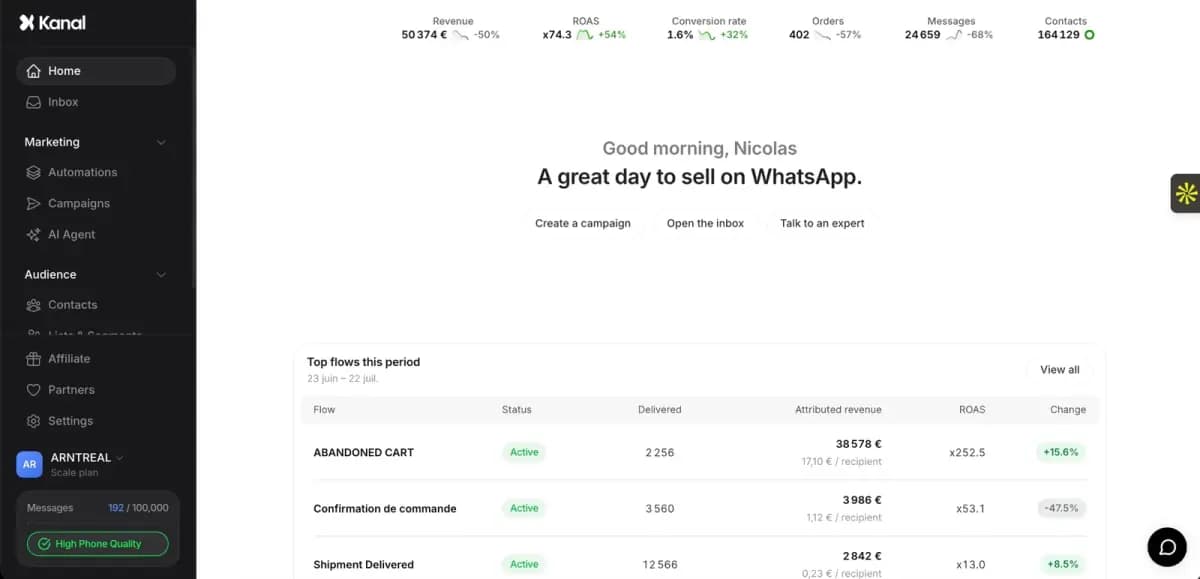
- brands
- 500+
- to set up
- 5 min
- open rate on WhatsApp
- +90%
5/5 on the Shopify App Store (125 reviews)

Nicolas helps e-commerce brands grow revenue with WhatsApp marketing. With deep expertise in Shopify ecosystems and conversational commerce, he shares proven strategies for abandoned cart recovery, broadcast campaigns, and AI-powered customer engagement.
Glossary terms in this article
Quick definitions for the WhatsApp Business terms used above.
Opt-in
A WhatsApp opt-in is the permission a person gives a business to send them messages on WhatsApp. WhatsApp's Business Messaging Policy requires it before any message: the business must have the person's phone number and their agreement to hear from that business.
Read full definitionWebhook
A WhatsApp webhook is an HTTP request with a JSON payload that Meta's servers send to a business's server whenever something happens on its WhatsApp account, such as an incoming message or a delivery status change.
Read full definitionWhatsApp Business Platform
The WhatsApp Business Platform is the set of APIs Meta offers businesses to message customers on WhatsApp at scale: the Cloud API, the Business Management API and the Marketing Messages API. It is separate from the WhatsApp Business app, which runs on a phone.
Read full definitionWhatsApp Flows
WhatsApp Flows is a feature of the WhatsApp Business Platform for building structured, multi-screen interactions inside a chat, such as forms, sign-ups, bookings and guided product selection. The customer fills in screens instead of typing free text.
Read full definitionBusiness Solution Provider (BSP)
A Business Solution Provider (BSP) is a company authorized by Meta to give other businesses access to the WhatsApp Business Platform, usually through its own software. Meta now calls these companies partners and splits them into Solution Partners, Tech Providers and Tech Partners.
Read full definitionWhatsApp Cloud API
The WhatsApp Cloud API is the version of the WhatsApp Business API that Meta hosts on its own servers. It lets a business send and receive WhatsApp messages, calls and group conversations by code, and since October 23, 2025 it is the only way to use the API.
Read full definitionEmbedded Signup
Embedded Signup is Meta's onboarding flow that lets a business create or connect its WhatsApp Business account from inside a partner's product. In one window, the business logs in, registers a phone number and gives the partner's app access to its WhatsApp assets.
Read full definitionWABA (WhatsApp Business Account)
A WABA (WhatsApp Business Account) is the account that represents a business on the WhatsApp Business Platform. A business needs one to send and receive messages through the API and to create message templates; it holds the phone numbers, the templates and the billing setup.
Read full definitionMarketing Template
A marketing template is a WhatsApp message template used for promotion: offers, product launches, back-in-stock alerts or cart reminders. It can be sent at any time to customers who opted in, and Meta charges each delivered message at the marketing rate of the recipient's country.
Read full definitionwa.me Link (Click-to-Chat)
A wa.me link is WhatsApp's official click-to-chat URL. Opening it starts a conversation with a specific number, without the visitor saving the contact first.
Read full definitionOpt-out
A WhatsApp opt-out is a person's request to stop receiving messages from a business on WhatsApp. WhatsApp's Business Messaging Policy requires businesses to respect every such request, whether it is made on WhatsApp or elsewhere.
Read full definitionUtility Template
A utility template is a WhatsApp message template that follows up on something the customer did or asked for: an order confirmation, a shipping update, a payment receipt. It must not contain promotional content, otherwise Meta re-categorizes it as marketing.
Read full definitionSuggested articles
WhatsApp Opt-in Rules: GDPR Compliance for E-Commerce (2026)
Master WhatsApp opt-in for Shopify in 2026: Meta business policy, GDPR Article 6, double opt-in, STOP routing and 5 compliant copy examples to paste.
WhatsApp Customer Support for Shopify: 12 Essential Flows
Build WhatsApp customer support for your Shopify store: 12 essential flows, AI tier-1 automation, Gorgias and Zendesk integrations and the metrics to track.
WhatsApp Click-to-Chat Links: Generate, Track & Convert (2026)
Create WhatsApp click-to-chat links that turn Shopify visitors into customers: link generator, URL syntax, tracking and Click to WhatsApp Ads comparison.
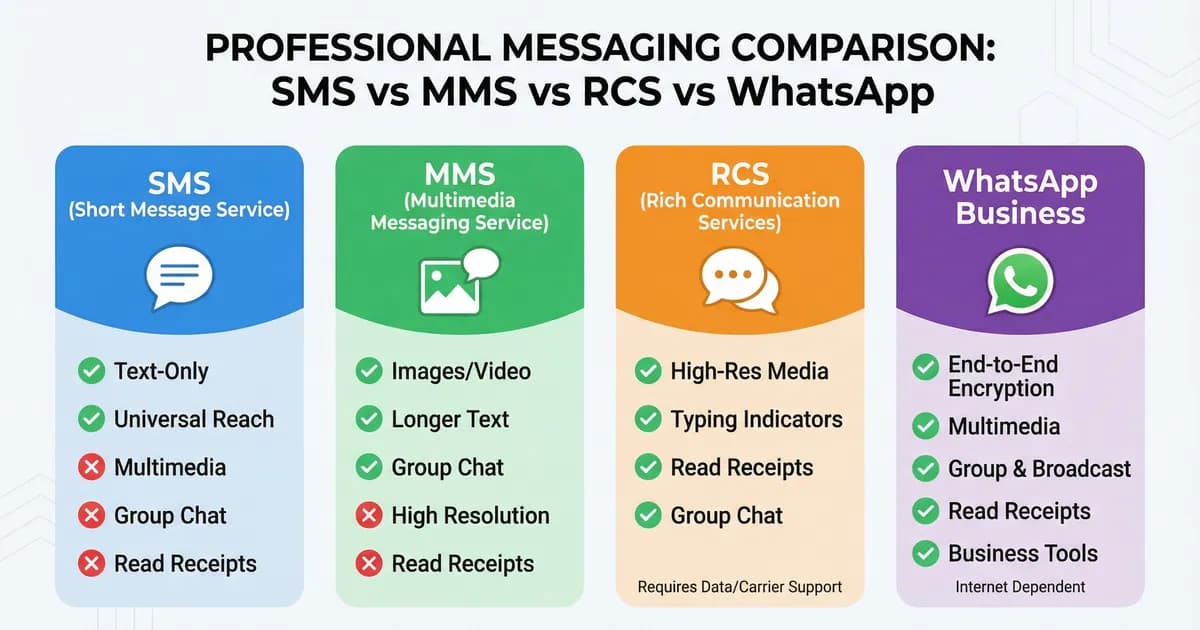
Is WhatsApp SMS or MMS? SMS vs MMS vs RCS vs WhatsApp
WhatsApp is neither SMS nor MMS: it is an app that sends messages over the internet. How SMS, MMS, RCS and WhatsApp differ, in one table, for 2026.